Good morning, everybody. I’m Eddie, and for the next six weeks we’re going to spend some time learning how to use these things everybody carries around and plays with all day long.
In this class we are going to study Android. If you have an iPhone there is a different class for that.
Now, some of you probably use your phone quite a bit already.
This class might be a bit simple for you because I want to make this class for someone that just switched from a flip phone or maybe no phone at all.
Some of you may only use it to make a phone call or answer a text.
You look at all those little pictures on the screen and wonder what in the world they do.
That’s okay.
This is a class for absolute beginners.
I’m not going to assume you already know how to do something.
If I use a word you don’t understand, stop me and ask what it means.
I learn new stuff about phones all the time, so don’t be afraid to ask.
One thing, your phone may not do exactly what my phone does.
I’ve looked at phones from $20 to almost $3,000 in the last month.
They are way different as to what and how well they do things, but at the base, they are all Android devices.
Android is the operating system.
It’s much like Windows or Mac OS is on a home computer.
Brands are like car manufacturers.
So think Samsung, Google, Motorola are brands like Ford, Chevy, Toyota are brands.
When it comes to using them, phones are a little bit like cars.
I may drive a Ford and you may drive a Toyota.
The radio may be different.
The buttons may be in different places, but they all have a gas pedal, brakes, and windshield wipers.
Once you know how to drive, you can usually get into either one and figure it out.
Android phones are the same way.
I’m not going to try to teach you every button on every phone.
I couldn’t do that if I wanted to.
There are just too many different phones.
What I want to teach you is how Android works.
Once you understand that, you can look at your phone—or even somebody else’s phone—and have a pretty good idea of what to do.
Now, if your phone doesn’t do what mine does, tell me.
If it’s something we can figure out quickly, we will.
If it’s going to take a little more time, we’ll work through it together during the lab.
I don’t want anybody getting lost just because their phone happens to be a little different.
And don’t worry about remembering everything I say this morning.
That’s why we’re going to practice.
Today we’re going to start with the very basics.
We’re going to look at the phone itself.
We’ll look at the buttons, the screen, the charging port and other things on the outside of your phone.
Then we’ll talk about how you move around on the phone and what happens when you touch different things on the screen.
Nothing fancy.
By the end of today, I just want you to feel a little more comfortable picking up your phone and using it.
So, let’s start with the phone itself.
Why Smartphones Matter
Before we start pushing buttons, I want to spend a couple of minutes talking about why I think Android phones are cool.
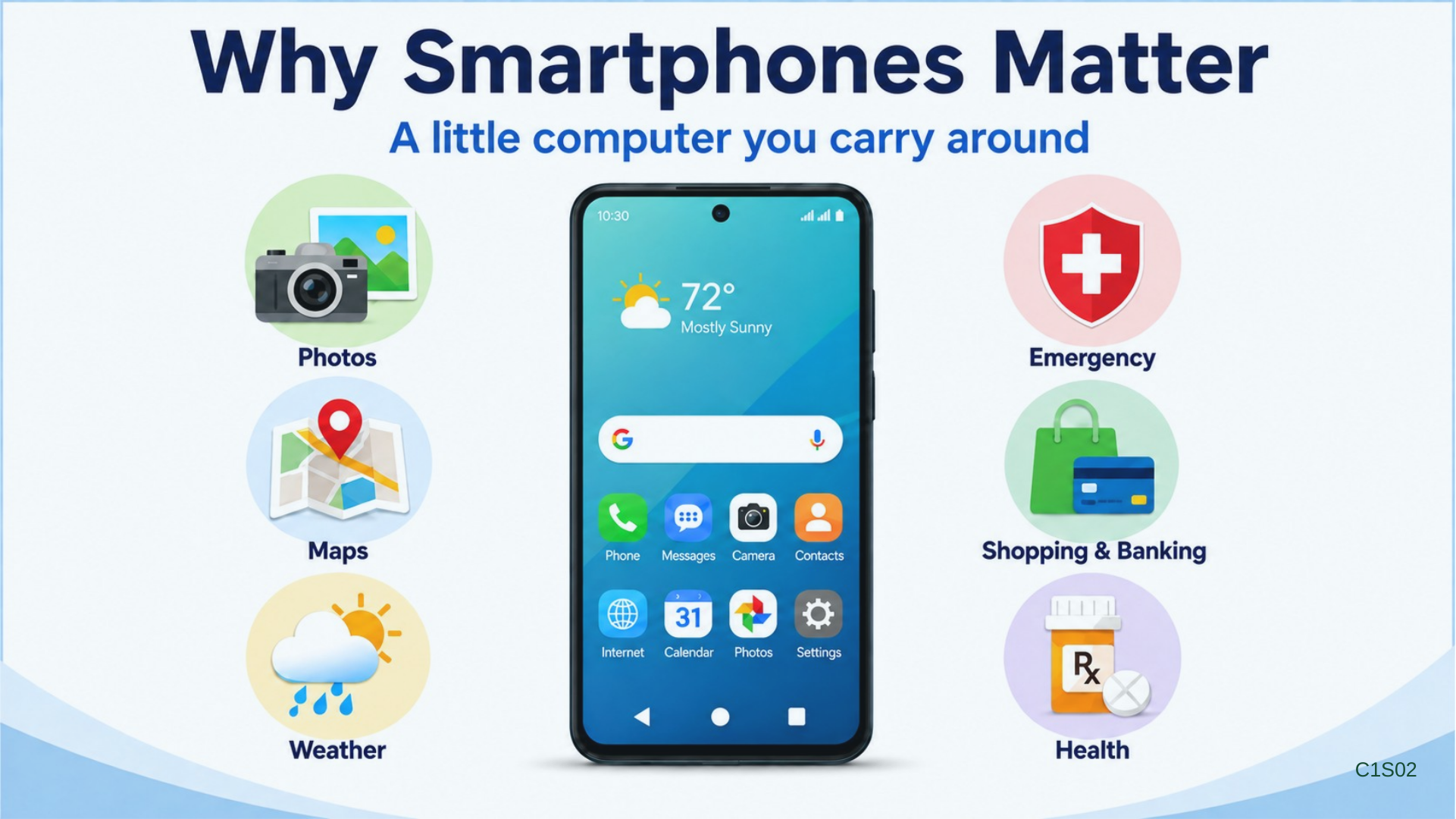
A smartphone is really just a little computer you carry around.
When we were younger, we had a bunch of different things and each thing did just one job.
We had a telephone.
We had a camera.
We had a calculator.
We had a calendar.
We had a road map.
We might even have had a little black book with everybody’s phone number in it.
Now, for better or worse, most of that stuff has ended up right here on our phone.
Sure, you can buy a smartphone just to make a phone call.
There is nothing wrong with that.
But it can do a whole lot more if you want it to.
You can take a picture right now, post it on Facebook and millions of people might see it before we leave class.
You can look at the radar and figure out the rain might stop in five minutes.
You can check on a prescription, look up a doctor’s phone number, or even find out if the COA is on an altered schedule.
And then there’s maps.
I remember when going somewhere new meant getting out a road map, writing directions down on a piece of paper, then taping that paper to the rear view mirror.
Maybe you had somebody riding with you, giving you directions.
Remember, they would wait until you were already past the road then say, “You were supposed to turn back there.”
A phone is a little better about that.
Usually.
Today your phone can show you where you are, tell you where to turn, and if you miss the turn, it will usually figure out another way to get there.
It may sound a little upset with you, but trust me, it will get over it.
Phones can also be useful in an emergency.
You can call 911, get emergency alerts, or share your location with somebody who needs to find you.
We’ll talk more about some of those things later in this course.
Personally, I shop, bank, watch TV, listen to music, and interact with my healthcare team.
Now, I’m not telling you that you need to do all of that.
You don’t.
That’s one thing I want you to remember through this whole class.
You do not have to use every feature on your phone.
I don’t use every feature on mine.
The point is to learn enough about the phone that you can decide what is useful to you.
And remember, if you touch the wrong thing, don’t panic.
Most of the time, nothing terrible happened.
You may have opened something you didn’t mean to open, or ended up on a screen you’ve never seen before.
We can usually get back.
That’s what I want you to start learning today.
Just how to find your way around and get back home when you end up somewhere you didn’t mean to be.
Once you can do that, the phone starts to feel a lot less scary.
So, with that in mind, let’s take a look at the phone itself.
A Quick Tour of the Phone
Okay. Let’s start with the phone itself.
I’m going to hold mine up.
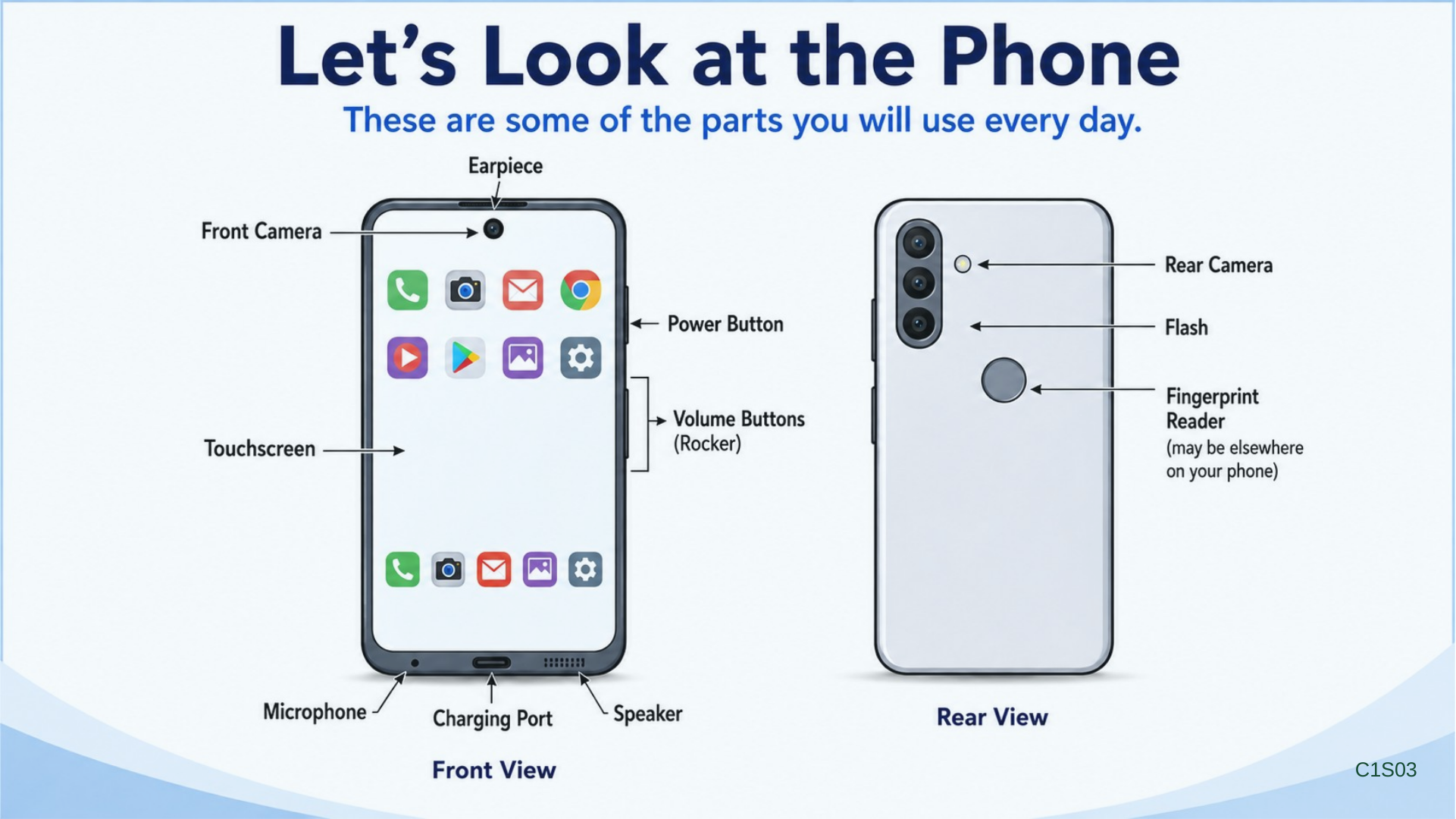
The one on the screen is just a generic cell phone.
The first thing you notice is the screen.
Now, the screen does two jobs.
It shows us information, but it’s also one of the main ways we control the phone.
If you’re used to a desktop computer, you probably use a mouse to point at things and click on them.
On a phone, we mostly use our fingers.
We touch the screen.
That’s why it’s called a touchscreen.
We’ll spend quite a bit of time today learning the different ways we can touch it.
But before we do that, let’s take a quick trip around the outside of the phone.
Look at the sides of yours.
Most Android phones have a power button and some kind of volume control.
Mine are right here.
Yours may be somewhere else.
Take a second and run your finger along the side of your phone.
See if you can feel where your buttons are.
You don’t need to press anything yet.
Just find them.
Remember what we talked about a few minutes ago.
These phones are all Android phones, but the manufacturers don’t always put things in the same place.
The power button is normally one button.
We’re going to use that in just a few minutes.
The volume control may be two separate buttons, or it may look like one long button that rocks back and forth.
One way makes things louder.
The other way makes things quieter.
Pretty straightforward.
Now, you may also have a place where you put your finger to unlock the phone.
That’s called a fingerprint sensor.
Mine happens to be on the back of my phone.
You may or may not have one.
We’re not going to set that up right now.
I just want you to know what it is and where yours might be.
Now look at the front of the phone.
Somewhere near the top you’ll probably find a little camera looking back at you.
That’s the front camera.
That’s the one you use when you take a picture of yourself or when you’re on a video call.
Turn the phone over and look at the back.
You’ll probably see one camera.
You may see two.
You may see three or four.
We’re not going to worry about what every one of those cameras does today.
For right now, just know where they are.
Your phone also has speakers and microphones.
A speaker opening is usually pretty easy to recognize.
The microphones can be harder to find.
A microphone may be nothing more than one tiny little hole.
And that brings us to a good rule.
Don’t go poking things into little holes in your phone just to see what happens.
One hole may be a microphone.
Another may be there for something completely different.
If you don’t know what a hole is for, leave it alone until you do.
Now let’s look at the bottom.
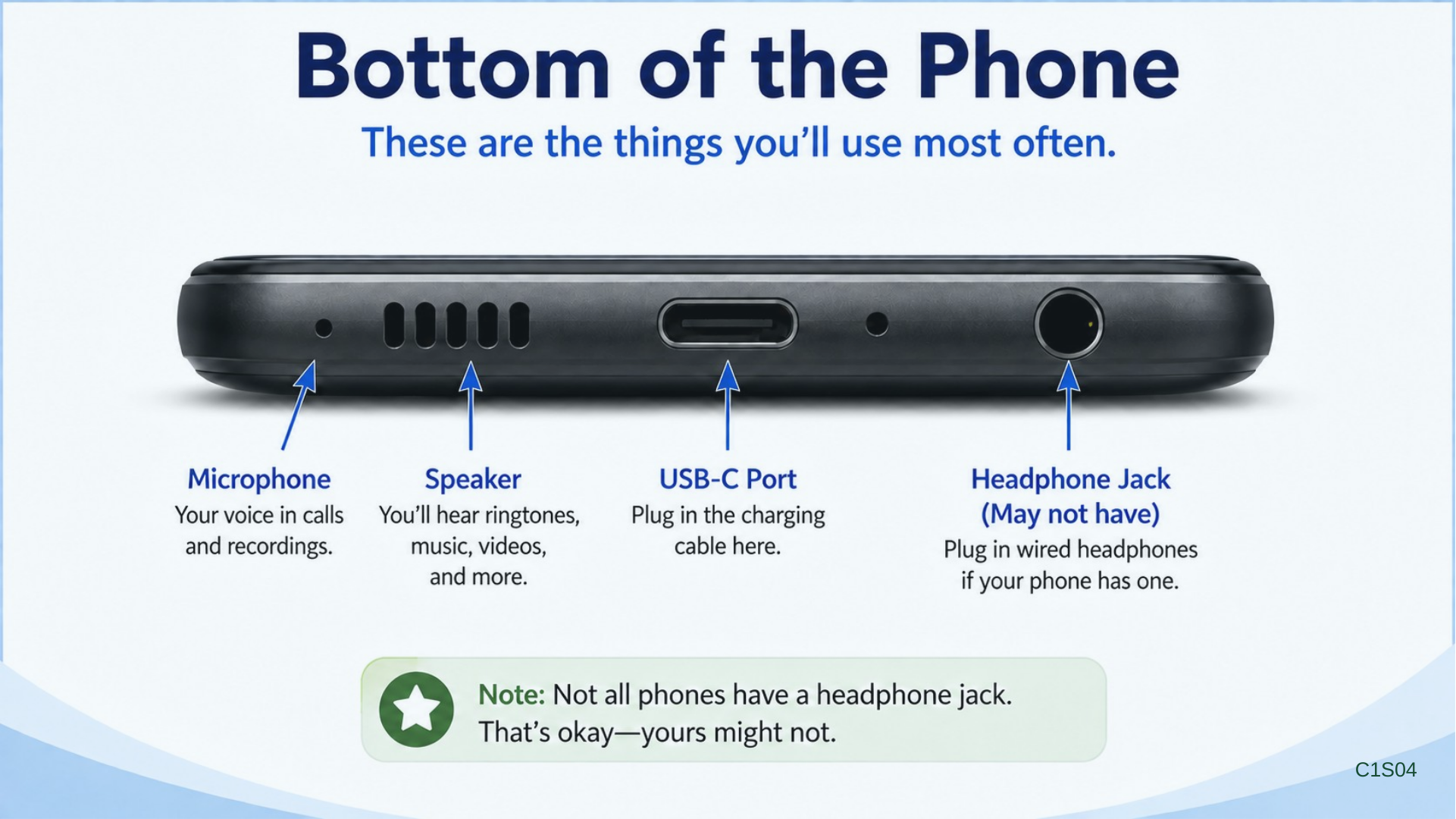
On most modern Android phones, this is where you’ll find the charging port.
On newer phones, it will usually be a USB-C port.
We’re going to come back to charging in a few minutes.
You may also see some little openings down here for the speaker and microphone.
If you have an older phone, you may also have a round hole for headphones.
That’s the headphone jack.
A lot of newer phones don’t have one anymore.
And somewhere around the edge of many phones you may see a little removable tray.
That holds something called a SIM card.
I’m only pointing it out because you may look at your phone and wonder what that little tray is.
The SIM card is involved in connecting your phone to your cellular company.
We could spend quite a while talking about SIM cards, but we’re not going to.
That gets technical pretty fast.
For today, I just want you to be able to look around the outside of your phone and recognize the basic parts.
The screen.
The buttons.
The cameras.
The speakers and microphones.
The charging port.
Maybe a fingerprint reader.
And maybe a SIM-card tray.
That’s enough for now.
But before we leave that power button, there is something important we need to talk about.
Locking your phone is not the same thing as turning it off.
Locking Is Not Turning Off
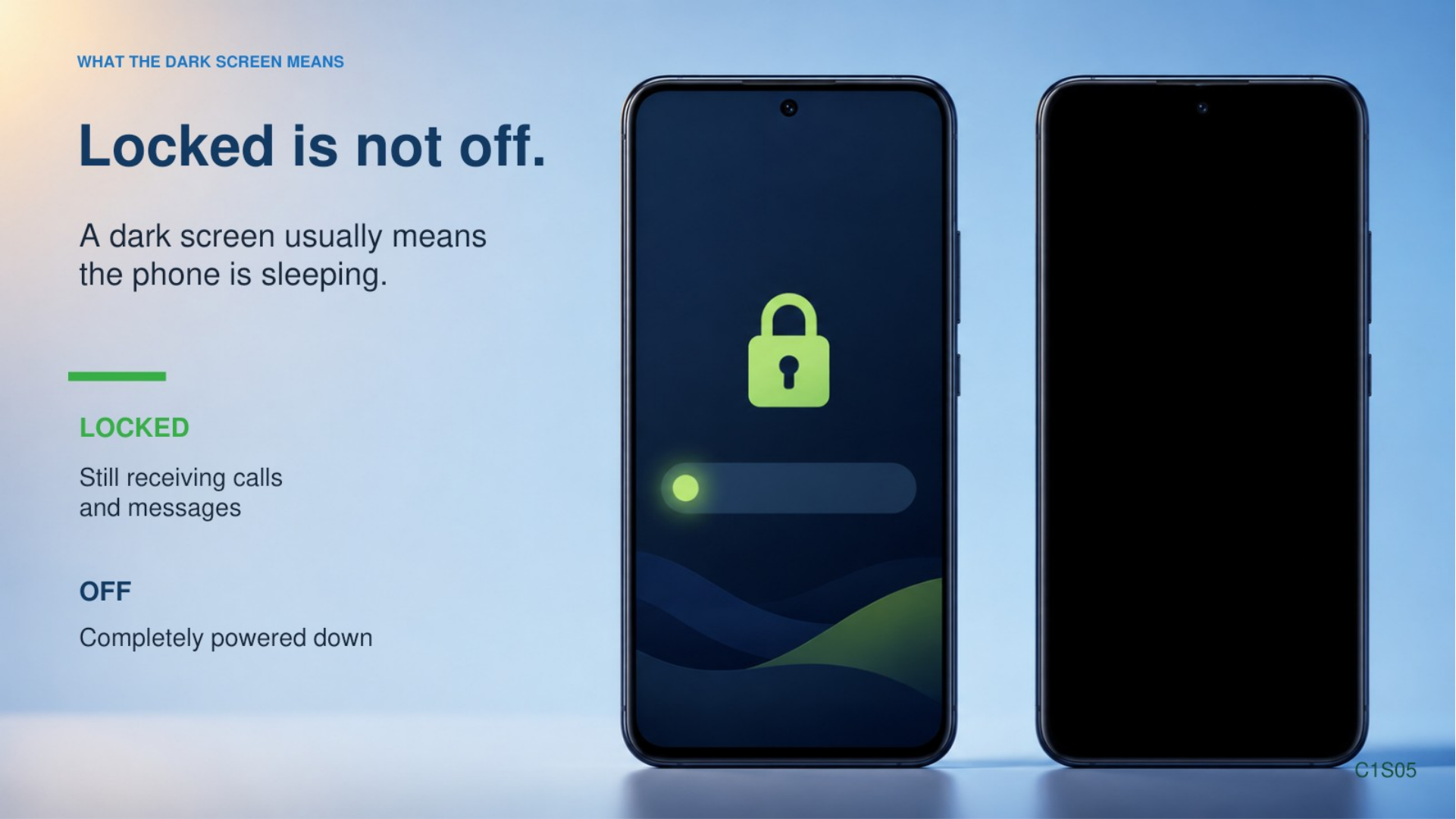
Most of the time when you press the power button once, you are not actually turning the phone off.
You are locking it.
See what happened?
The screen went dark.
But the phone is still running.
It can still receive calls.
It can still receive text messages.
Your alarms can still go off.
Apps can still do things in the background.
The phone is just locked.
Think of a television.
You can turn the television off with the remote, but it is still plugged in and waiting for you to turn it back on.
That’s a little like locking your phone.
Actually powering the phone completely off is different.
And how you completely power one off varies some from phone to phone.
We don’t need to get into all of that today.
What I want you to understand today is that a dark screen does not usually mean the phone is turned off.
There is something else you’re going to see happen.
If you leave the phone sitting for a while without touching it, the screen may turn dark all by itself.
That is normal.
The phone is trying to save battery.
It has not died.
You didn’t break anything.
It just went to sleep and locked itself.
Now let’s wake it back up.
I press the power button once.
The screen comes back on.
But I’m not all the way into the phone yet.
This is the lock screen.
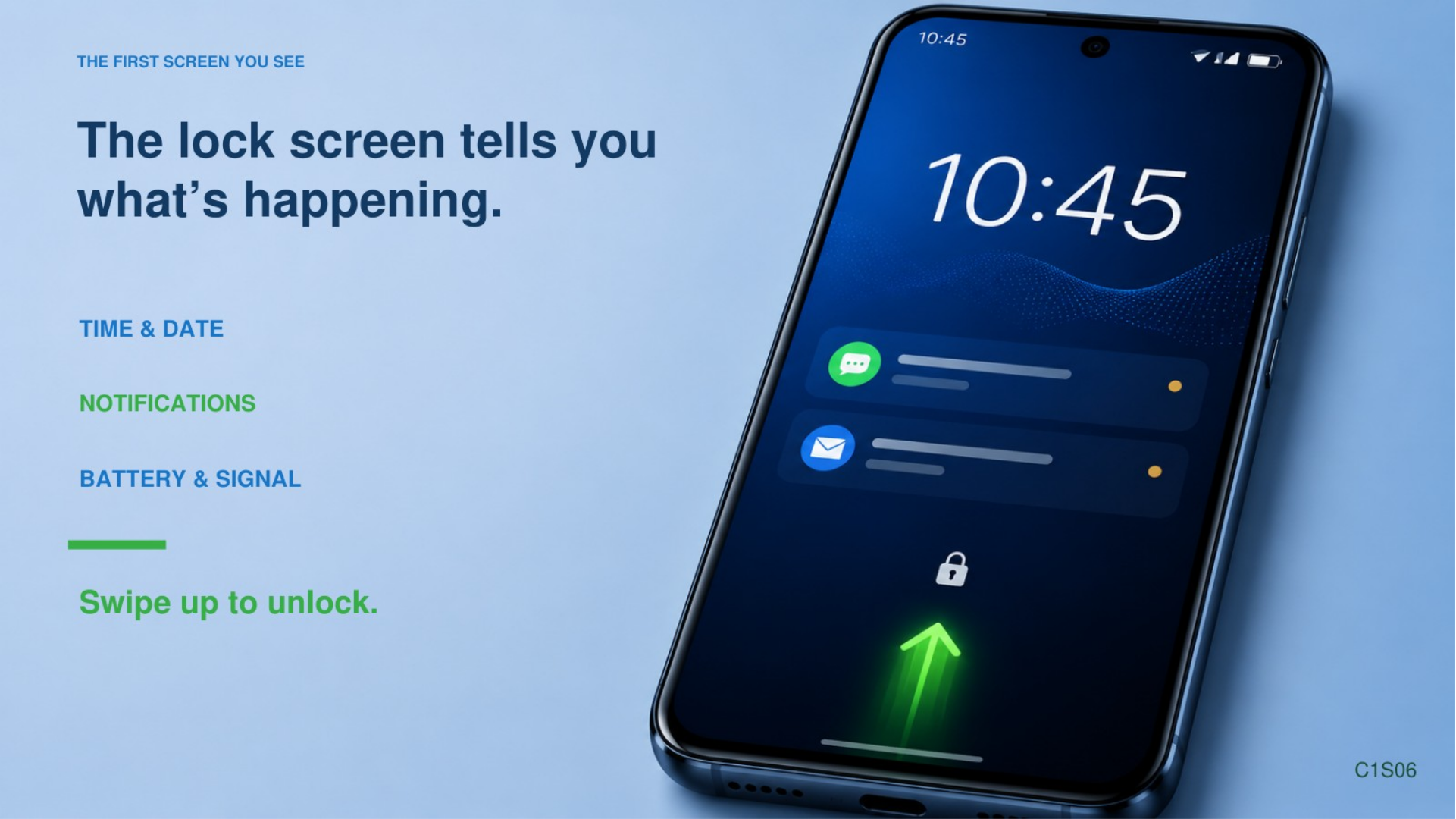
The lock screen protects your phone so somebody can’t just pick it up and start looking through everything on it.
Your lock screen may show the time.
It may show the date.
It may show some notifications.
Yours may look different from mine.
Now we have to unlock it.
And this is another place where everybody’s phone may be a little different.
There are five common ways you may unlock an Android phone.
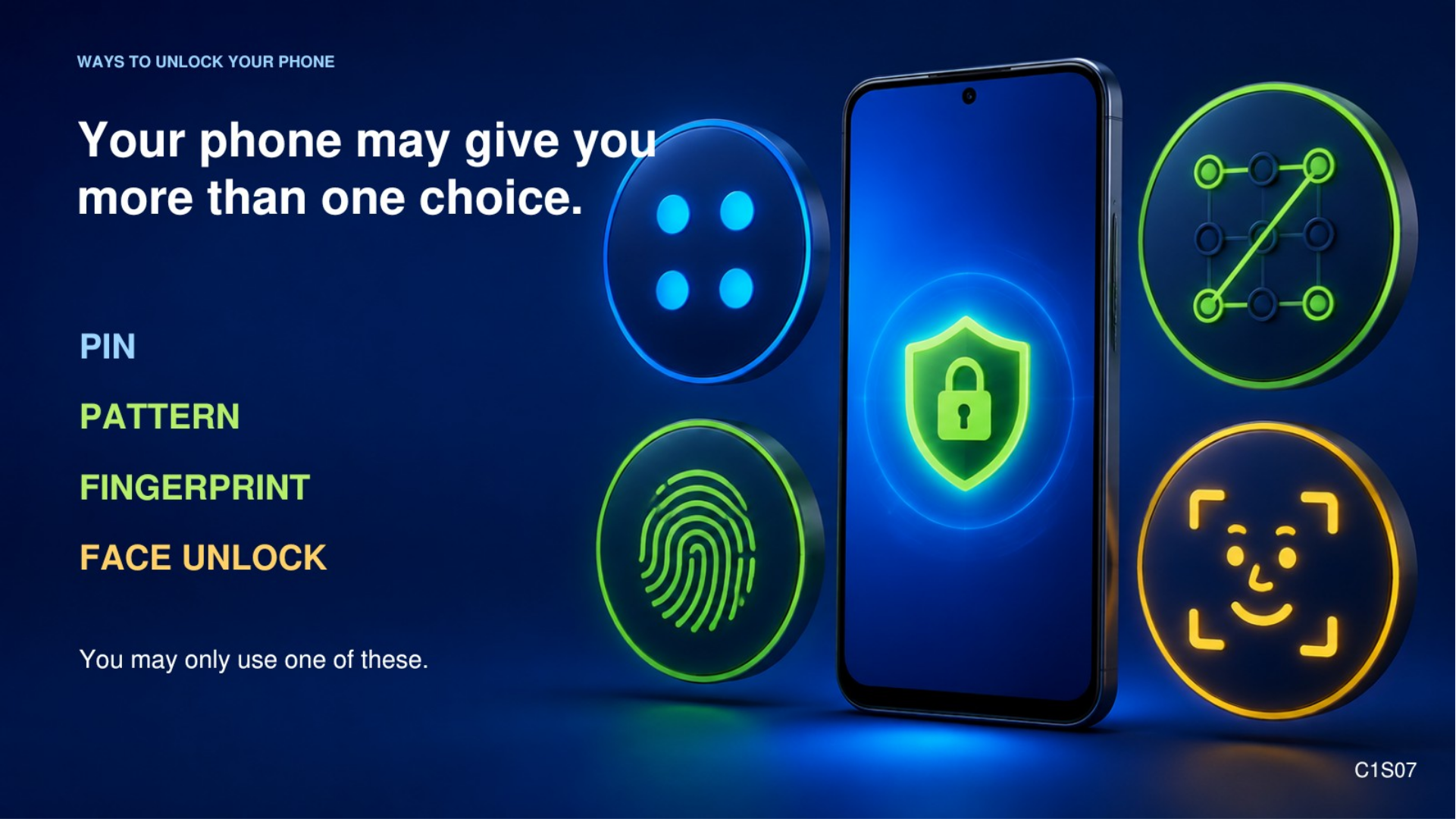
A PIN.
That’s a number you enter.
A pattern.
That’s where you put your finger on a group of dots and draw the pattern you chose.
A password.
That can use letters, numbers, or both.
A fingerprint.
You touch the fingerprint sensor with a finger you have already set up.
And face unlock.
You look at the phone and it recognizes your face.
Some of you may use one of those.
Some of you may use more than one.
For example, you might normally use your fingerprint, but your phone still has a PIN.
Every so often the phone is going to ask you for that PIN instead of accepting your fingerprint.
That is normal.
It often happens after the phone has been restarted.
So if you normally unlock with your face or your finger, you still need to know your PIN, pattern, or password.
Once we unlock it, now we are back into the phone.
We’re going to talk more about what you see here in a little while.
For now, I just want you to remember this.
Screen dark does not necessarily mean phone off.
Most of the time, it is just locked.
Charging the Phone
Now let’s go back to that charging port we found on the bottom.
Sooner or later every smartphone has the same problem.
The battery gets low.
And unlike some of us, it will actually tell you when it is running out of energy.
The battery is rechargeable.
You plug the phone into a charger and charge it back up.
Pretty simple.
The confusing part is that there are several different kinds of plugs out there.
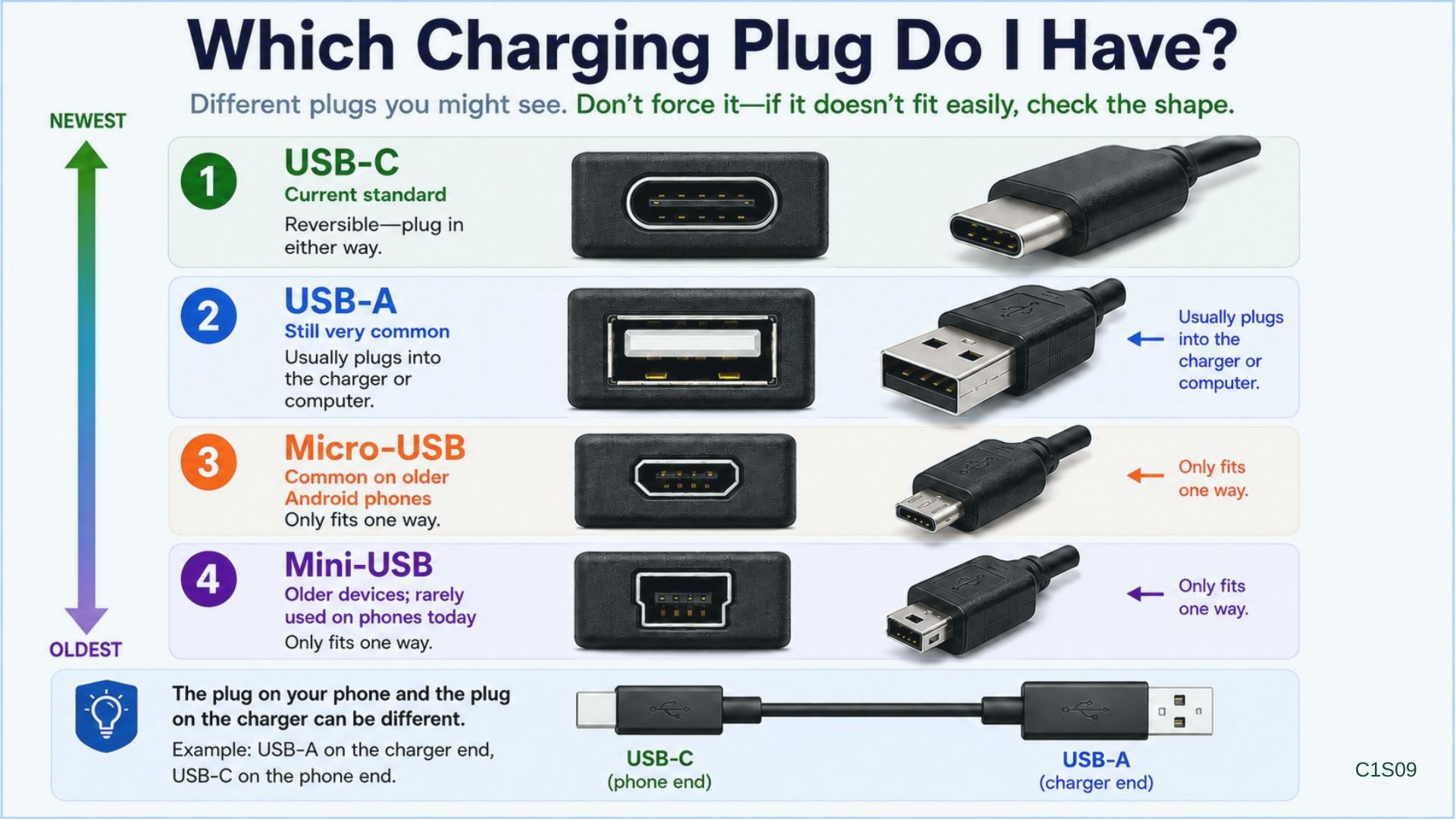
The one you are most likely to see on a newer Android phone is USB-C.
USB-C has a nice advantage.
It works either way up.
You don’t have to turn it over three times before it finally fits.
If you have an older Android phone, you may have something called Micro-USB.
That plug only fits one way.
And on much older devices you may occasionally run into Mini-USB.
You probably won’t see that on a newer phone, but I want you to recognize it if you do.
Now the other end of the cable may be different too.
A lot of older chargers use the larger rectangular USB plug.
That is USB-A.
Newer chargers may have USB-C on both ends.
So when you buy a cable, you need to pay attention to both ends.
What fits the phone?
And what fits the charger?
You don’t have to memorize all these names today.
If you remember what your own phone uses, that’s enough.
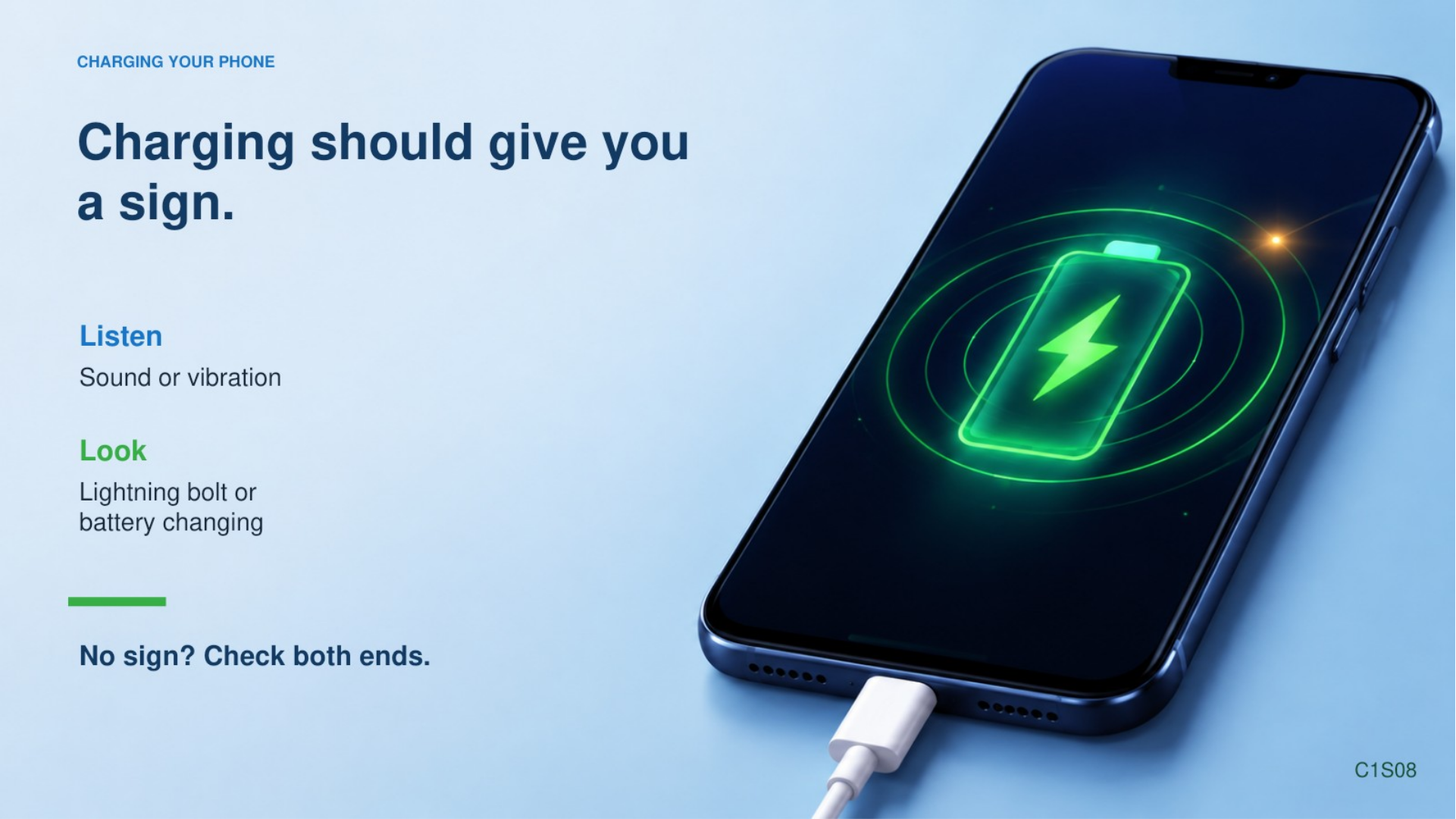
When I plug mine in, the phone gives me some kind of indication that it is charging.
Yours may make a sound.
It may vibrate.
You may see a little lightning bolt near the battery symbol.
Or the screen may briefly tell you it is charging.
The important thing is to check that the phone actually noticed the charger.
Just because the cable is plugged in does not always mean it is charging.
A cable can be loose.
A charger can be unplugged.
A cable can go bad.
So if you plug it in and nothing happens, check.
And one more thing.
You do not need to wait until the battery is completely dead before you charge your phone.
You can plug it in whenever it is convenient.
Now we know how to wake it up, unlock it, and keep it charged.
The next thing we need to learn is how to tell the phone what we want it to do.
Using the Touchscreen
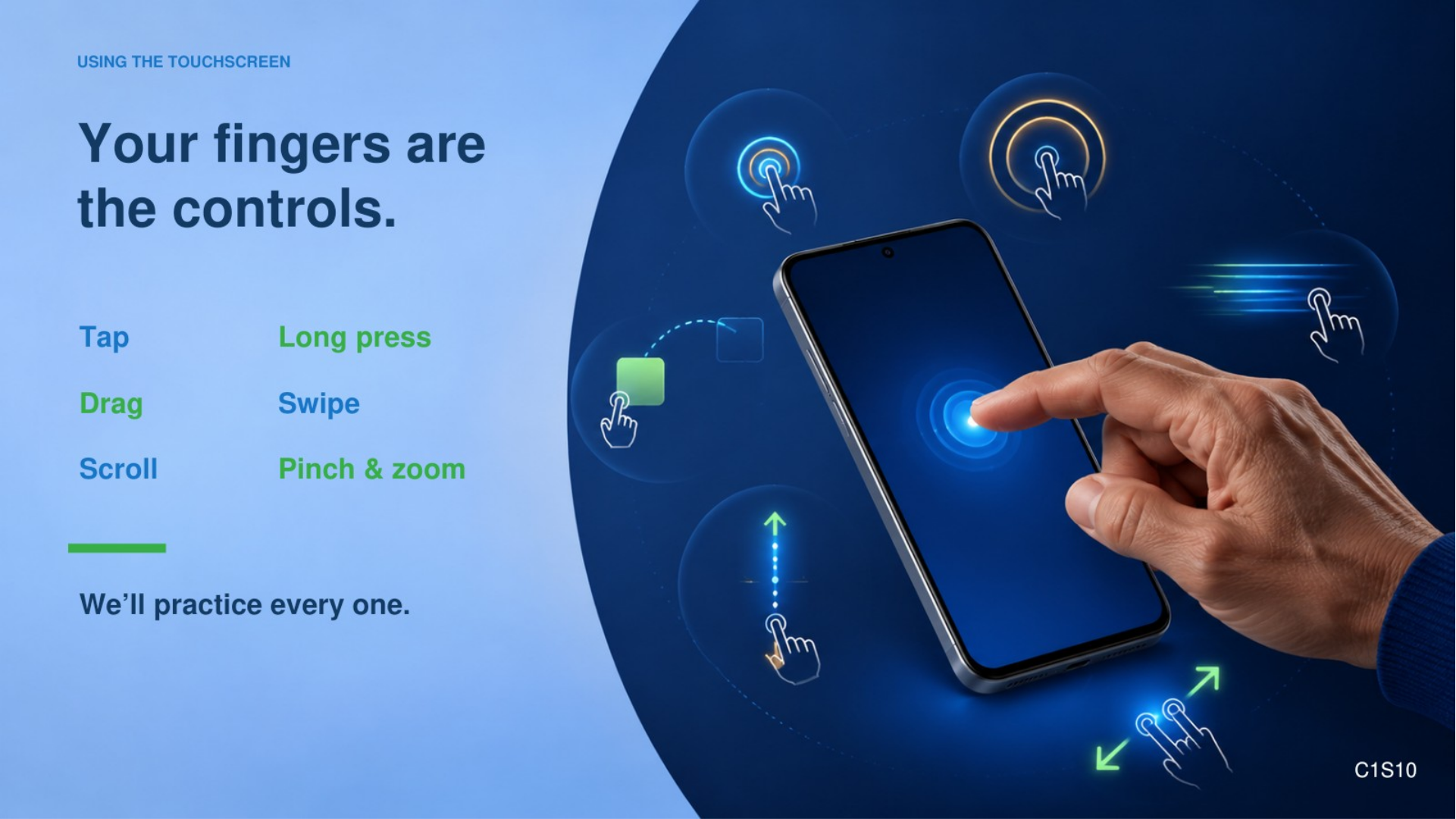
Most of the time, we control the phone by touching the screen.
But there is more than one way to touch it.
And the way you move your finger tells the phone what you want.
Today we’re going to learn six basic movements.
Tap.
Long press.
Drag.
Swipe.
Scroll.
And pinch and zoom.
These are going to show up over and over again as we use the phone.
Once these start feeling natural, everything else gets easier.
You also do not have to press hard on the screen.
A touchscreen is looking for your touch, not how strong you are.
A light touch is usually all it takes.
Tap
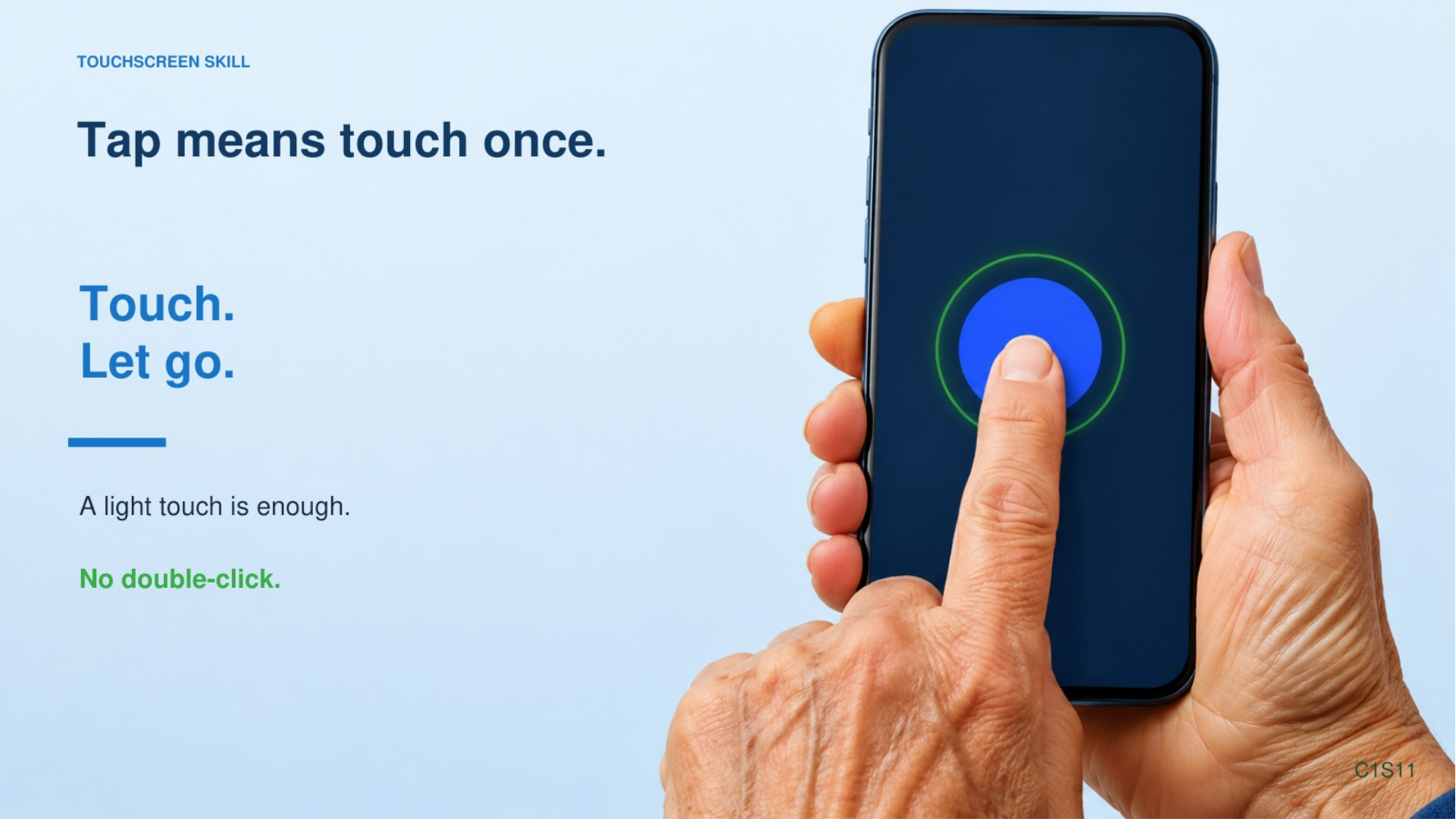
The first one is a tap.
A tap is just a quick touch and release.
If you’re used to using a computer mouse, there is one difference I want you to remember.
On a computer, you may be used to double-clicking things.
On your phone, most of the time you tap once.
Just once.
Touch and let go.
I tap this picture and the app opens.
Those little pictures on the screen are called icons.
An icon is just a little picture that represents an app or a feature.
So if I tell you to tap the Camera icon, I mean touch the little picture for the Camera once and let go.
One thing I see people do sometimes is press the screen really hard.
You don’t need to.
The phone does not care how strong you are.
A light touch is enough.
Tap and release.
Long Press
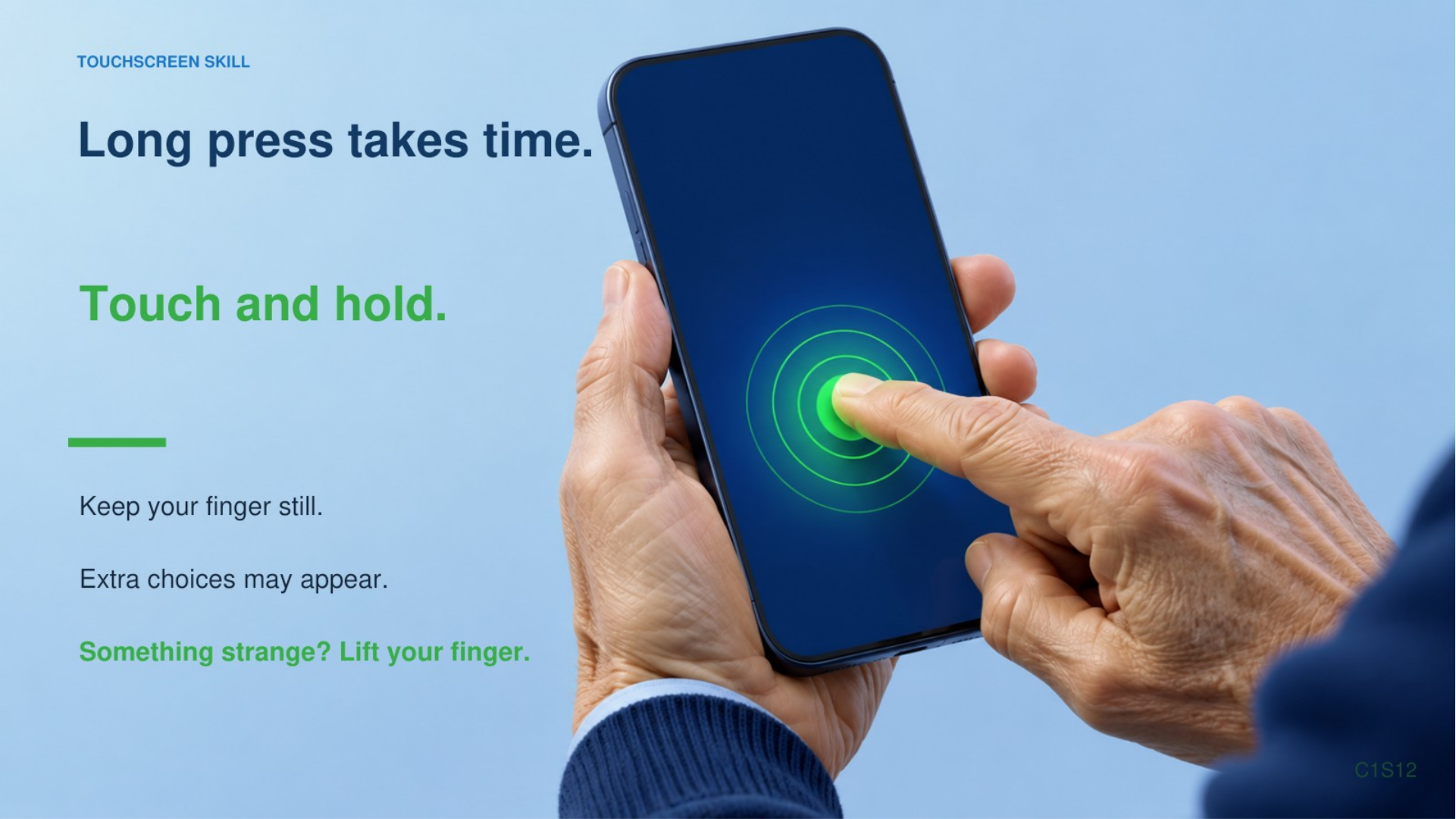
The next one is a long press.
Sometimes you will also hear somebody say touch and hold.
Same basic idea.
You put your finger on something and leave it there for a moment.
I touch this and hold my finger still.
Now something different happens.
A long press often brings up more choices.
Exactly what it does depends on what you are touching.
If you ever do this by accident and something strange appears, don’t panic.
Lift your finger.
You can usually tap somewhere else, use Back, or go Home and get out of it.
The important part today is just knowing the difference between a tap and a long press.
Tap is quick.
Long press means touch it and keep your finger there for a moment.
Drag
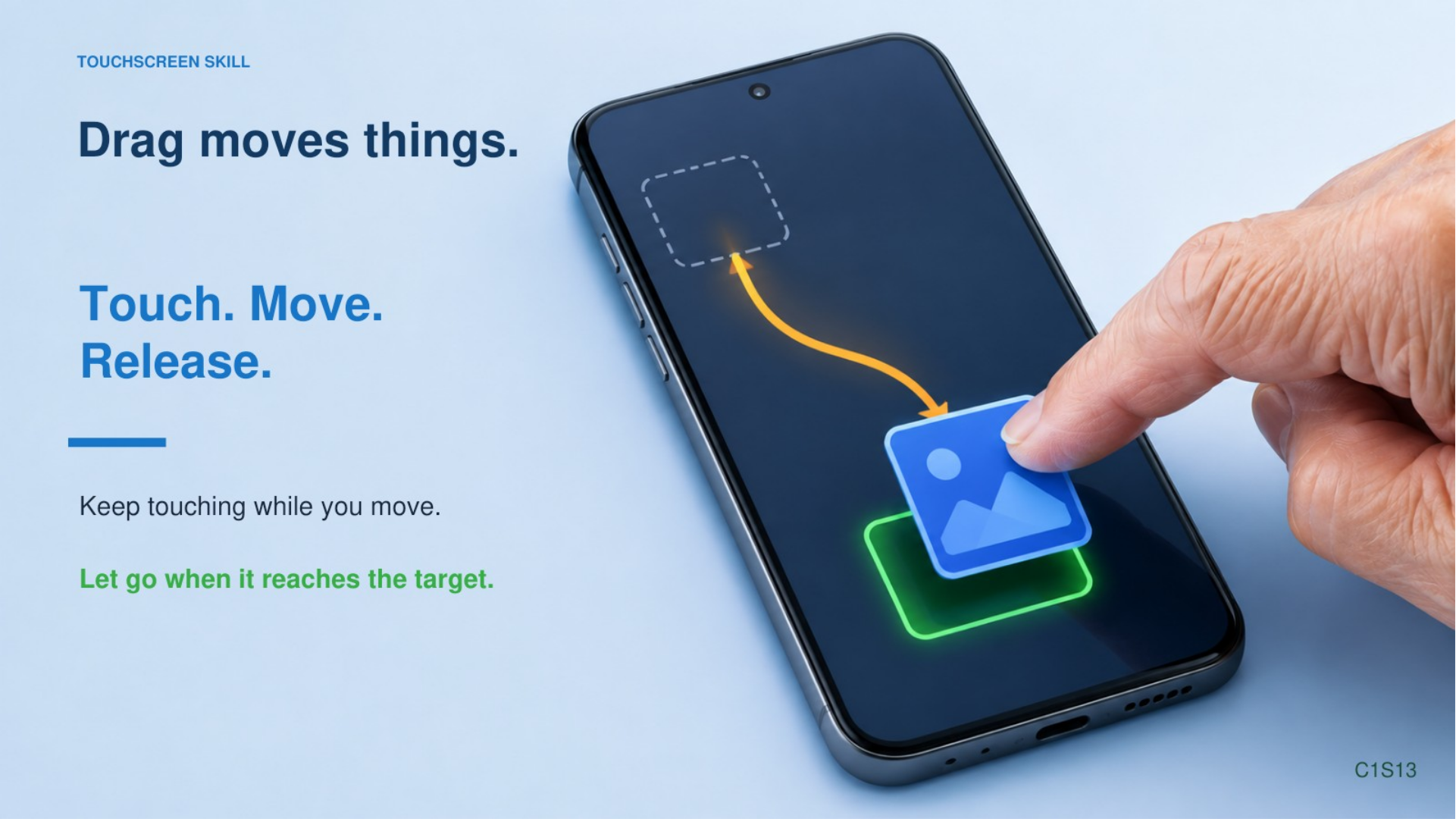
Now let’s talk about a drag.
With a drag, you touch something, keep your finger on the screen, move it somewhere else, and then let go.
The important part is that I do not lift my finger while I am moving it.
Touch.
Move.
Release.
That release at the end is important.
You might use a drag to move something from one place to another.
We will practice that during the lab.
Swipe
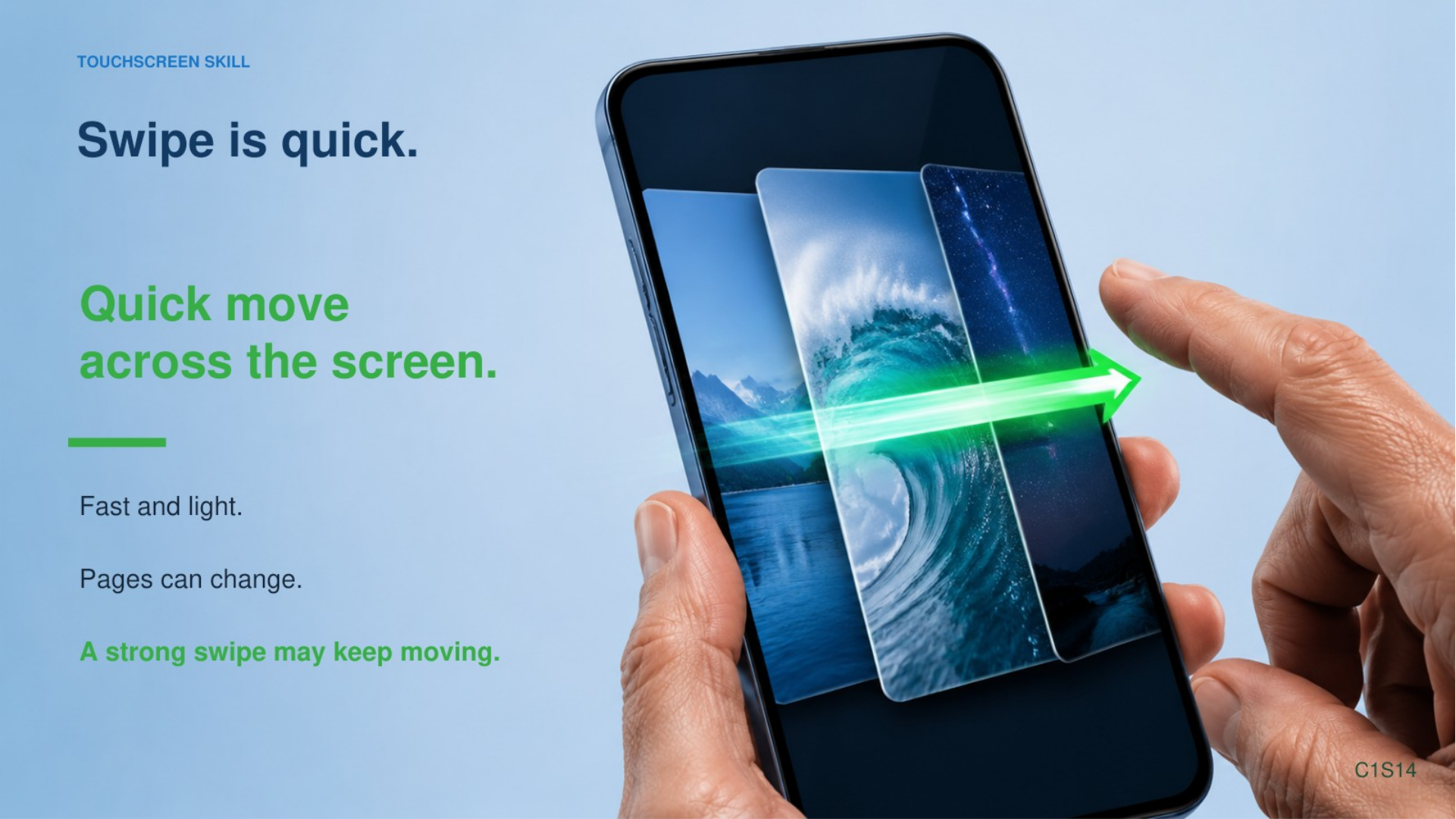
Now a swipe.
A swipe looks a little like a drag, but it is different.
With a swipe, you touch the screen and make a quicker movement across it.
Then you let go.
I can swipe left.
I can swipe right.
And depending on where I am, I may be able to swipe up or down.
A swipe is usually telling the phone, move me to another screen or show me something else.
It is more of a quick motion.
You may even hear somebody say they “flicked” the screen.
That usually means a faster swipe.
The faster you swipe something like a list, the farther it may keep moving after your finger leaves the screen.
You don’t need to worry about speed right now.
We’re just learning the movement.
Scroll
Now we come to scrolling.
You have probably done this without knowing what it was called.
A lot of things on the phone are too long to fit on one screen.
A webpage.
A list of contacts.
Your email.
Settings.
A news story.
There is more information above or below what you can currently see.
So we scroll.
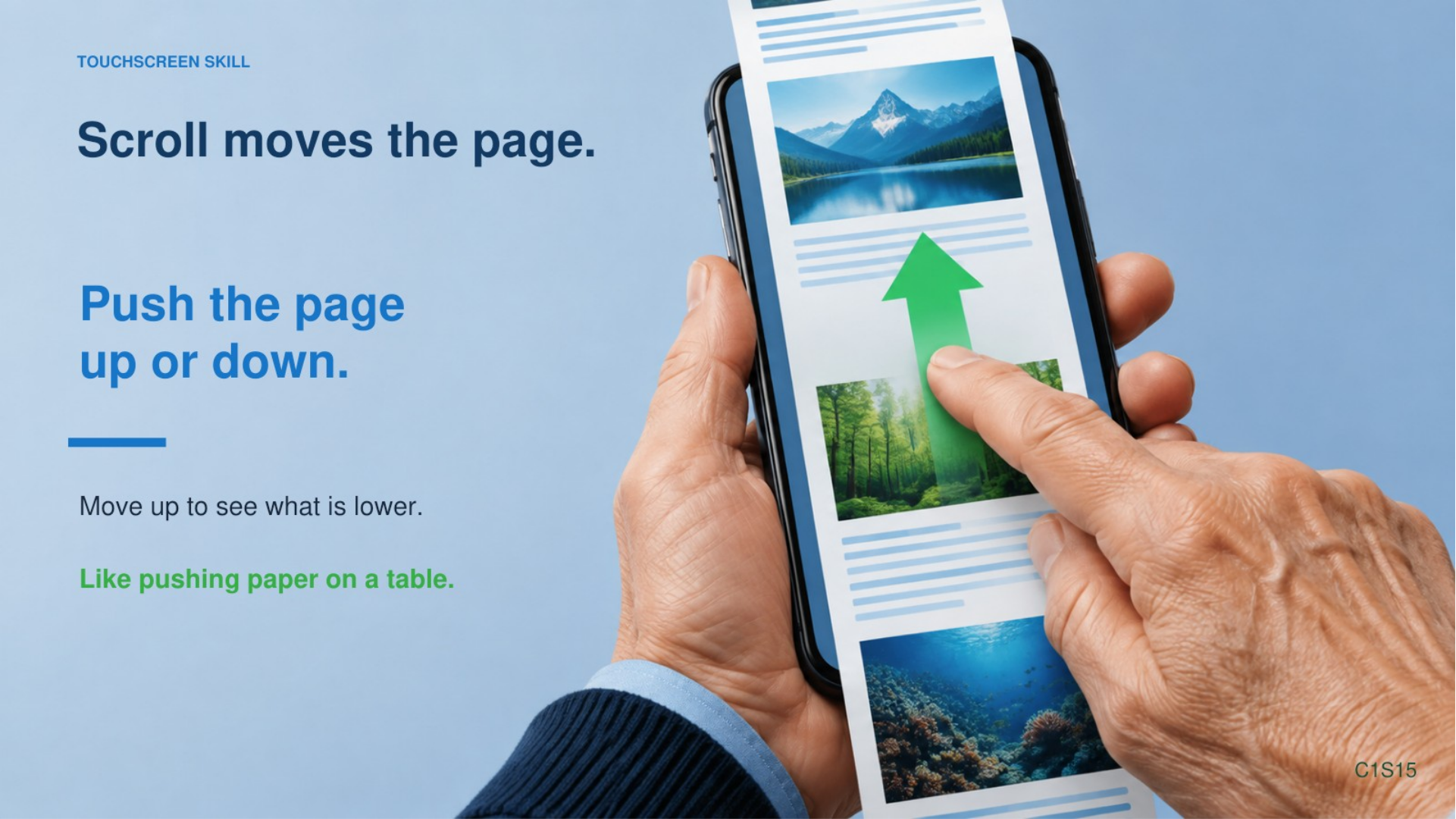
I put my finger on the screen and move it.
The page moves with me.
Now I can see something that was farther down the page.
And I can move back the other way to see what was above.
This one can be a little confusing at first because if I want to see something farther down the page, my finger usually moves up.
What you are really doing is pushing the page.
Think about a long piece of paper sitting on the table.
If I push the paper upward, I can see the part that had been below the table.
The phone works about the same way.
You don’t have to think about that every time you do it.
After a little practice your finger will just learn what to do.
Pinch and Zoom
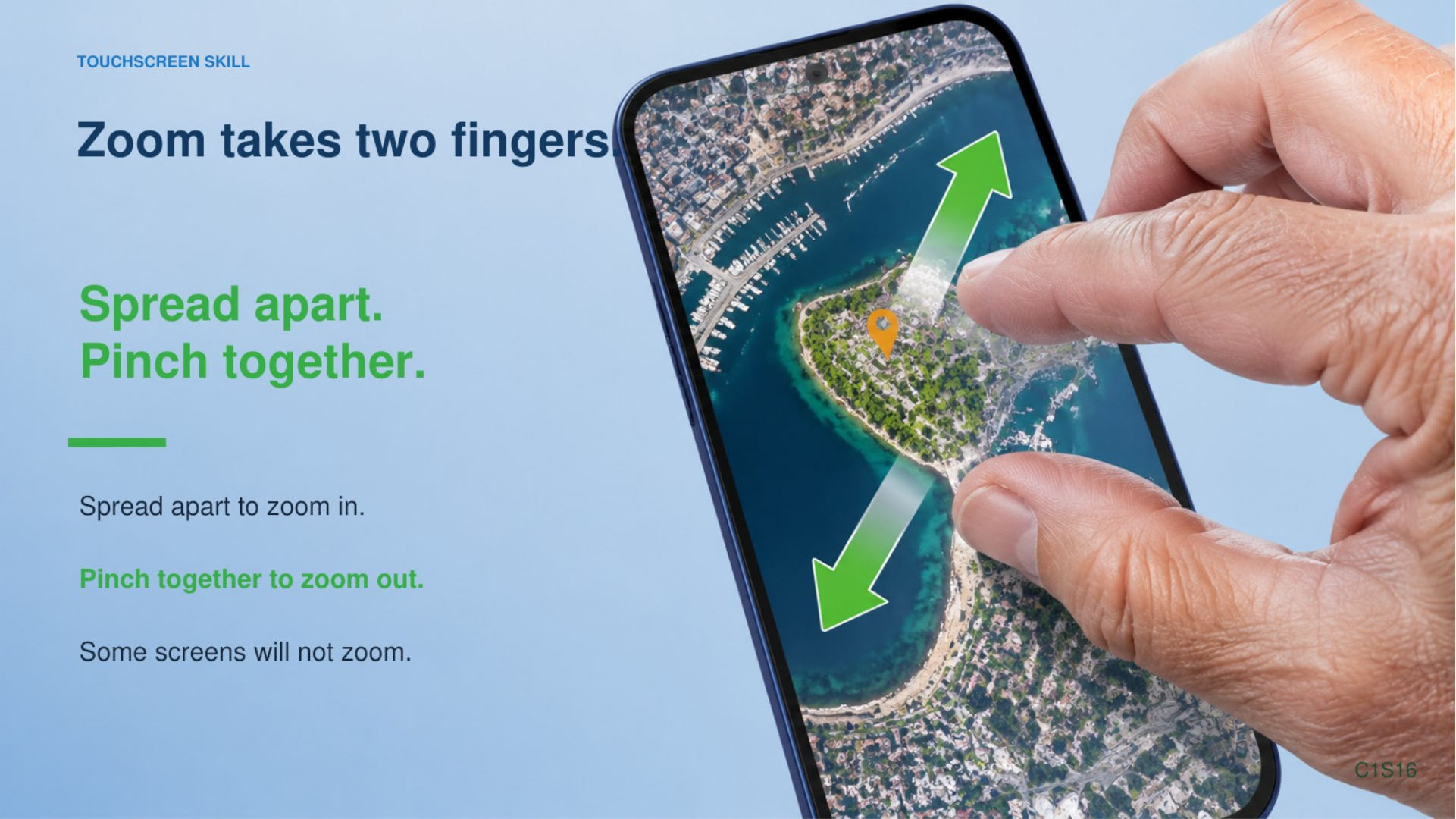
The last touchscreen skill we’re going to learn today uses two fingers.
This is pinch and zoom.
You see this a lot with pictures and maps.
I put two fingers on the screen.
If I spread them apart, I zoom in.
Everything gets bigger and I can see more detail.
If I bring my fingers together—pinch them together—I zoom back out.
You may hear people call both of these pinch to zoom.
The main thing to remember is:
Spread apart to zoom in.
Pinch together to zoom out.
And again, not every screen will respond to every gesture.
If I try to pinch something that cannot be zoomed, the phone may simply do nothing.
That does not mean you did anything wrong.
Finding Your Way Around
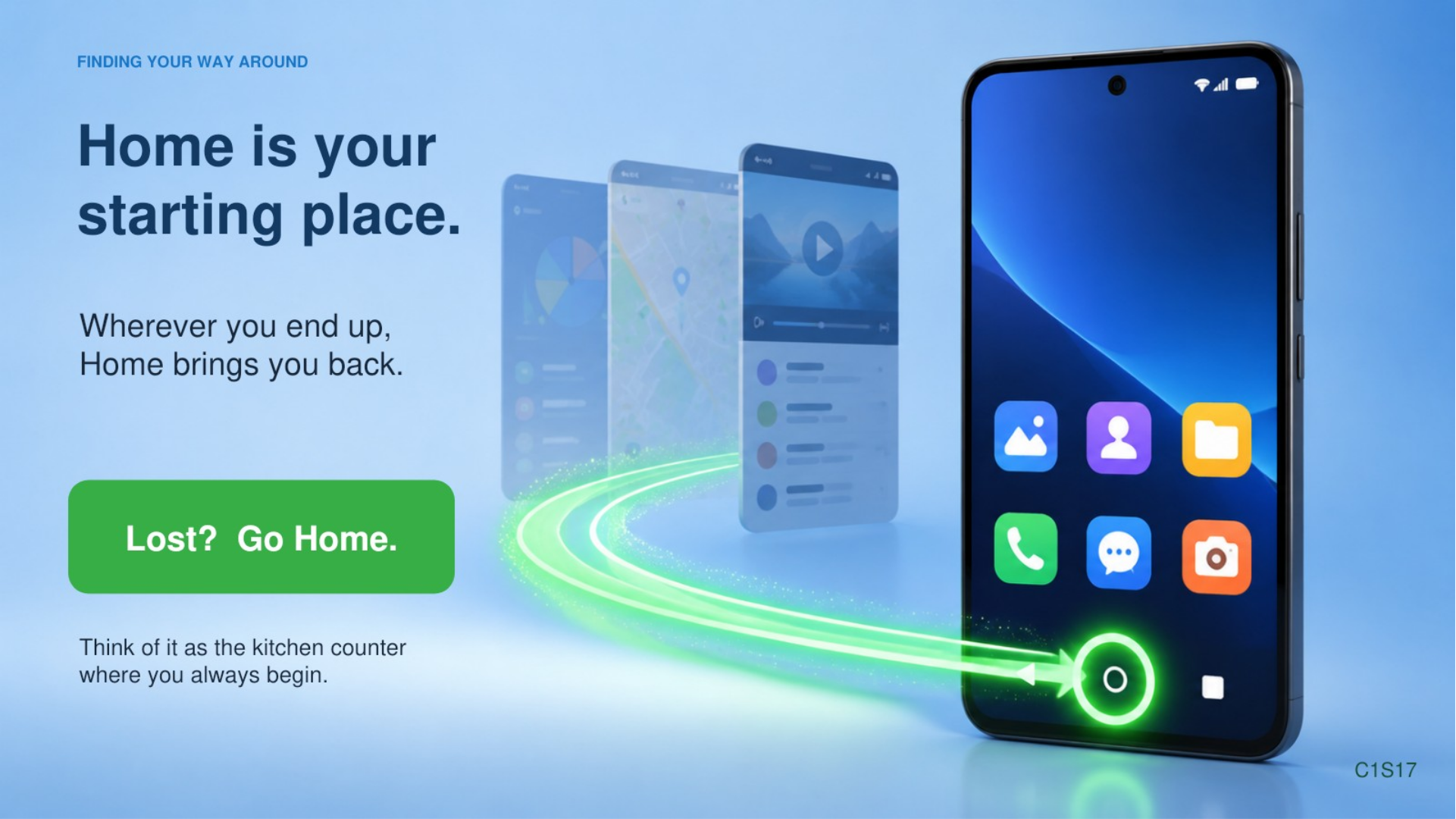
Now that we know how to touch the screen, let’s talk about how we move around the phone.
I want you to think of the Home screen as your starting place.
This is my Home screen.
Yours is going to look different.
You may have a different picture in the background.
You will probably have different apps.
Your clock may be in a different place.
That’s fine.
And if you look at your phone today and the words are just too small to read comfortably, don’t worry.
That can be changed.
We’ll deal with things like text size and making the phone easier to see later.
You do not have to struggle with tiny print forever.
The Home screen is a little like the kitchen counter.
It is where you keep the things you want handy.
You don’t keep everything you own on the kitchen counter.
At least I hope you don’t.
You keep the things you use a lot where you can get to them easily.
Your Home screen works the same way.
These little pictures are icons.
Each icon opens an app or does something.
At the bottom of many Home screens, you will see a row of apps that stays there even when you move between different Home screen pages.
That area is called the dock.
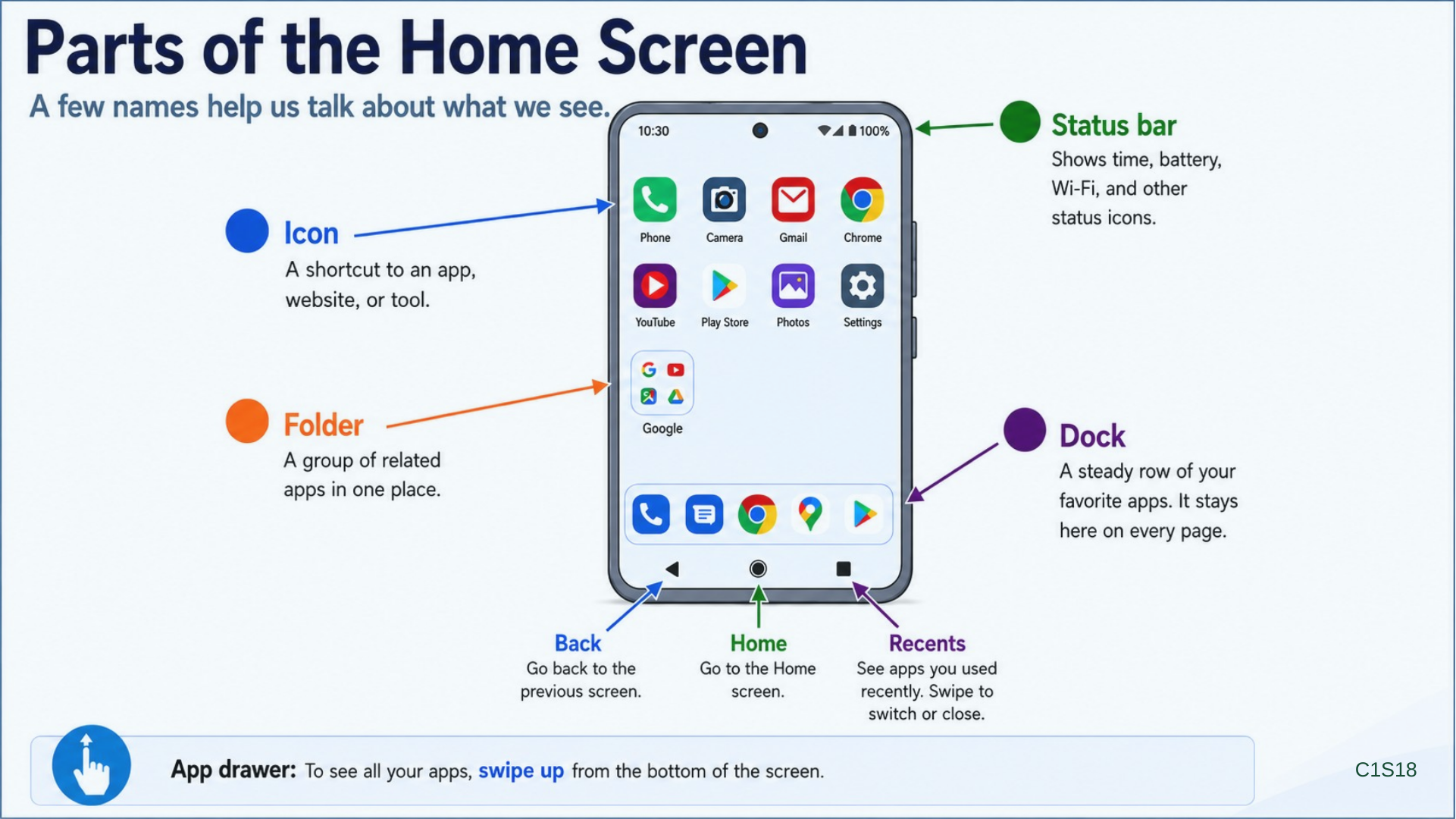
Your dock may have Phone, Messages, Chrome, Camera, or something completely different.
Again, manufacturers and owners can change this stuff.
Near the top of the screen, you will usually see little symbols.
The time.
Battery.
Wi-Fi.
Cellular signal.
Maybe some other things.
That area is called the status bar.
It gives you little bits of information about what the phone is doing.
You may also see several icons grouped together inside one little box.
That is a folder.
A folder is just a way of putting several related apps together.
Think of it like a kitchen drawer.
Instead of leaving everything spread across the counter, you put some things together in a drawer.
We are not going to start rearranging things today.
I just want you to recognize what a folder is when you see one.
And there is another place where your apps can live.
That is the app drawer.
Depending on your phone, you may get to it by swiping up from the Home screen or by tapping something.
The app drawer is more like the pantry.
Your Home screen has the things you want handy.
The app drawer is where you can look through the larger collection of apps on the phone.
Again, yours may look different.
The important thing is knowing that if you do not see an app on your Home screen, that does not necessarily mean it is not on the phone.
Home, Back and Recent Apps
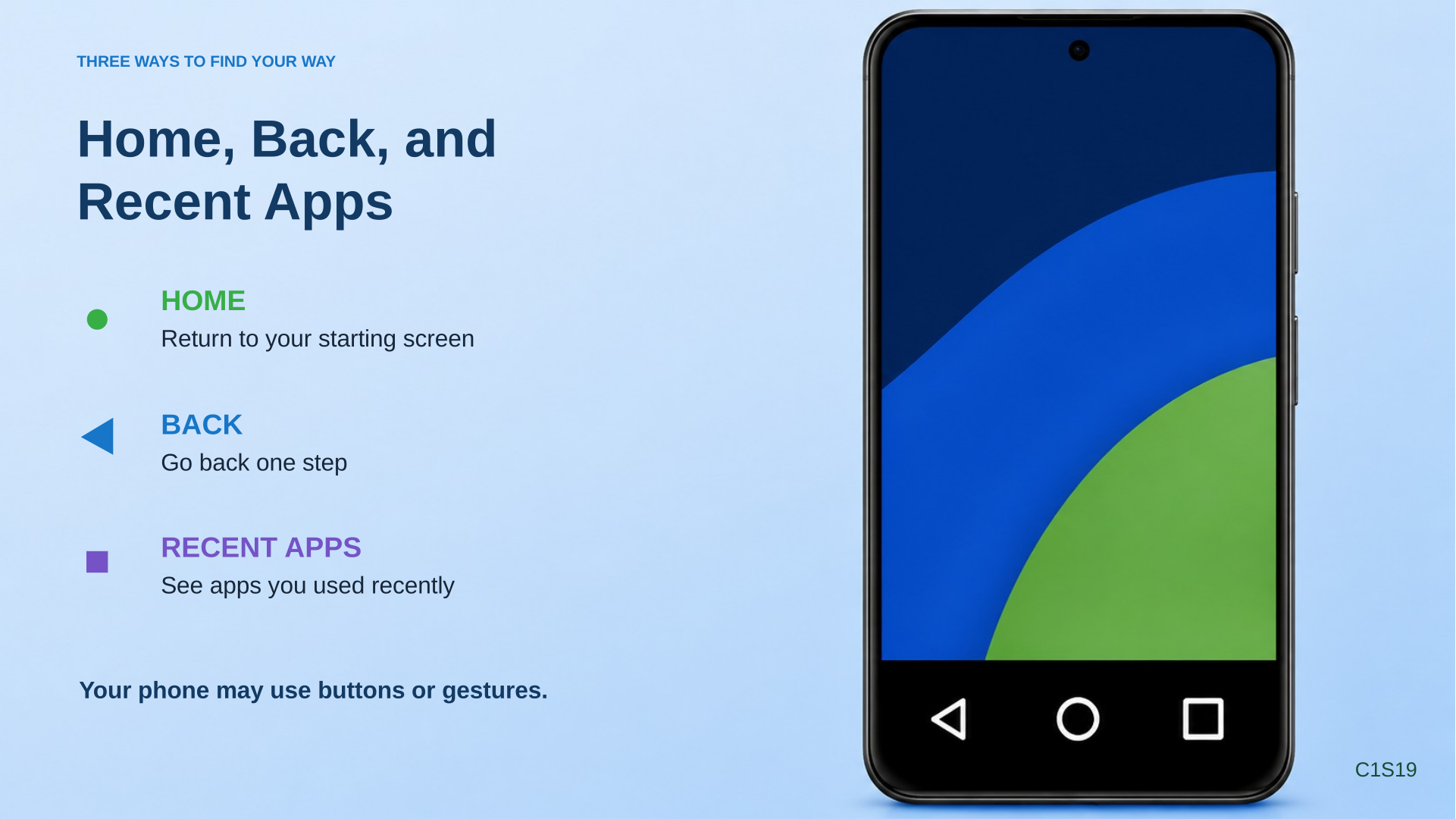
Now we need three ways to get around.
Home.
Back.
And Recent Apps.
Before I show you how mine works, take a look at the very bottom of your own screen.
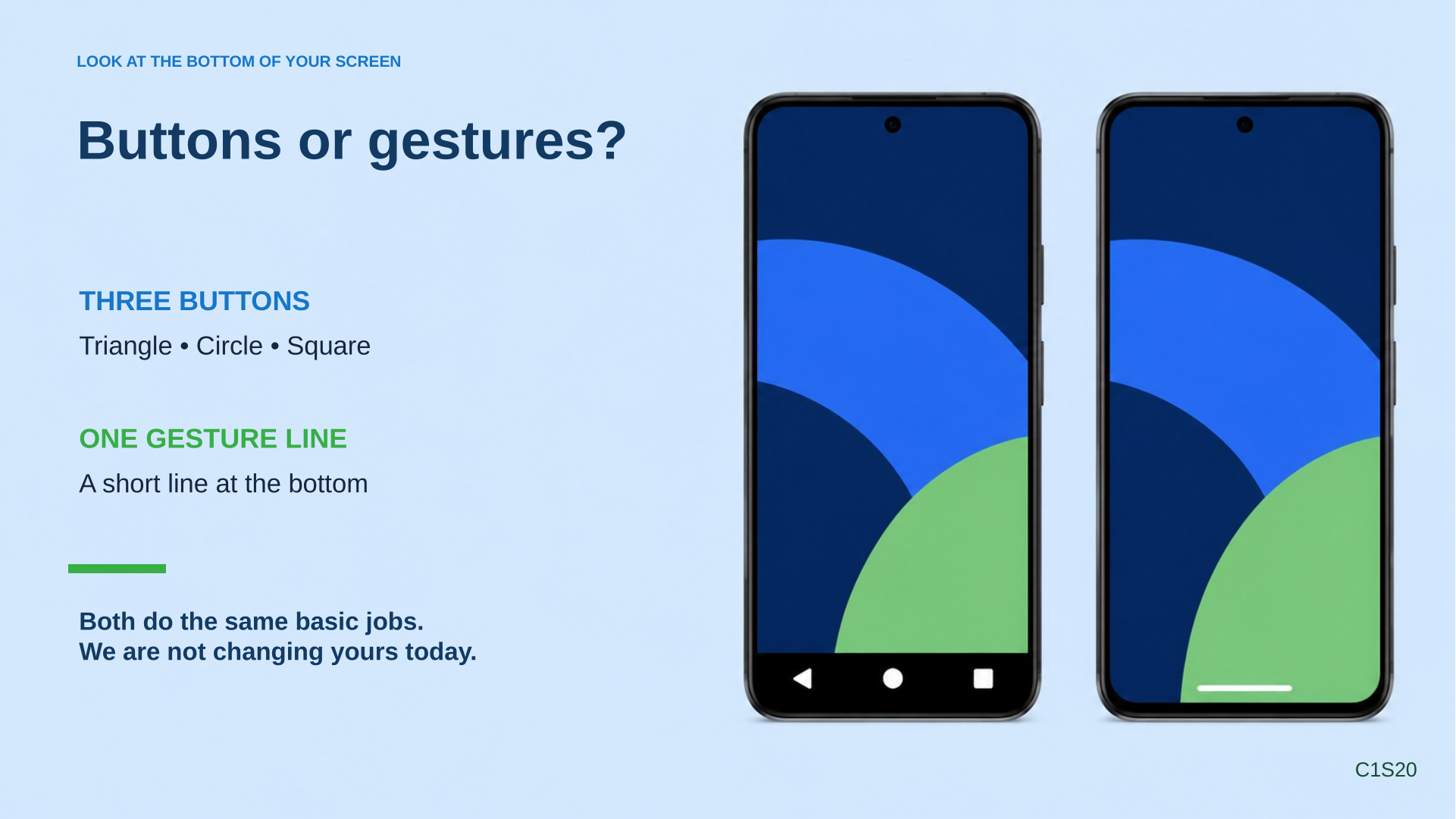
Some of you may see navigation buttons down there.
You may see three little symbols.
Other phones may show a small line near the bottom.
Some may not show much of anything until you touch the screen.
That tells us something about how your phone is set up.
Some phones use buttons to move around.
Others use finger gestures.
Neither one is wrong.
And we are not going to change anybody’s phone today.
We are going to learn how the phone you already have works.
First is Home.
Home means take me back to my main starting screen.
On a phone with navigation buttons, Home is usually the button in the middle.
It may look like a circle.
On phones that use gesture navigation, you usually swipe up from the very bottom edge of the screen.
No matter how your phone does it, Home is one of your best friends.
If you get somewhere and you are not sure what happened, try going Home.
It gives you a familiar place to start again.
Next is Back.
Back means take me back one step.
If I open this and then decide I did not mean to, Back takes me to where I just was.
On phones with buttons, there may be a triangle or an arrow for Back.
On a phone using gestures, you normally swipe inward from the left or right edge of the screen.
Then we have Recent Apps.
You may also hear this called Overview.
This shows apps you have been using recently.
On a three-button phone, there is usually a square or another button for this.
With gesture navigation, you usually swipe up from the bottom and hold for a moment.
Now I can see the apps I had open recently.
I can tap one to go back to it.
We are not going to spend a lot of time closing apps today.
The important thing is just recognizing what this screen is if you accidentally get there.
So remember:
Home gets you back to your starting place.
Back takes you back one step.
Recent Apps shows the things you have been using.
Between Home and Back, you can get yourself out of a lot of places you did not intend to be.
Opening an App
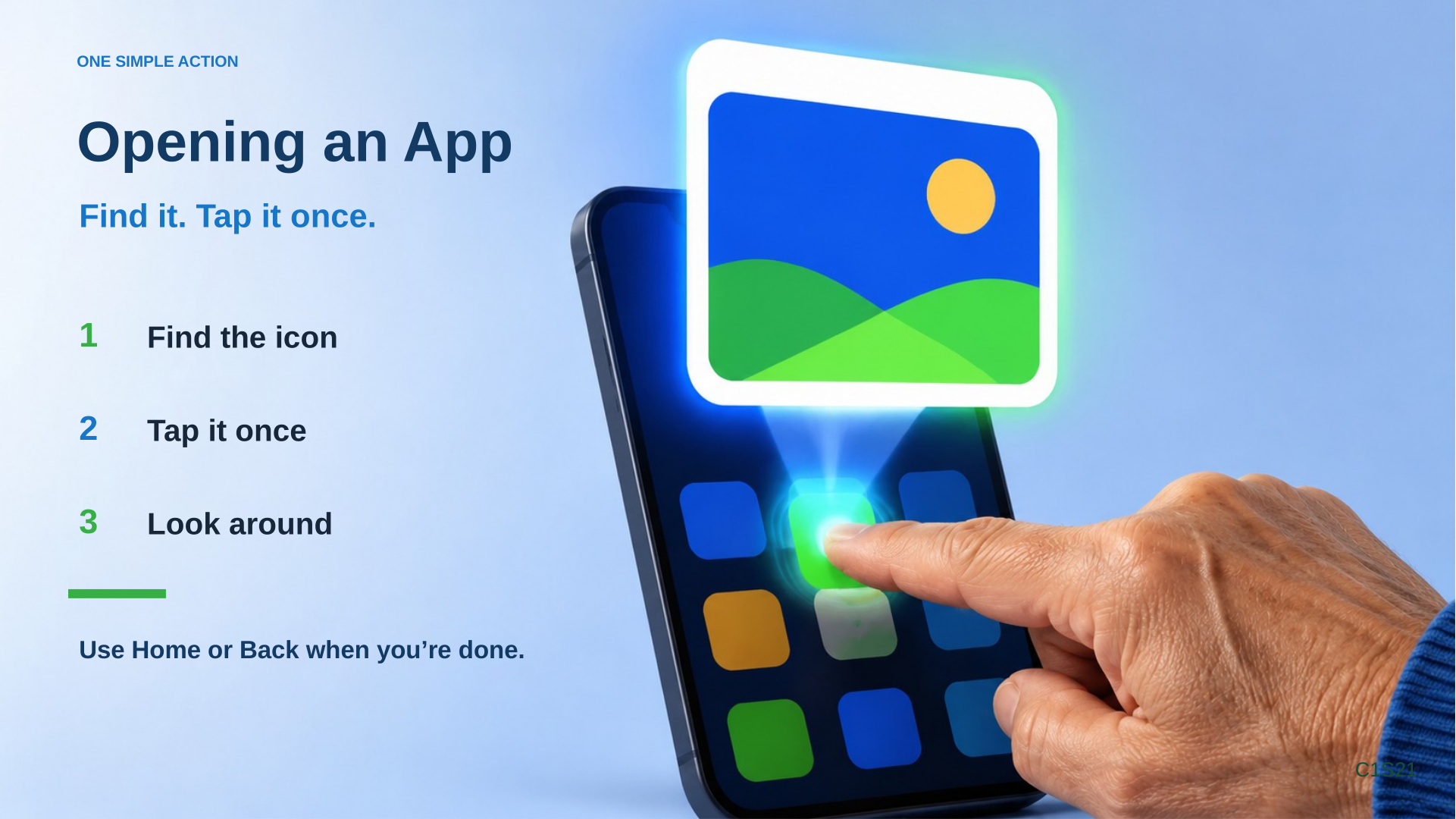
Let’s put some of this together.
I’m on my Home screen.
I see the Camera icon.
I want to open the Camera.
What do I do?
I tap it.
Once.
The Camera opens.
Now suppose I’m finished.
I can go Home.
The Camera did not disappear from the phone.
I just left it and came back to my Home screen.
That is going to be a big part of the lab today.
Open something.
Look around.
Go back.
Go Home.
Try something else.
The goal is to get comfortable moving around without worrying that every touch is going to cause some disaster.
The Keyboard
There is one more part of the phone I want to introduce before we finish.
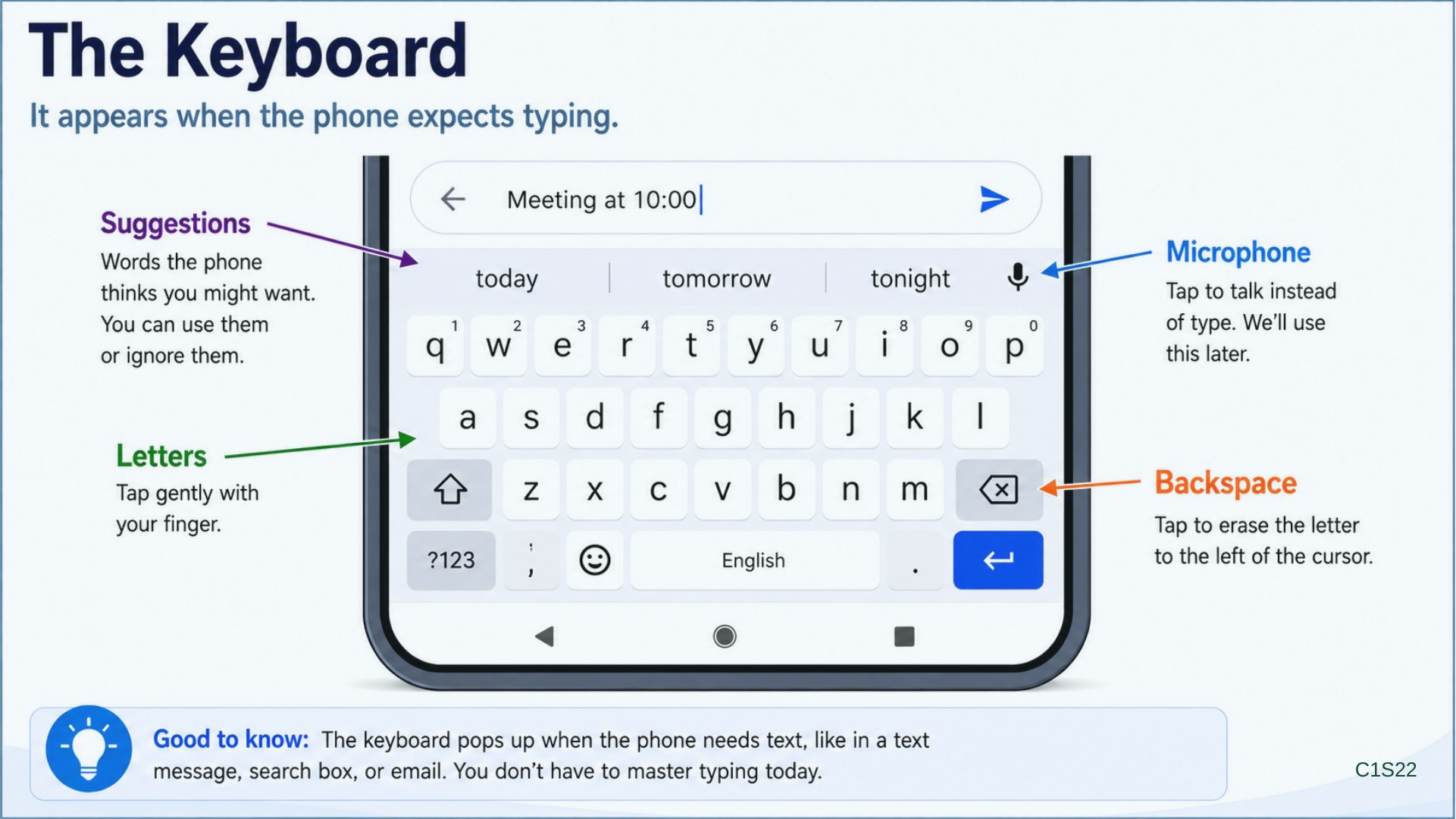
The keyboard.
There is no little physical keyboard attached to most phones.
The keyboard appears on the screen when the phone thinks you need to type something.
There it is.
This is called an on-screen keyboard.
Or sometimes just the keyboard.
The letters are laid out much like a regular computer keyboard.
The keys are small, and nobody expects you to type on this thing the way you type on a full-size keyboard.
At least I don’t.
You tap a letter and it appears in the box.
If I make a mistake, I have a backspace key.
That is the key we use to erase something we just typed.
I also have a space bar.
There is usually a key to switch between letters and numbers.
There may be a microphone that lets you speak instead of type.
We will use some of those features later.
You may also notice words appearing above the keyboard while you type.
Those are suggestions.
The phone is trying to guess what word you are typing or what you might type next.
Sometimes it is amazingly good.
Sometimes you wonder what in the world it thinks you are talking about.
You do not have to use the suggestions.
You can keep typing your own word.
And the keyboard will disappear again when you leave the place where you were typing.
We are not trying to master typing today.
I mainly want you to know why that keyboard suddenly appears and what it is.
Putting It Together
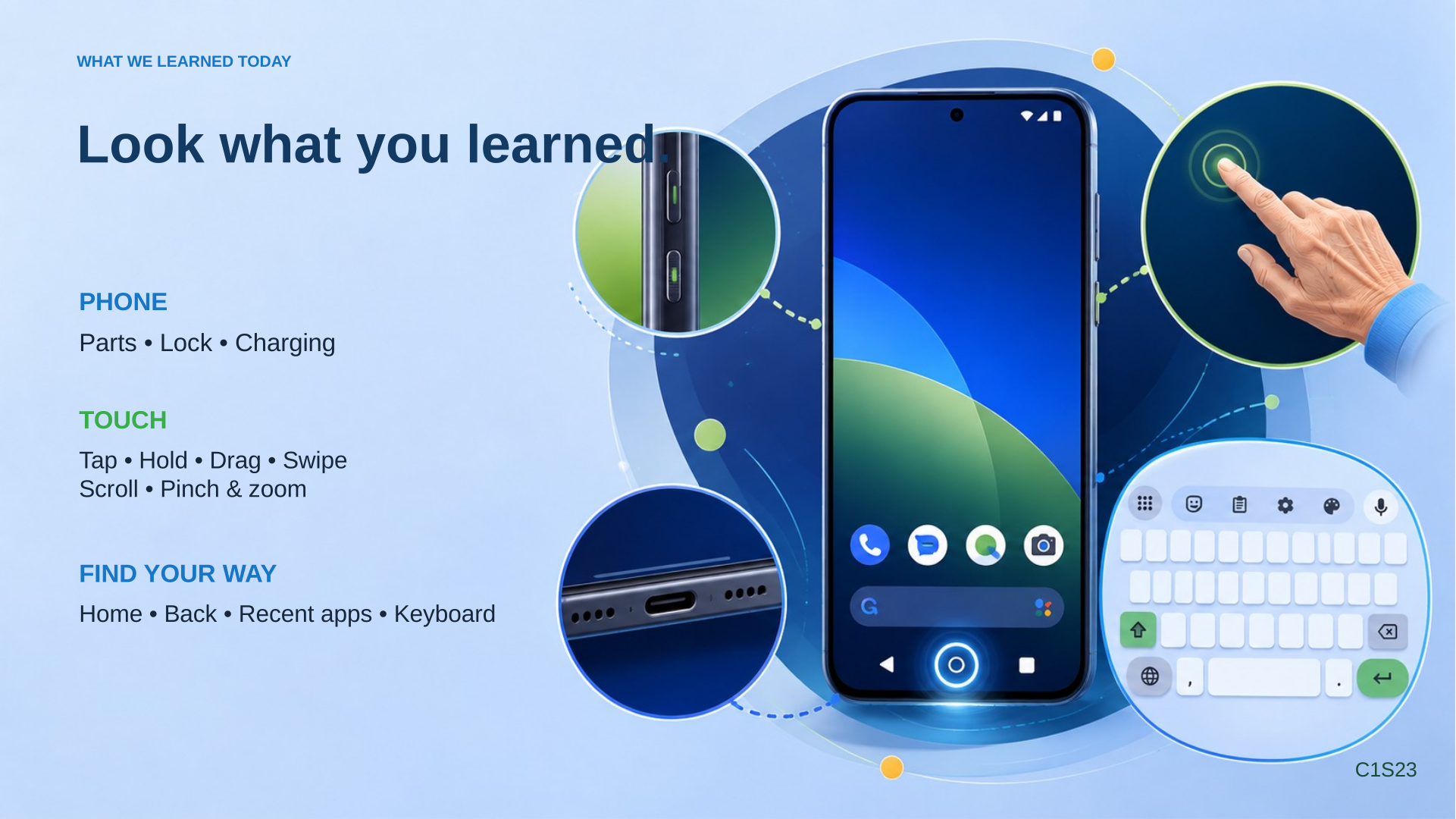
We covered a lot of little things this morning.
But they all fit together.
You looked around the outside of your phone.
You found the screen.
The power button.
The volume controls.
The cameras.
The charging port.
And maybe a fingerprint reader, headphone jack, or SIM-card tray.
We talked about the difference between locking the phone and actually turning it off.
And we learned that the phone may lock itself and turn the screen dark if you leave it alone for a while.
We looked at several ways a phone can be unlocked.
PIN.
Pattern.
Password.
Fingerprint.
And face unlock.
We talked about charging.
Then we learned six ways to use the touchscreen.
Tap.
Long press.
Drag.
Swipe.
Scroll.
And pinch and zoom.
And we looked at some of the things you see once the phone is unlocked.
The Home screen.
The dock.
The status bar.
Folders.
And the app drawer.
Then we looked at Home, Back, and Recent Apps.
And we saw that some phones use navigation buttons while others use gestures.
And finally, we brought up the keyboard.
Now, I do not expect you to remember every word I just said.
That would defeat the whole purpose of having a lab.
The next part is where you actually get to use your own phone and practice.
Before we do that, I want to give you one more rule.
During the lab, something may pop up on your screen and ask you a question.
It may want permission to do something.
It may tell you about an update.
It may be something neither one of us was expecting.
If you understand what it is, fine.
But if a box pops up and you do not know what it is asking, don’t guess.
Just stop and ask us.
We’ll look at it together.
And remember, if you tap the wrong thing, we can usually get back.
If you end up somewhere strange, try Back.
If that does not help, try Home.
And if your phone does something different from mine, tell us.
That does not mean your phone is wrong.
It may just be a different Ford, Chevy, or Toyota.
The goal today is not to memorize Android.
The goal is to start getting comfortable with it.
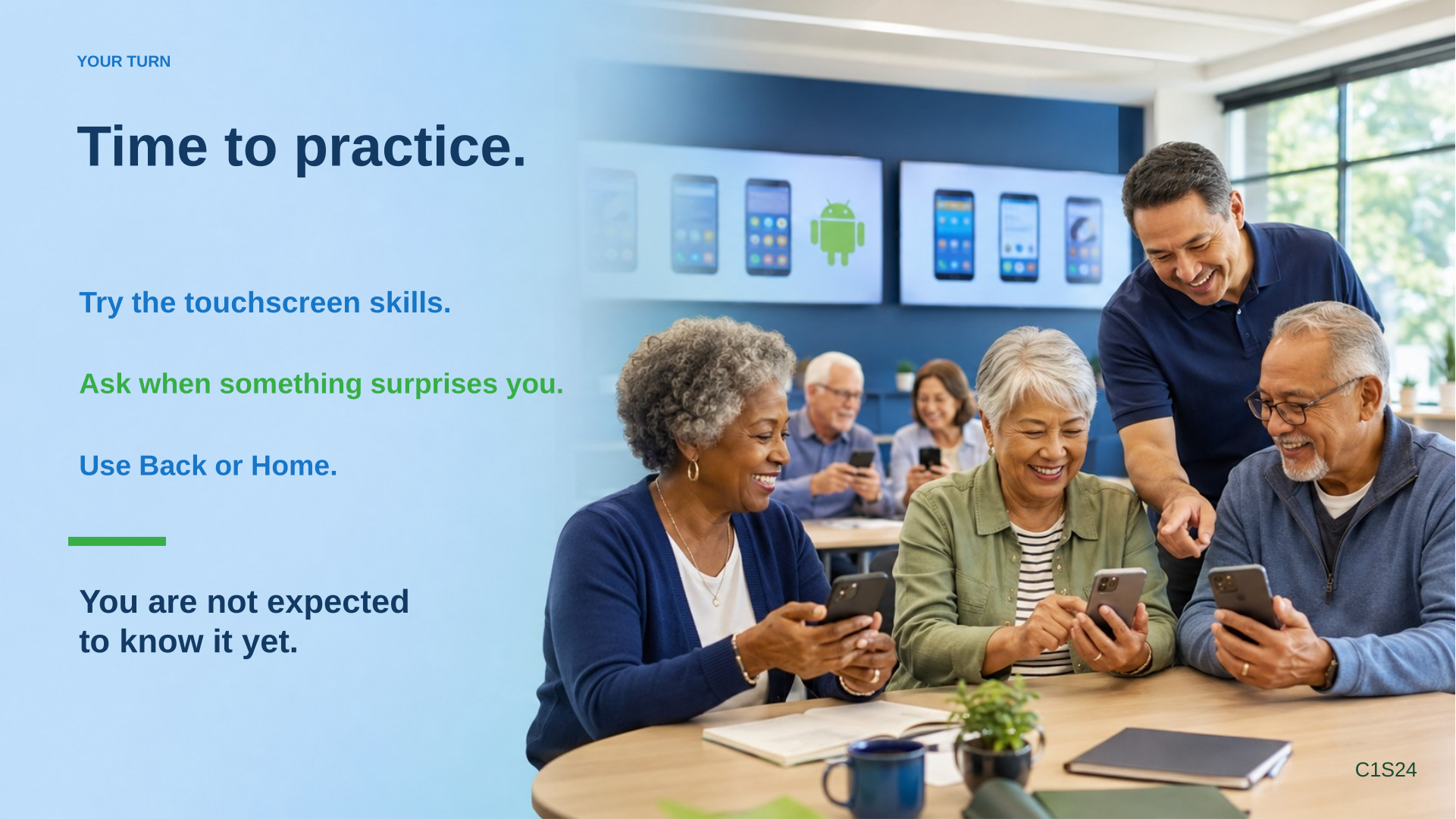
So let’s take a break, and then we’ll get our phones out and practice what we just talked about.
Back to top ↑