Class goals
Today we will make and receive calls, use the controls during a call, create and find contacts, send and reply to text messages, find voicemail, and recognize suspicious calls and texts. We will also introduce video calling.
Instructor pacing note: Aim for 45 minutes of lecture and demonstrations, a 10 minute break, and 35 minutes of practice. Students may follow demonstrations, but use the lab for individual troubleshooting. If time runs short, keep calling, contacts, texting, and scam awareness; make contact photos, individual ringtones, and the video demonstration brief or optional.
1 Welcome back
[EXPLAIN ONLY]
Today we’re going to use our phones to communicate with other people. We’ll work with the Phone app, Contacts, and Messages.
The Phone app handles telephone calls. Contacts is our address book. Messages is where we send and read text messages.
These apps work together. We can find a person in our address book and then decide whether to call or send a message.
Last week we saw that your screen might look different from mine. That will happen again today. The names and locations of buttons can vary. Concentrate on what we are trying to do, and we’ll help you find the choices on your phone.
2 Finding the Phone app
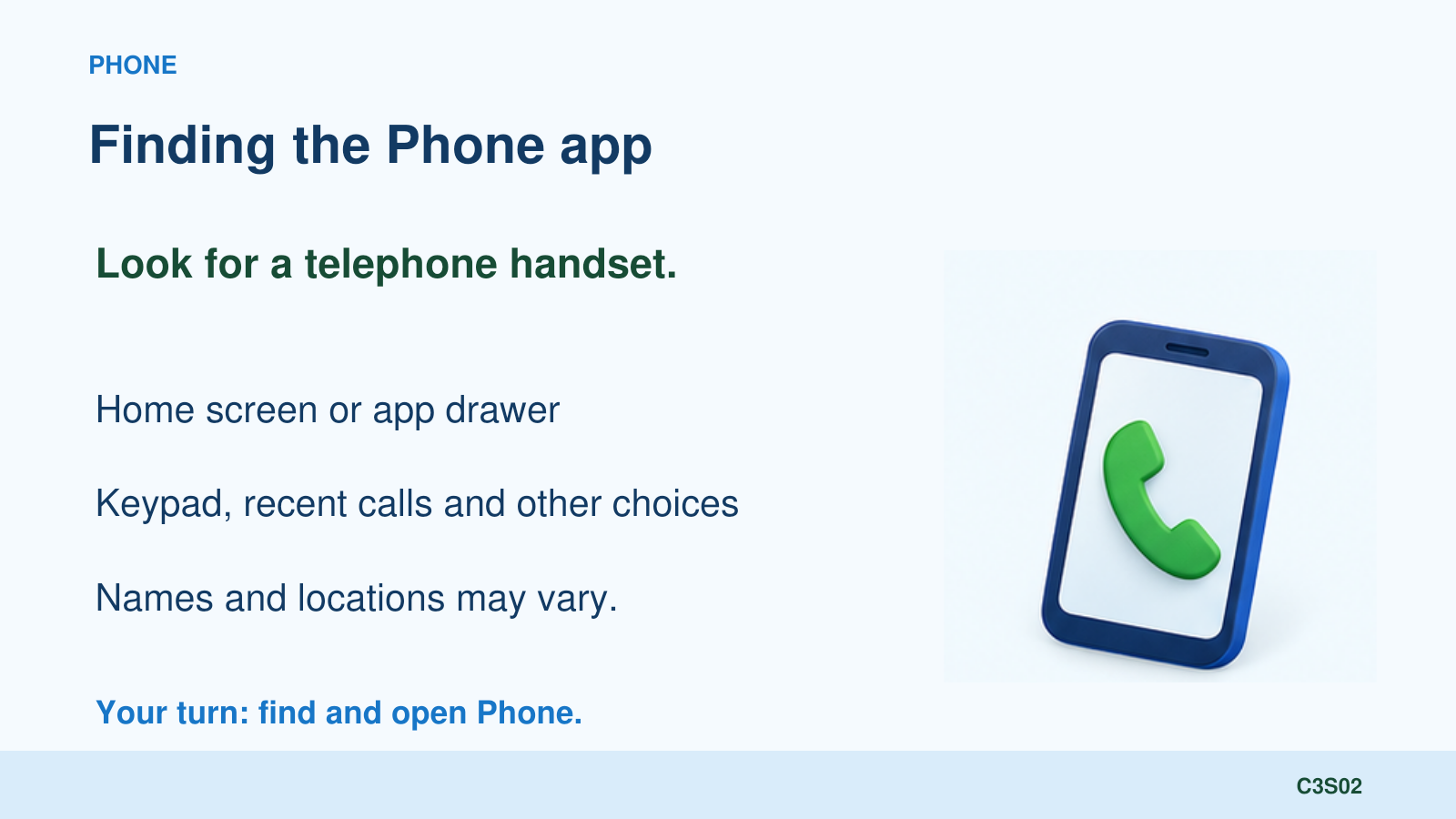
The Phone app usually has an icon shaped like a telephone handset. You may already have it in the row of favorite apps at the bottom of your Home screen. If you don’t, look in your app drawer.
[DEMONSTRATE]
Find and open Phone. Point out the keypad, recent calls, contacts or favorites, and voicemail where available. Do not tour every option.
You might see Keypad, Recents, Favorites, Contacts, or Voicemail. Your phone may use different names or put these choices in a menu.
[STUDENTS DO]
Find and open your Phone app. Take a moment to notice the choices on your screen.
3 Making a call with the keypad
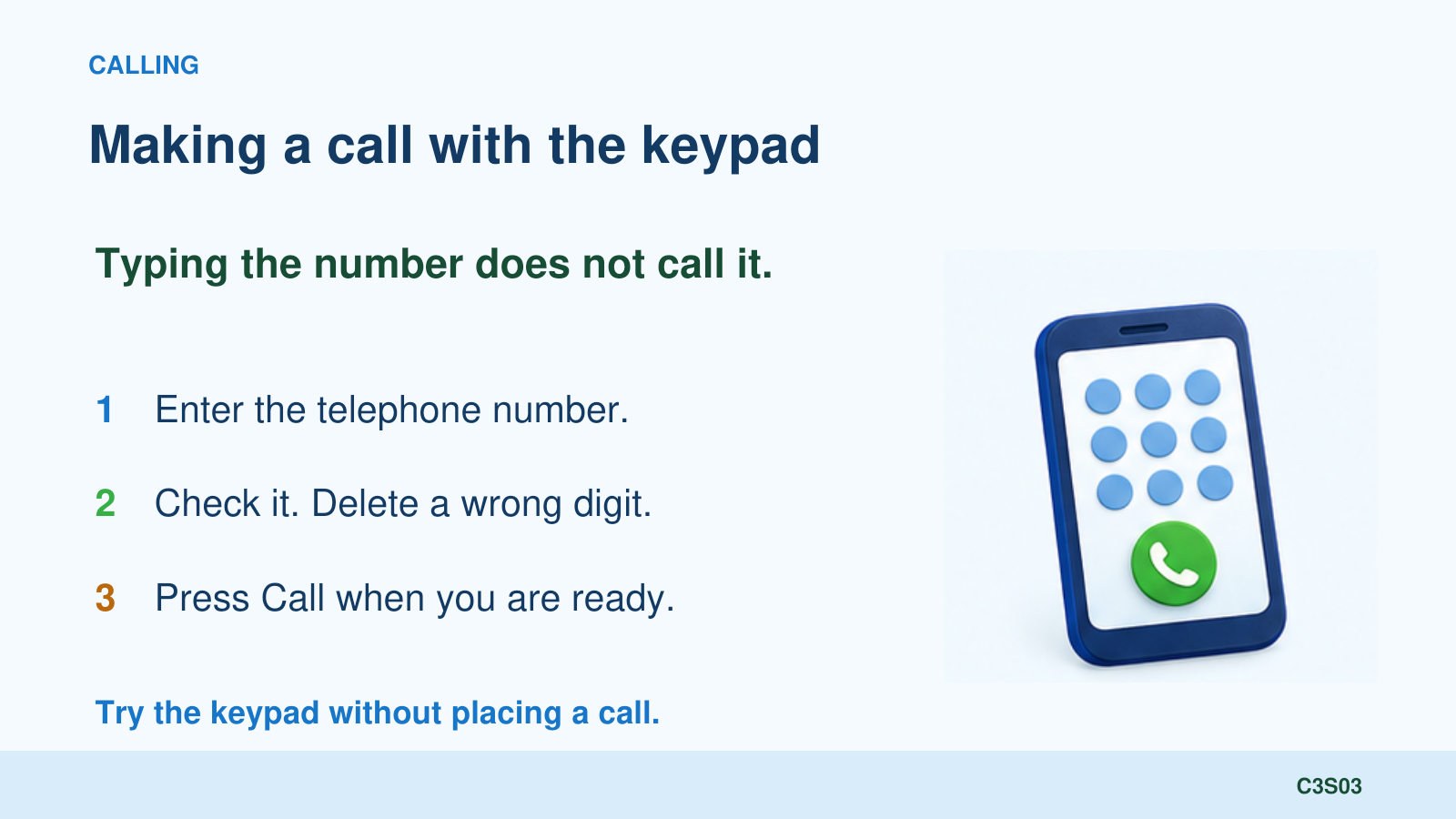
The keypad works much like the keypad on a traditional telephone. We enter the number and then press the Call button.
Typing a number does not place the call. The Call button starts it.
If we enter a wrong digit, we can use the delete or backspace control to remove it.
[DEMONSTRATE]
Open the keypad. Enter a demonstration number without calling. Remove a digit and correct it. Point out Call, then clear the number.
[STUDENTS DO]
Open your keypad and enter a familiar number without pressing Call. Find the delete control, remove the last digit, and put it back. Clear the number when you’re finished.
We won’t have to type numbers every time. Soon we’ll save people in Contacts so we can find them by name.
4 Answering when the phone is locked or unlocked
An incoming call can look different depending on what you were doing when it arrived.
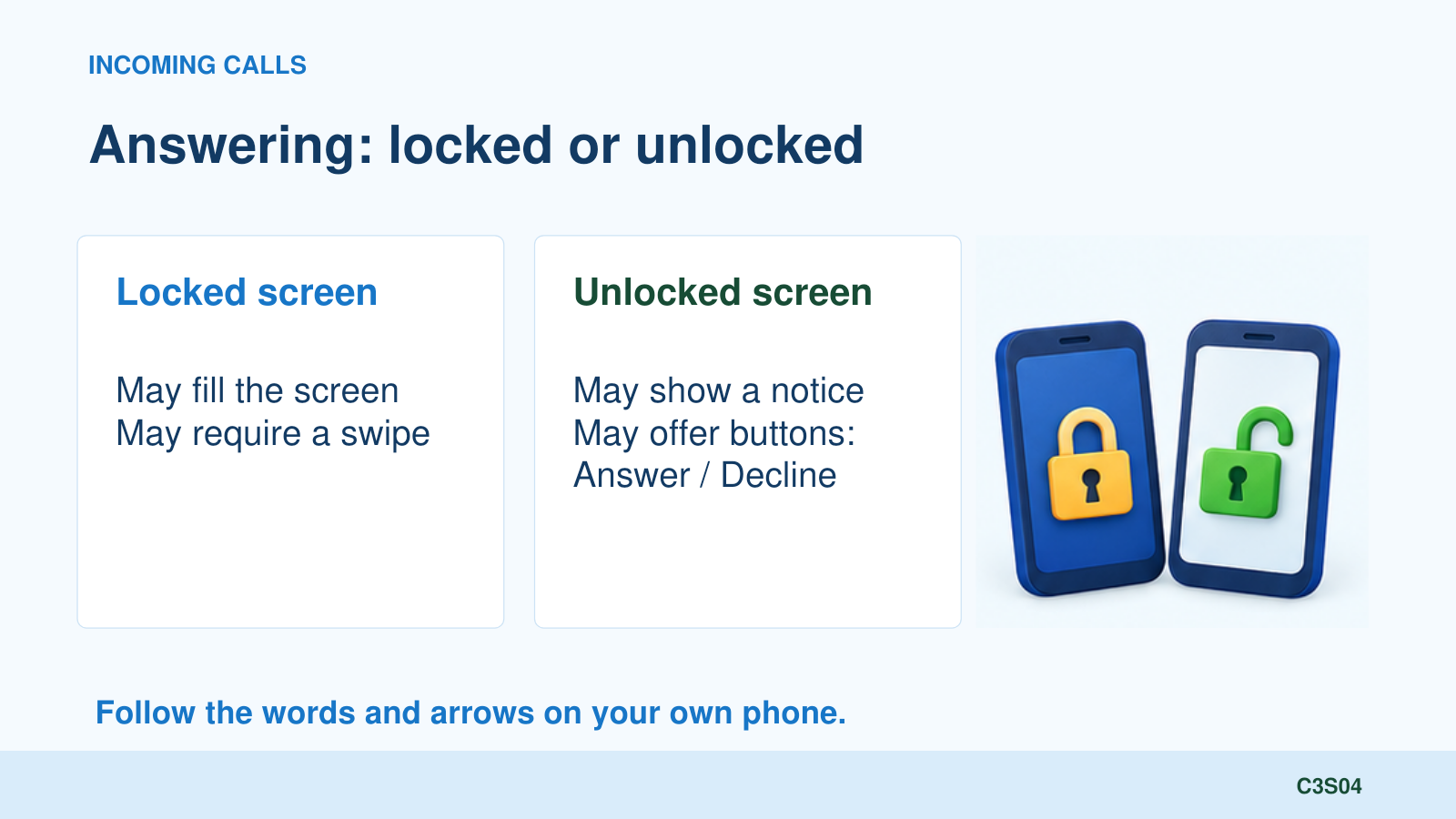
If your phone was locked, you may see a call screen that fills the display. It may ask you to swipe an answering control. If you were already using the phone, you may see a smaller notice with Answer and Decline buttons.
A swipe starts with your finger on the answering control. Keep your finger on the screen and move it in the direction shown. Just tapping a control that expects a swipe may not answer the call.
There isn’t one swipe direction for every Android phone. Some use upward swiping; others use sideways swiping. Some offer a tap option. Follow the words, arrows, and controls on your own screen.
You usually do not need to enter your PIN or unlock the phone just to answer an ordinary incoming call. Answering the call does not mean you have unlocked everything else on the phone.
[DEMONSTRATE]
Arrange a call from a second phone. First lock the demonstration phone and show its answering action. End the call. Then leave the phone unlocked with another app open and call it again. Show the Answer control and end the call. Describe the actual controls visible; do not promise that every student has the same ones.
Decline means you do not accept the call. If you have voicemail, the caller may be able to leave a message. You are not required to answer an unfamiliar number.
We’ll practice answering from both situations in the lab.
5 Controls during a call
Once a call connects, there are several useful controls. Let’s look at them while a demonstration call is active.
[DEMONSTRATE]
Place a controlled call to a prepared helper. Show Speaker, Mute, Keypad, call volume, and End Call as they are explained below.
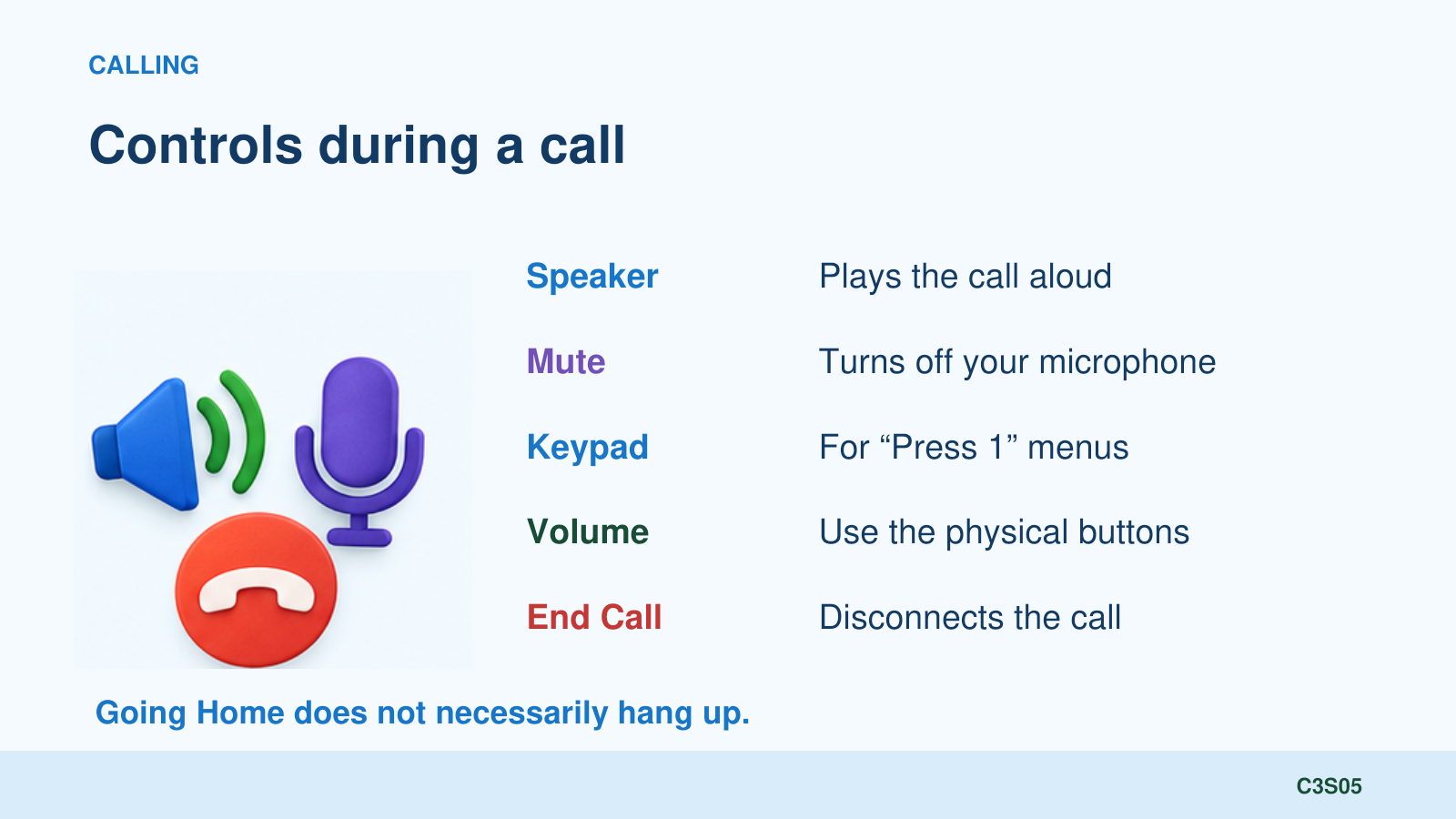
Speaker plays the other person’s voice through the loudspeaker, so we don’t need to hold the phone to our ear. People nearby may hear the conversation too. Tap Speaker again to return to the normal earpiece, if that is how your phone’s control works.
Mute turns off your microphone. You can still hear the other person, but they can’t hear you. If someone says they can’t hear you, check whether Mute is on. Tap it again to turn your microphone back on.
Keypad brings up the number buttons while the call stays connected. That is what we use when an automated system says, “Press 1.”
During a call, the physical volume buttons normally adjust how loudly we hear the call. Remember our see-saw comparison: one end increases the volume and the other decreases it.
The red End Call button disconnects the call. Going to the Home screen does not necessarily hang up. Use End Call when you’re finished.
[DEMONSTRATE]
Finish the demonstration by tapping End Call and confirming that the call ended.
6 Recent calls
Your phone keeps a list of recent calls. It can include calls you made, calls you answered, and calls you missed.
If a person is saved in your contacts, you may see their name. Otherwise you may see a number. Icons or labels can tell us whether a call was incoming, outgoing, or missed.
[DEMONSTRATE]
Open recent calls. Show a known demonstration entry and its details. Point out the call-back action without accidentally placing another call.
A missed call means we didn’t answer. It does not mean we must call back. We’ll talk about suspicious calls later today.
7 What is a contact
A contact is an address-book entry for a person or an organization. It can hold a name, one or more phone numbers, an email address, a street address, and a photograph.
You don’t have to fill in every blank. A name and telephone number are enough to get started. If a person has both a home number and a mobile number, the labels help us choose the right one.
A saved contact makes it easier to call or text someone by name. Next week, we’ll use contacts when sharing pictures. Later, an email address saved in a contact can help us address an email.
8 Phone and Contacts work together
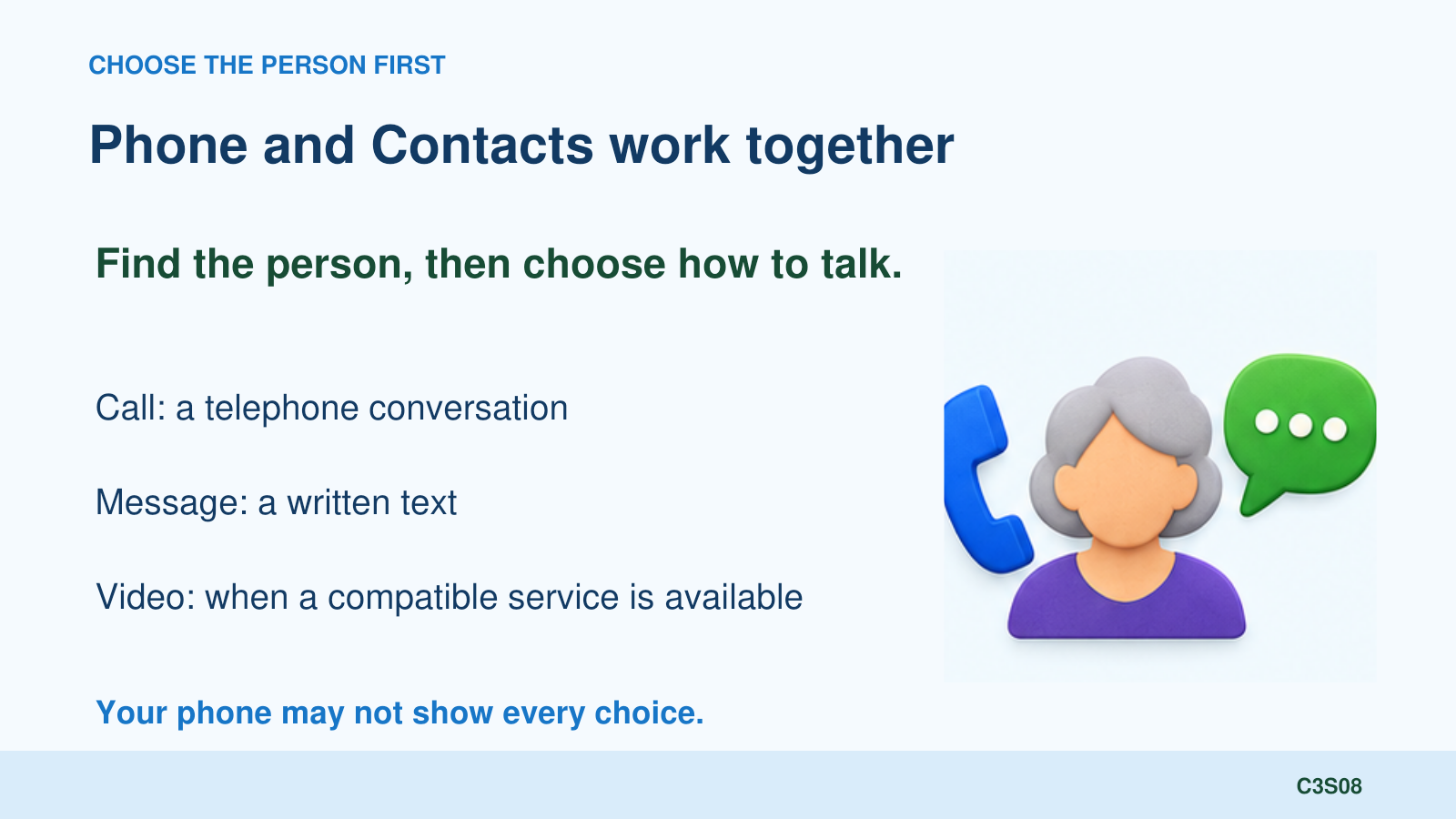
We often choose the person first and then decide how to communicate.
[DEMONSTRATE]
Open a prepared contact. Point out Call, Message, and Video if available. Show whether Contacts is reached inside Phone or through a separate Contacts app on the demonstration phone.
Call starts a telephone call. Message opens a way to send a text. Video, when available, offers video calling. Your phone may not show all three choices.
9 Finding a contact
We can scroll through our address book, but Search is often quicker. Type a few letters of the person’s name and look at the matches.
[DEMONSTRATE]
Find a contact by scrolling, then find the same person with Search.
[STUDENTS DO]
Find someone already saved in your contacts. Try Search if you have several entries. Don’t place a call yet. If your address book is empty, watch this demonstration; you’ll add someone shortly.
10 Creating a contact
You brought information for three people. We’ll create one contact together now and finish the others in the lab.
First look for Add Contact, Create Contact, or a plus sign. Then enter the person’s name and telephone number. Add an email address if you have it.
If the phone asks where to save the contact, pause and notice the choice. It may offer a Google account, the phone itself, or another account. We’ll help you choose the intended address book; we don’t need to change your account setup today.
[DEMONSTRATE]
Create a prepared sample contact. Show name, number, email, any save-location choice, and Save. Search for the new contact afterward.
Save is the important last step. After saving, finding the person again confirms that the entry is there.
[STUDENTS DO]
Create one contact using the information you brought. If that person is already saved, check the existing entry rather than creating a duplicate. Save it and find it again.
11 Editing a contact
If someone changes their number, or we make a typing mistake, we can edit the entry. We don’t have to delete it and start over.
[DEMONSTRATE]
Open the sample contact, choose Edit, add or correct information, and save.
[STUDENTS DO]
Open your contact and find Edit. Correct information only if it needs correcting. Save any changes. If you haven’t changed anything, return to the contact without making a change.
12 Adding a contact photo
A photo can make a contact easier to recognize. It may appear when that person calls, depending on your phone and settings.
You may be offered a choice to take a new picture or use one you already have.
[DEMONSTRATE]
Briefly show the photo option in the sample contact. Use a prepared existing picture and save if convenient. Keep this demonstration short.
Adding a photo is optional today. We’ll work more with pictures in our next class.
13 Individual ringtones
Last week we talked about sound and volume. Some phones also let us give a particular contact a different ringtone. That can help us recognize a family member’s call before looking at the screen.
[DEMONSTRATE]
Show the contact ringtone option if available, choose a demonstration ringtone, and save as needed. Explain that the option may be in a menu or another location.
This is optional. You can explore it in the lab after you finish the main activities.
14 Calling from Contacts
With the keypad, we start with a number. With Contacts, we start with a person.
[DEMONSTRATE]
Open the prepared helper’s contact and show the Call action. Make a brief arranged call and end it.
For people we call regularly, finding their name is usually easier than typing their number.
[STUDENTS DO]
Open a saved contact and locate Call. Don’t call them now; we’ll use arranged practice partners in the lab.
15 Text messaging
A text message is a written message sent to someone’s phone. The other person can read it and reply when they’re available. We don’t have to be on the phone together at the same moment.
Let’s start with a person we already saved. Open their contact and choose Message. If there are several numbers, choose the number that receives their texts, usually their mobile number.
[DEMONSTRATE]
Open the prepared helper’s contact and choose Message. Show the recipient, the writing area, and the Send control. Type a short arranged message, check the recipient, and send it.
Tap the writing area to bring up the keyboard. Type your message, then look it over. Check both the words and the recipient before pressing Send. Send may look like an arrow or a paper airplane, or it may be labeled.
Typing doesn’t send the message. Pressing Send does. Returning Home doesn’t necessarily send it either.
You can also start directly in the Messages app. Its icon and name can vary. Look for the app you normally use for text messages.
[DEMONSTRATE]
Open Messages. Show the conversation list and Start chat, New message, or the equivalent. Select a saved contact by name. Explain that an unsaved number can also be entered. Return to the helper’s conversation.
A conversation keeps the messages between you and that person together. You’ll see what you sent and what they sent back. Look at the sender’s name or number before replying.
When a new message arrives, you may get a notification. You can open it from the notification or open Messages and find the conversation. If your phone asks you to unlock first, unlock it normally.
[DEMONSTRATE]
Have the helper reply. Open the message, read it, type a reply in the same conversation, and send. Point out how incoming and outgoing messages are displayed on this phone.
For today we’ll practice a short message to one person. Sharing pictures comes next week. We don’t need to change messaging settings or learn all the different messaging services today.
16 Spam calls and scam texts
Now that we can answer calls and read messages, we need to decide which ones deserve our attention.
Spam is unwanted contact, often advertising or repeated nuisance messages. A scam tries to trick us into giving away money, personal information, or access to an account.
A scam might claim a package can’t be delivered, a bill is overdue, or an account will be closed. It might pretend to be a bank, a government office, or a family member who needs urgent help.
The pressure to act immediately is a reason to pause. Don’t use an unexpected message’s link or telephone number to check its story. Open the organization’s usual app or use a number you already know is correct.
The name or number on a call screen is not proof of who is calling. Scammers can disguise caller information. A familiar name also does not make an unusual request automatically safe.
Don’t give a caller your password, PIN, or a security code sent to your phone. If a caller asks for those things, hang up and check through a trusted contact method.
You can let an unfamiliar call go to voicemail. If you answer and become uncomfortable, you can end the call. You don’t need permission from the caller.
[EXPLAIN ONLY]
Use two spoken examples: an unexpected package text asking for payment through a link, and an urgent caller claiming to be a bank and asking for a security code. Ask students what they would do. Emphasize pausing and checking independently.
[DEMONSTRATE]
Use a prepared screenshot or harmless demonstration entry to show where Block and Report spam may appear in Phone and Messages. Explain that locations and wording vary. Do not block a student or helper, report an innocent contact, or open a real suspicious link.
Blocking can stop that number from contacting you through the relevant service. Reporting spam helps the service identify unwanted contact. It doesn’t guarantee that every future scam will be caught, and scammers may use another number.
We’ll return to broader phone safety in Class 6. These call and text habits are useful starting today.
17 Voicemail
Voicemail lets someone leave a recorded message when you don’t answer. It gives us a chance to listen later.
Some phones show messages in a list. That is often called Visual Voicemail. Other systems require calling a voicemail number and following spoken instructions.
[DEMONSTRATE]
Show the voicemail location or access method on the demonstration phone. Use a prepared message if available. Point out listening and any playback controls. Do not delete a personal message for demonstration.
Your phone company helps determine how voicemail works. Today we want to know what it is and where to look. If yours needs setup or a forgotten voicemail PIN, we’ll note that for individual help.
A voicemail message can also contain a scam. Use the same habit: check an unexpected request through a number you trust.
18 Introducing video calls
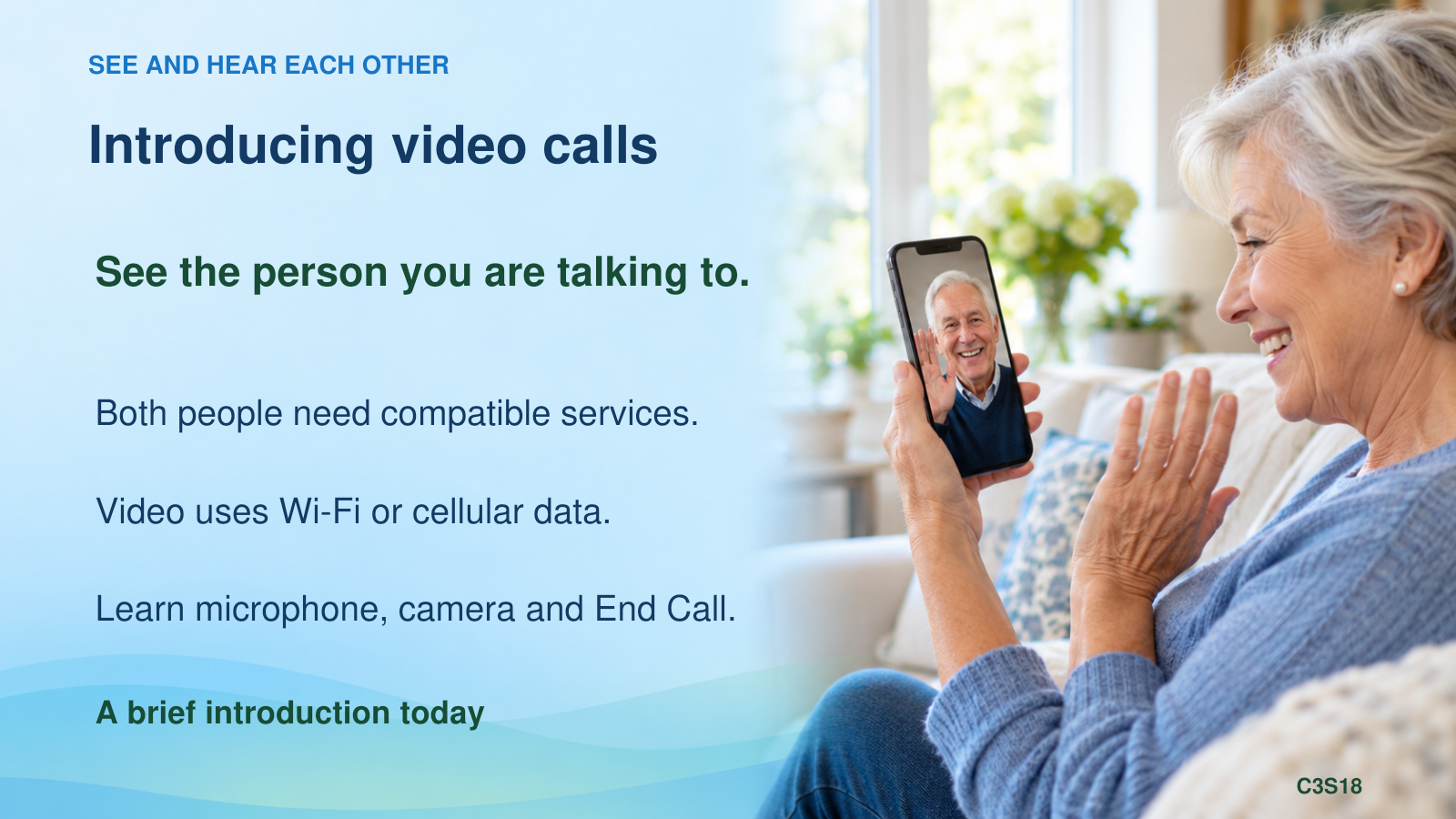
A video call lets people see and hear each other using their phones’ cameras and microphones.
Some phones show Video in Phone or Contacts. The service behind that button can vary, and both people need compatible ways to make the call. Seeing a Video button doesn’t tell us that it will work with every person.
[DEMONSTRATE]
If a compatible call has been arranged in advance and time permits, make a short video call. Show the front camera, microphone mute, camera on or off, switching cameras, and ending the call. Otherwise point out the option without attempting setup during class.
We discovered the front camera in Class 1. Video calling is another use for it. Video calls generally use an internet connection, through Wi-Fi or cellular data, and can use a substantial amount of data.
This is an introduction today. We’ll keep our main practice focused on calls, contacts, and text messages.
19 Before the break
Where do we go to type a telephone number? The keypad.
What does Mute turn off? Our microphone. We can still hear the other person.
What do we do if a saved number changes? Edit the contact and save it.
Does typing a text send it? No. We check the recipient and message, then press Send.
Will every phone use the same action to answer a locked-screen call? No. We follow the controls shown on our own phone.
What should we do with an urgent unexpected request for money or a security code? Pause and check independently through a trusted contact method.
Let’s take a ten minute break. Then we’ll practice on your own phones.
Break
10 minutes
Lab Calling Texting and Contacts
[STUDENTS DO]
Our priorities are to save useful contacts, answer and end a call, and send and reply to a text. Work through the core activities first. We’ll help with the differences between phones.
Activity 1 Complete your contacts
Create or complete the three contacts whose information you brought. Avoid duplicates. Include name, telephone number, and email address when available. Save each entry. Find each one again, using Search for at least one. Check the information and correct it with Edit if needed.
Activity 2 Answer two arranged calls
Work with a willing class partner or the instructor. Agree before calling. First lock the receiving phone, call it, and practice answering with its displayed control. End the call. Then leave the receiving phone unlocked with another app open and call again. Practice answering and ending that call. Take turns. Notice whether your phone uses a tap, upward swipe, or sideways swipe.
Activity 3 Use call controls
During an arranged practice call, try Speaker, then return to the earpiece. Turn Mute on briefly and off again. Find the in-call keypad and adjust call volume. Finish with End Call. Work in turns so several speakerphone conversations don’t compete across the room.
Activity 4 Send and reply to a text
Use a willing partner or another person who has agreed to receive a practice text. Open their contact and choose Message. Check the recipient, type “This is my class practice message,” and send. Have the partner reply. Read the reply and send a short response. Then find the same conversation directly in Messages. Do not send practice messages to unsuspecting contacts.
Activity 5 Practice a safety decision
Discuss this example without opening any links: “Your package is delayed. Pay a small fee now using this link.” What makes it suspicious? How could you check independently? Find where Block or Report spam would be available on your phone, with help if needed. Do not report or block your practice partner.
Optional activities
Add a contact photo, locate an individual ringtone, or find your voicemail access method. If these options differ from the demonstration phone, ask for help after the core activities. Video setup is not a required lab activity.
Closing and homework
Today we used our phones for calls and written messages, and we saved information about the people we want to reach. We also practiced pausing before responding to suspicious contact.
Before leaving, check that your contacts are saved and that you can find your practice conversation.
At home, find a contact and make an arranged call or send a short text. Practice reading and replying. If answering a call is still awkward, ask someone you trust to call once while your phone is locked and once while it is unlocked.
Next week we’ll work with the camera, photos, and sharing pictures. Bring your phone charged. If you already have a picture you’re comfortable using for practice, know where to find it. We can also take a new picture in class.
The contacts you saved today will help us choose who receives a picture. Later, saved email addresses can help us address emails too.
Instructor source notes
Answering controls should be checked on the actual demonstration phone before class. Manufacturer and app instructions differ by model, software, and selected settings.
Google Phone Help, Make and receive phone calls: https://support.google.com/phoneapp/answer/2811745?hl=en
Samsung Support, How to use the Samsung Phone app on your Galaxy phone: https://www.samsung.com/us/support/answer/ANS10007259/
Motorola Support, Make and answer calls: https://en-us.support.motorola.com/app/answers/detail/a_id/148652/
Back to top ↑