Welcome: three ways to help yourself
Today we are going to learn three things that can make your phone more useful. First, we will learn to use Google Maps to find a place and figure out how to get there. Next, we will learn how to send and receive email. Finally, we will look at Gemini, a tool that can help you learn to use your phone when you get stuck. These subjects have something in common: they can help you do things for yourself.
You do not have to remember every button I show you. Phones change, and the screen on your neighbor’s phone may not look exactly like yours. What I want you to remember is how to find your way around, how to recognize what you are looking at, and what to do if something goes wrong. If your phone shows different words or buttons from mine, stop and look for something that means the same thing. You can always ask for help.
We have talked about calls, text messages, contacts, and photographs in earlier classes. We will use some of those skills again today. We are going to take our time, and I will show you what to look for as we go.
Part One: Google Maps — finding your way
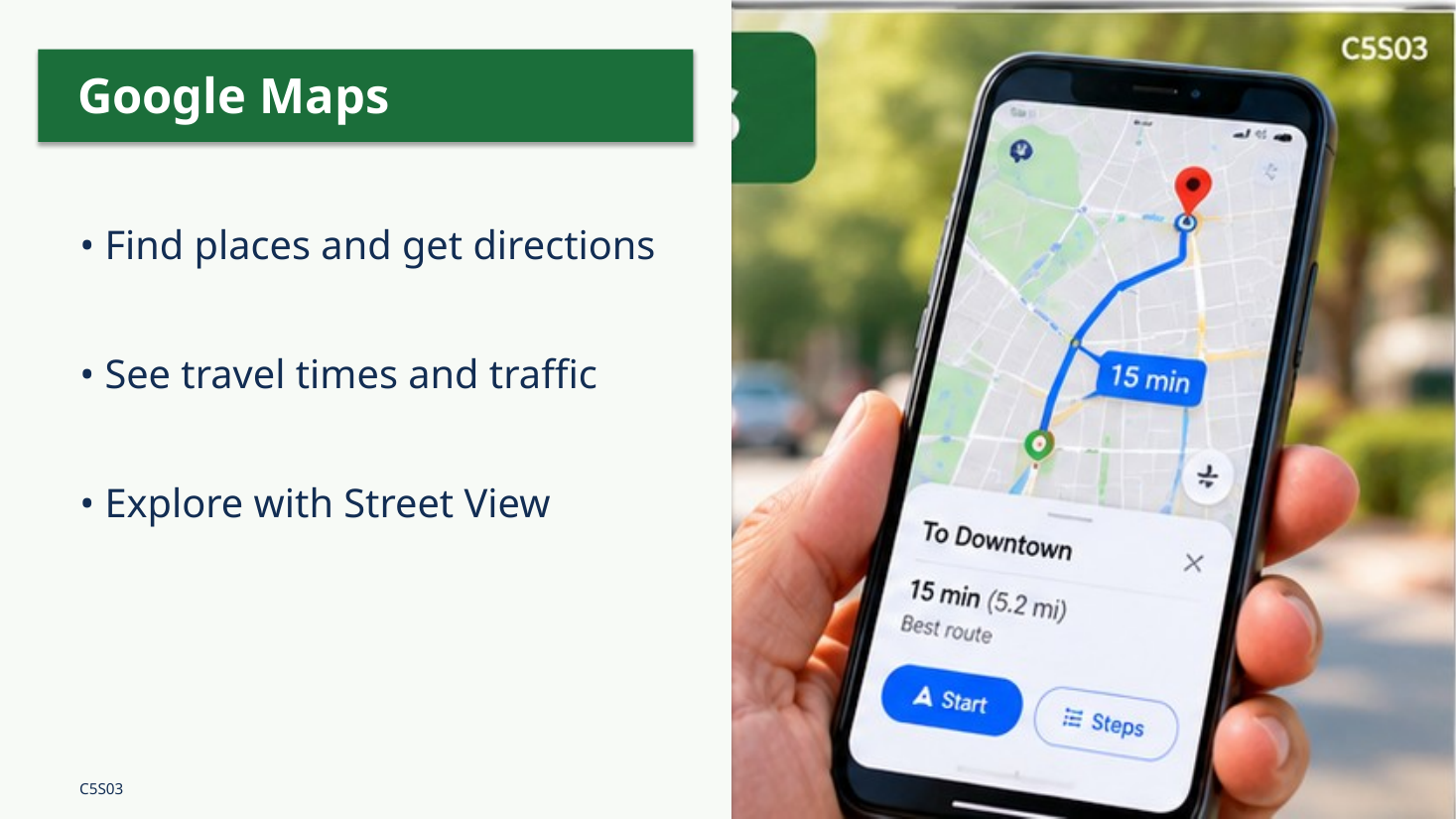
Think of Google Maps as a road map that can also tell you where you are and help you plan a trip. It can show you a route, estimate how long the drive will take, and sometimes suggest another way when the roads are busy. The map can even show pictures of a street so you can recognize a building before you get there.
First, find the Maps app on your phone. Its icon looks like a multicolored map pin. You might see it on your Home screen. If you do not, swipe up to open the list of apps and look for Maps. You can also use the phone’s app search. Tap Maps once to open it. If the phone asks for permission to use your location, read the choices. Maps works best for directions from where you are when it is allowed to use your location while you are using the app. You do not have to give every app permission all the time.
Look for a small blue dot on the map. That usually marks where the phone thinks you are. It is not perfect: indoors, or where the signal is weak, it may be a little off. You may see a pale blue circle around it. That circle gives you an idea of how uncertain the location is. If you move the map with your finger and lose track of where you are, look for a target-shaped button that recenters the map on your location. Tap it to bring the blue dot back into view.
Near the top is a search box. Tap it and type the name of a place. You do not always need its full street address. Try typing Barter Theatre. As you type, Maps may show suggestions. Read them carefully and choose the place you want, rather than the first result without checking. The map moves to that location and shows a place card with its name and details. You may also see its hours, telephone number, photographs, and reviews. Those details can be useful, but businesses can change hours, so confirm important information before making a special trip.
Directions: planning a trip before you leave
Now let us plan a trip. Tap the Directions button on the place card. You should see two locations: where the trip begins and where it ends. Maps often fills in Your location as the starting point. That is convenient when you are actually leaving from where you stand, but you can change it. Tap the starting point and type another address or place name. That means you can plan a trip between two places even when you are sitting at home.
Look at the little pictures for driving, walking, and sometimes public transportation or bicycling. We will choose the car symbol for driving. Maps draws a route on the screen and shows an estimated driving time. Sometimes there are several routes. One is highlighted as the main suggestion and another may appear in a lighter color. Tap another route to compare. A shorter distance is not always a shorter drive: traffic, intersections, road conditions, and speed limits matter.
Our class is already at the Higher Education Center, so searching for directions TO the building would not be much of an exercise. Instead, let us plan a trip FROM here to another place. We can use Barter Theatre as our shared example. Search for Barter Theatre, tap Directions, and check that the starting point is our current location at the Higher Education Center. Do not assume it is correct. Look at the destination name, route, and estimated time. If Maps offers more than one route, tap each one and see what changes.
There is a Start button that begins turn-by-turn navigation. When you are actually traveling, Maps can speak directions and show upcoming turns. You do not need to begin driving to plan a route. For today, we will mostly preview routes while sitting in class. I will demonstrate the Start button and how to stop or exit navigation. Depending on the phone, stopping may involve tapping an X or Exit. Never try to learn unfamiliar buttons while driving. Pull over safely first.
Save Home and plan a trip home
There is one destination you might use over and over: home. Google Maps can save a place labeled Home, so you do not have to type the address each time. To find it, open Maps and look for the You tab at the bottom. On many phones, Home appears among your saved or labeled places. Tap Home. If you have not set it yet, Maps may offer to add an address. Type your street address and select the correct suggestion. Check the house number, street, and town before saving. On some versions, the controls are under your profile picture or the list of labeled places.
After you save Home, return to the map and search for Home or tap its shortcut. Then tap Directions. If we are still at the Higher Education Center, Maps can show you a route from here to your home. Notice the travel time and any alternate route. This is a useful way to check your drive before leaving, especially when traffic is heavy.
Your home address is private information. You do not need to say it aloud, show it to another student, or share it with me. If you do not want to save your home address in Google, use a public place near home instead. That is completely fine. The important skill is learning how to save a place and get directions to it. If you accidentally select the wrong address, go back to your saved Home label and edit it rather than trying to navigate to the wrong place.
Traffic, reports, and changing routes
You may have noticed that roads on Maps sometimes appear green, orange, or red. When traffic information is displayed, green usually means traffic is moving fairly well, orange means it is slower, and red means it is moving slowly or is heavily congested. Darker red can mean especially slow traffic. You may need to turn on the Traffic map layer to see these colors clearly. Look for the Layers button, often a small stack of shapes near the upper part of the map, and choose Traffic.
Google Maps estimates travel times using information about roads and traffic. It may also show reported crashes, construction, closed lanes, and police activity. Some reports come from drivers. A report is not a guarantee that the situation is still there, and not every problem gets reported. You should never assume that a road is safe just because Maps shows no warning.
Suppose there is a wreck ahead and traffic is backing up. Maps may notice that the usual route is taking longer and suggest a different road. That is called rerouting. Sometimes Maps will show a message that another route is faster; in some situations it may change the suggested route while you navigate. You can decide whether the alternative makes sense. The fastest route may include narrow roads or unfamiliar turns. Follow road signs and safe driving judgment, not just the phone. We will look at traffic on the map today, but we cannot promise there will be a crash or police report to show at the exact time of class.
Street View: seeing a place before you go
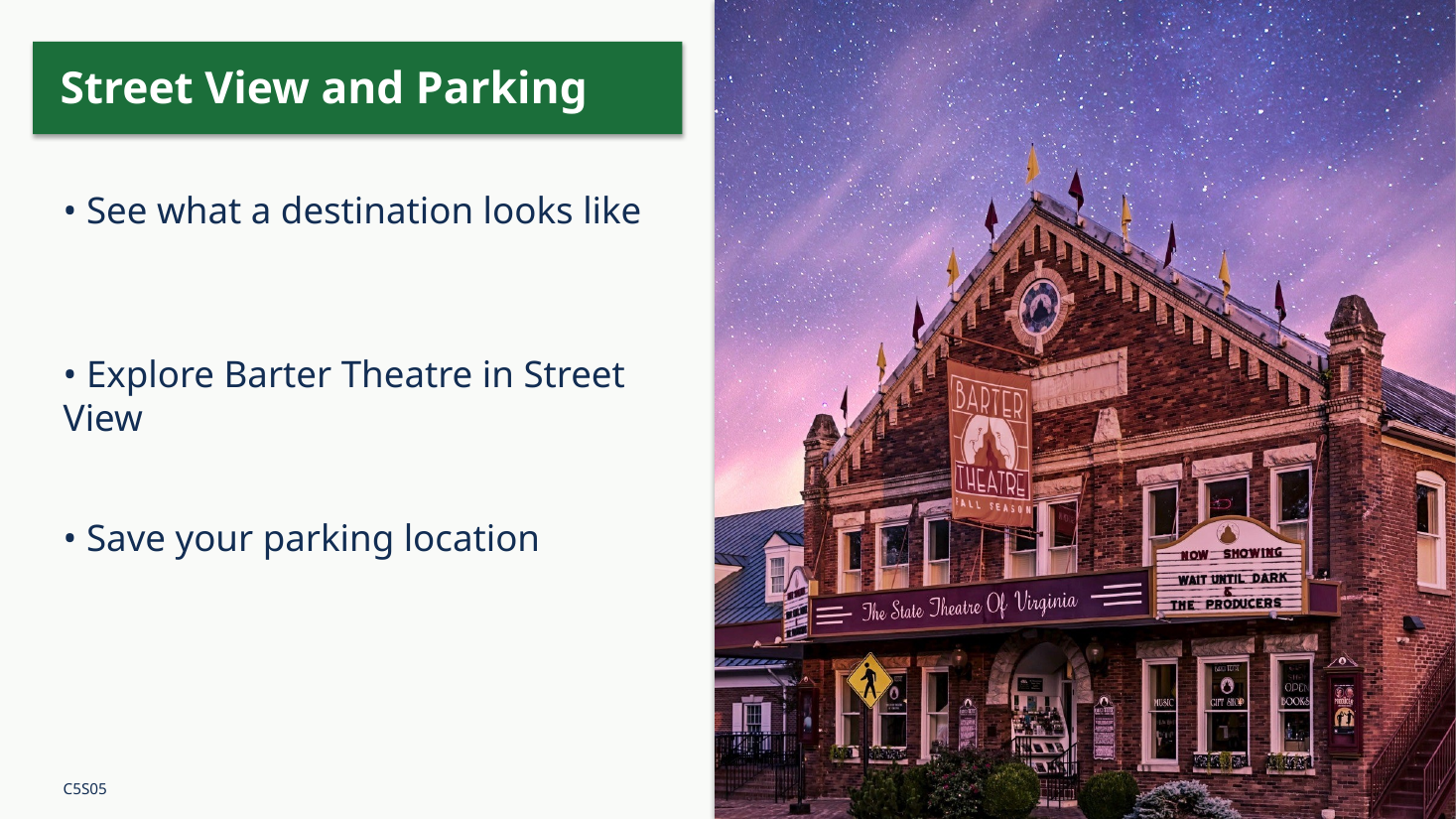
Street View is one of the most interesting features in Google Maps. It lets you look at photographs taken along many streets. You can see what a building looks like, where the entrance may be, and what landmarks are nearby. This is especially useful when you are going to a place for the first time.
Search for Barter Theatre again. On the place card, look for a picture with a Street View symbol or a small preview photograph. Tap it if available. On some versions, you can also open Layers and select Street View, then tap a highlighted street. Once the view opens, slide your finger across the picture to look left or right. Tap the arrows or the road ahead to move along the street. Use the back arrow to return to the map. Try to find the theater and recognize something about the building or nearby street.
Remember that Street View is not a live camera. The photographs may be months or years old. A storefront, parking arrangement, or road may have changed. It is a preview, not a promise of what you will see today. If Street View is not available for a particular place, that does not mean you have done anything wrong.
Save your parking spot
Here is a feature that might save you a long walk around a parking lot. Imagine leaving your car at a hospital, airport, fairground, or shopping center. Before walking away, open Maps and look for the blue dot showing where you are. Tap the blue dot and look for Save parking or a similar option. Tap it. Maps places a parking marker on the map so you can find the area again later.
When you are ready to return, open Maps, find the saved parking marker, and tap it. You can view its location and request directions back toward it. When you are finished, open the parking marker and look for an option to clear or remove it. That prevents an old parking spot from confusing you next time.
This works best when you save the spot while standing near your car, not after you have walked a long distance away. GPS may not tell you exactly which floor of a parking garage you used. You can still take a photograph of a parking-level sign or write down the section number. For classroom practice, we can save our current position as if it were a parking place, find the marker, and remove it again.
Sharing your location — and stopping
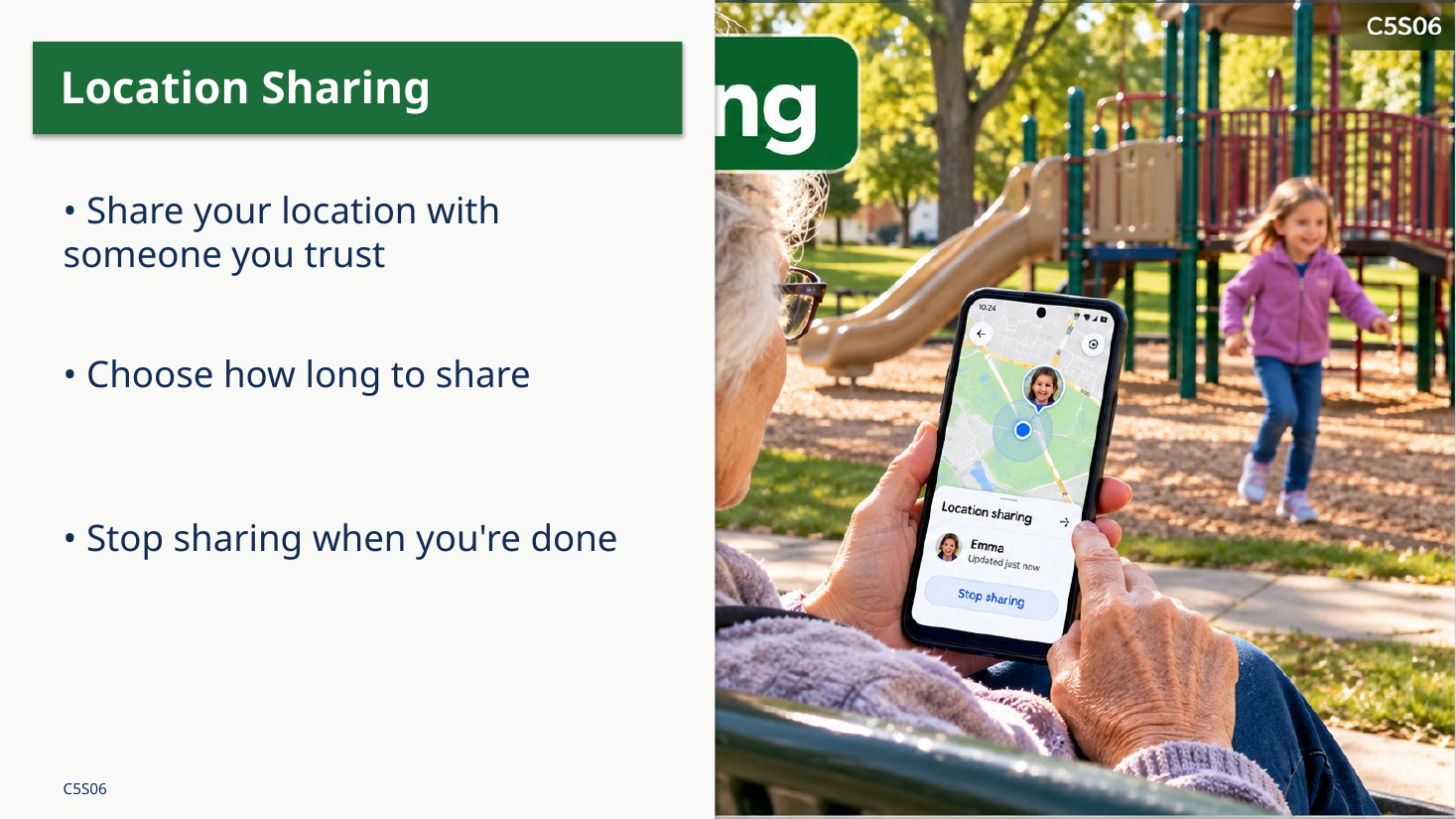
Maps can also help someone you trust find you. There are different kinds of sharing, and it is important to know which one you are using. Sending someone a fixed map location is like saying, Here is where this place is. Sharing your live location lets that person see where your phone is as you move, for the time you choose. Sharing trip progress during navigation can let a trusted person follow your trip and see an estimated arrival time.
To look at live location sharing, open Maps and tap your profile picture or initial. Find Location sharing. Depending on the version, you may see New share or Share location. Maps will ask whom to share with and for how long. Look closely at the duration. One hour is very different from Until you turn this off. Before sharing, check the recipient. Do not select someone just because their name appears first.
If you are sharing your location, return to Location sharing, select the person, and find Stop. This is just as important as learning how to begin. Today I will demonstrate these screens, but nobody needs to share a real location in class. You may watch and identify the controls without sending anything. Only share with someone you trust, and remember that live sharing can reveal where you go.
Part Two: Email — a different way to communicate
We already learned to send text messages. Email is another way to communicate, but it is not the same thing. A text message is usually sent to a phone number using the Messages app. An email is sent to an email address using an email app or website. Email is common for receipts, appointments, school or community notices, businesses, and longer messages. You can send pictures through both, but email is especially useful for documents and information you may want to find again later.
An email address looks something like example@gmail.com. Notice the @ symbol in the middle. The part before it identifies the mailbox, and the part after it identifies the email service or domain. The entire address matters. One missing letter, period, or number can send the message to the wrong place or make it fail. Email addresses are not case-sensitive in the way passwords are, but the spelling and symbols must be correct.
Not everyone uses Gmail. Some people use Outlook, Yahoo, AOL, or email provided by another company. That is fine. The names and buttons may look a little different, but the basic ideas are the same: an Inbox holds received messages, Compose starts a new message, Send sends it, and Reply answers a message. If you have a Google account on your phone, that does not necessarily mean Gmail is the email service you use every day.
Find your email and understand the Inbox
Look on your Home screen or in your list of apps for the email app you normally use. Gmail has an envelope-like M symbol in Google’s colors. Other email apps have different icons. Open the app. If you are already signed in, you should see a list of messages. That list is usually called the Inbox. Newer messages are often near the top. You may see the sender’s name, a subject line, a date, and a short preview of the message.
Tap a message from someone you recognize. The full email opens. Look at who sent it and what the message says. You may have to scroll down to read the whole thing. A message may include pictures or files, called attachments. If you do not recognize the sender or were not expecting an attachment, do not open it just because it looks important.
If your email app asks you to sign in and you do not know the password, do not guess repeatedly or let another student enter their account into your phone. For today, you can watch the demonstration or work with a partner who is comfortable sharing the screen, not the password. Account recovery is a separate task that can take more time than we have in class.
Compose and send a new email
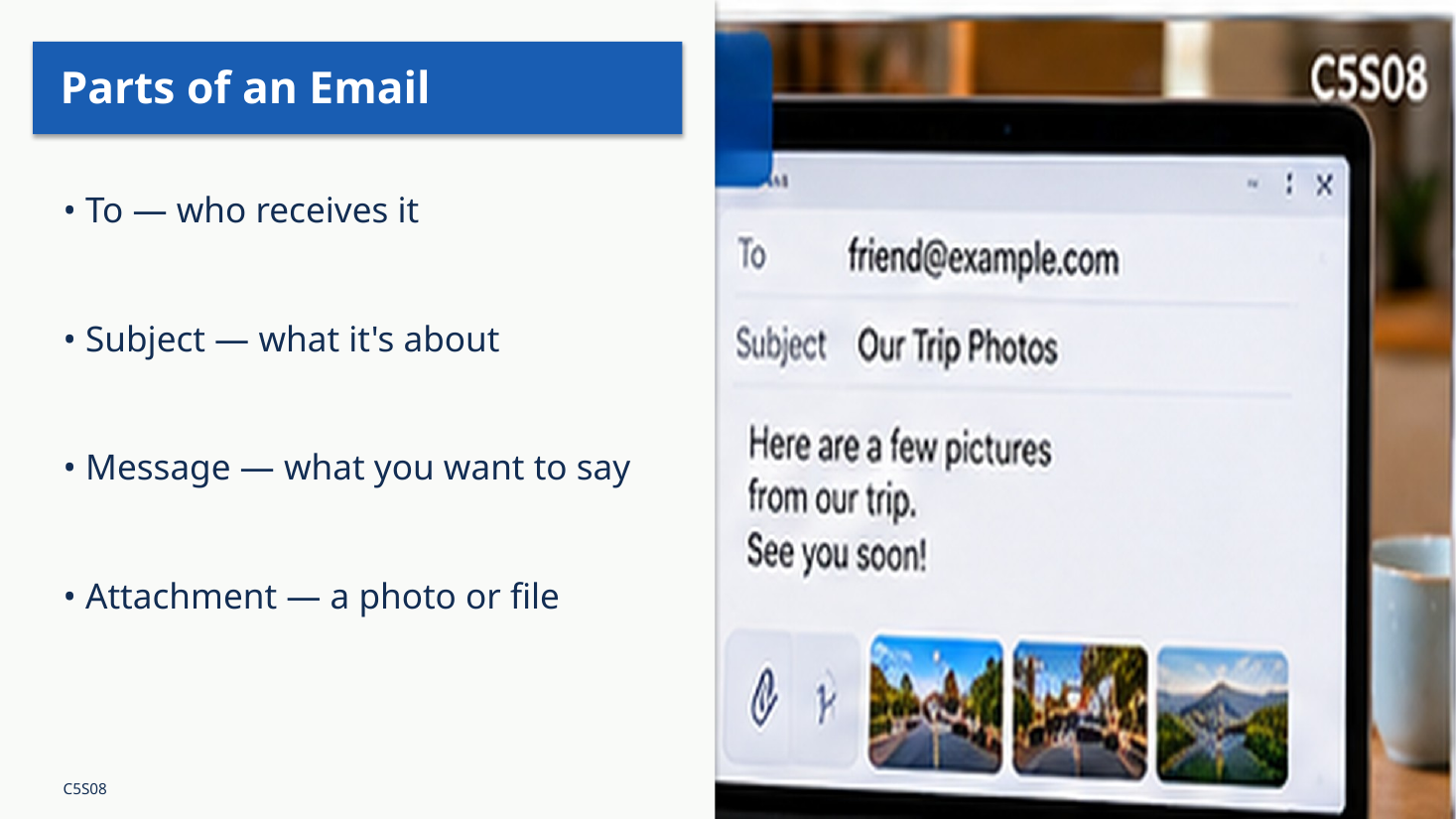
Now we will send a message. Find the button labeled Compose, New, or a pencil symbol. Tap it. You should see a blank message with a To field. This is where you type the recipient’s email address. Enter it carefully and double-check it. Some apps show a suggestion from your contacts; make sure it is the correct person before selecting it.
Find the Subject field. The subject is a short description of what the message is about. You might type Android Class 5 Practice. Then tap in the larger blank area below the subject and type the message itself. For example: Hello. I am practicing sending email in Android class. Please reply when you receive this. You do not have to write a long message.
Before sending, look again at the To address, the subject, and the message. Then find Send, often shown as a paper airplane or arrow, and tap it once. The message should leave the composition screen. Some apps briefly show a Sent confirmation or an Undo option. If you want to see what you sent, open the menu and find Sent or Sent Mail. A message appearing in Sent usually means your app sent it, not necessarily that the other person has read it.
Read and reply: our partner exercise
For practice, we will work in pairs, much as we did when learning to make telephone calls. Each person should have a chance to send, receive, and reply. First, exchange email addresses. You can show your address on your screen or write it on paper. Read it back carefully. Remember that a phone number and an email address are different things.
Student A will compose a new email to Student B. Use the subject Android Class Practice and write a short greeting. Student B will look in the Inbox and wait for the message to arrive. It may take a moment. If it does not appear, try refreshing the Inbox by pulling down on the message list, and check that Student A typed the address correctly. If it still does not arrive, look in Spam or Junk, but do not move around or delete messages at random.
When Student B opens the email, find Reply. Tap it and type a short answer such as I received your email. Then tap Send. Student A should watch for the reply. Now switch roles so Student B starts a new message and Student A replies. Notice that Reply already fills in the address of the person who wrote to you. That is different from Compose, where you choose a new recipient yourself.
Some messages have Reply all as well as Reply. Reply answers the sender. Reply all may send your response to everyone on the original message. In our exercise, use Reply. In real life, stop and think before choosing Reply all, especially when a message was sent to a large group.
Photographs, attachments, and suspicious email
Email can carry a picture or document along with the written message. That extra item is called an attachment. When composing an email, look for a paperclip or Attach button. Tap it, then choose a picture or file if the app offers that choice. You may be asked to select from Photos, Gallery, or Files. Pick one photograph you are comfortable sharing and check that it appears in the draft before sending. Large files can take longer to send, and some email services limit attachment size. We will treat attaching a photo as an extra exercise if time permits.
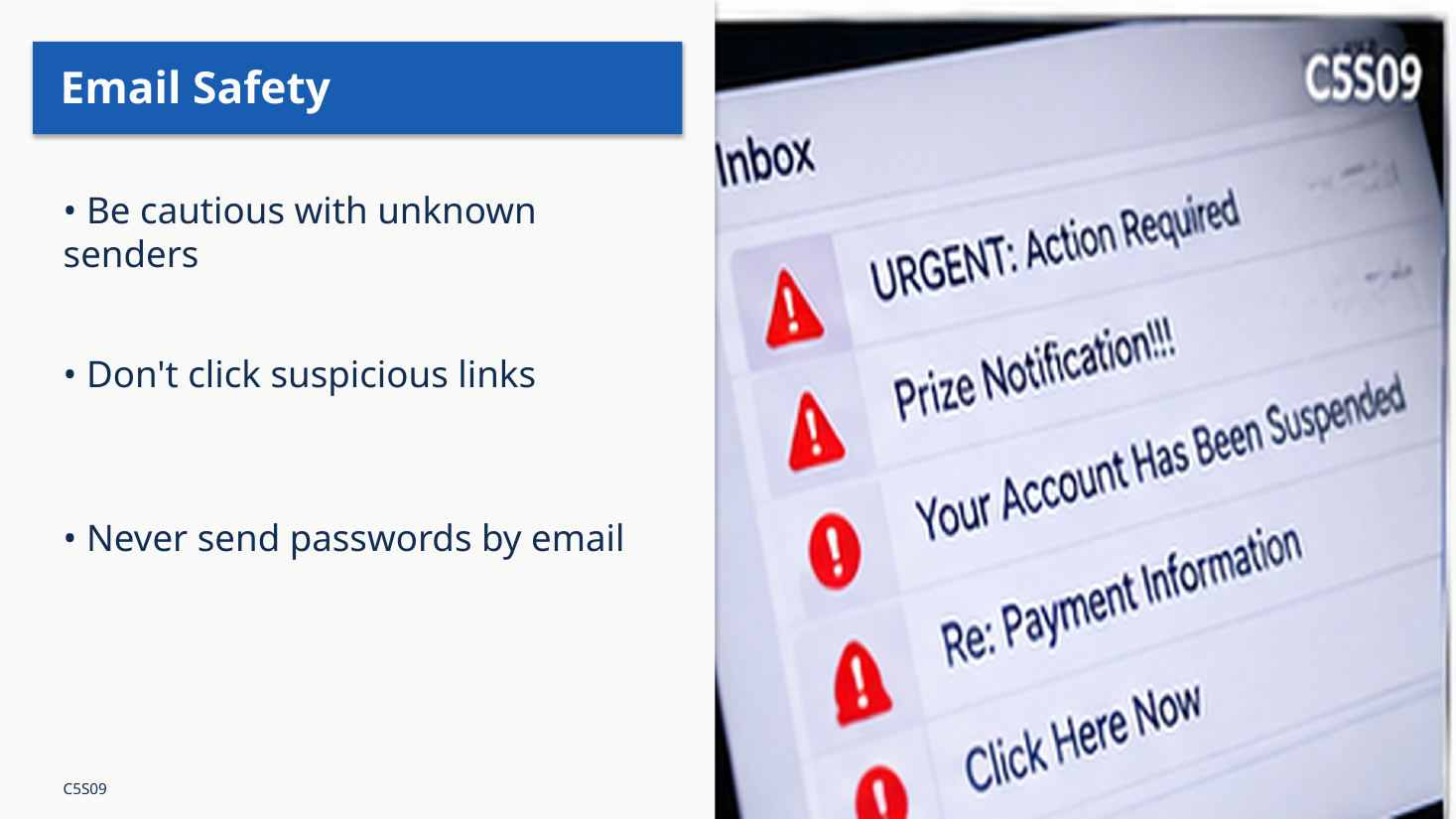
We also need to talk about email safety. A message may claim that a package cannot be delivered, that your bank account is locked, or that you must act immediately. Scammers use urgent language to make people click links or provide information. Look at the sender’s actual address, not just the name shown on the screen. If something feels suspicious, do not tap the link, download the attachment, or call a telephone number in the message. Open the company’s app or use a known phone number instead.
A familiar company logo does not prove an email is genuine. Neither does a message that uses your name. Never send passwords, verification codes, or financial information in response to an unexpected email. If you accidentally open a suspicious message, that alone does not mean something terrible has happened. Stop before clicking anything else and ask for help if needed.
Part Three: Gemini — help when you get stuck
Our last subject is a different kind of tool. Some phones already have a voice assistant that can answer a quick question, set an alarm, or make a call. Google Assistant is the name many people know. Samsung phones may also have Bixby. Gemini is Google’s newer AI assistant. On some Android phones, Gemini can become the main assistant; on others, you may open Gemini as a separate app. We are not going to change anyone’s default assistant today.
What I especially want you to learn is that Gemini can help explain how to use your phone. Suppose you get home and cannot remember how to make the letters larger. You do not have to wait until next class. You can ask Gemini to walk you through it. You can ask a follow-up question if the first explanation does not make sense. That is the skill we are practicing.
Look for the Gemini app, usually marked by a star-shaped symbol. It may be on your Home screen or in your app list. If you do not see it, that does not mean you are doing anything wrong. Some phones may not have it installed or may not support every feature. I will demonstrate on my phone first. If your phone already has Gemini, you can follow along. We will not spend the whole lesson installing or signing into apps.
Ask better questions and request one step at a time
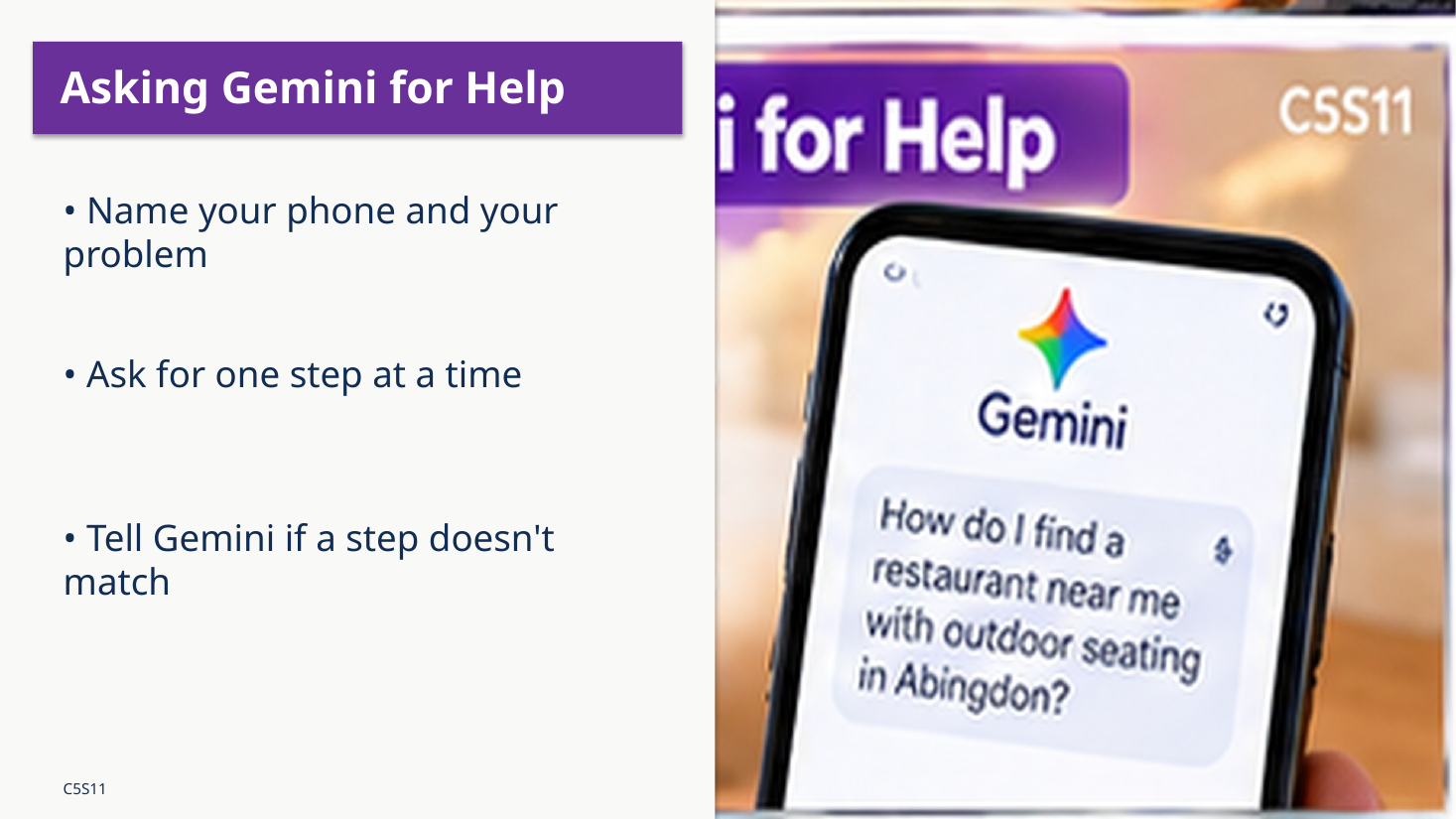
Here is a simple way to ask Gemini for help. Tell it three things: what kind of phone you have, what you are trying to do, and that you want instructions one step at a time. For example: I have a Motorola Android phone. I want to make my ringtone louder. Tell me one step at a time and wait for me after each step.
Notice how much more useful that is than saying My phone is broken. If you know the model, include it, but you can begin with the brand. You can also tell Gemini what you see on the screen. Try saying: I opened Settings, but I do not see Sound. I see Sound and vibration. What should I tap? Different Android phones use different names, and Gemini may need that information to help you.
I will ask Gemini how to make the text larger on my phone. Then I will deliberately ask a follow-up question: I do not understand step two. Please explain it another way. Listen to how the conversation continues. You do not have to begin again with a brand-new question every time. You can ask it to slow down, use simpler words, or explain only the next step.
If you prefer speaking, look for the microphone in Gemini and tap it, then speak clearly. If you prefer typing, tap the text box and use the keyboard. On some phones, the microphone on the keyboard only turns speech into typed words, while Gemini’s own voice controls may work differently. Either method is fine. The important part is asking a clear question.
What to do when Gemini is wrong
Gemini can be helpful, but it can also be mistaken. It may describe a button that does not exist on your phone, use instructions for a different Android version, or sound confident when it is wrong. If that happens, do not keep tapping random settings to make its answer fit. Stop and tell it what you actually see. Ask for another method. If you are unsure, leave the setting alone and ask someone you trust.
Be especially careful with instructions that involve deleting files, resetting the phone, changing passwords, or turning off security protections. Those actions can have serious consequences. Gemini should be a helper, not the final authority on what you should do.
Do not type passwords, Social Security numbers, bank account details, or other private information into Gemini. Google has a setting called Keep Activity that controls whether conversations are saved to your account history. When it is on, Google saves activity and may use some conversations to improve services. When it is off, some connected-app features may not work, and Google may still keep conversations temporarily. We will show where to find that setting, but you can decide for yourself whether to turn it on. Saving activity is not the same as giving Gemini perfect memory of everything you have said.
A calendar example and a practice problem
Gemini can sometimes work with other Google services. For example, when the proper connection and permissions are enabled, you may be able to ask it to add an appointment to Google Calendar. You might say: Add a dentist appointment next Tuesday at two in the afternoon. But do not assume the event was saved just because you asked. Open Calendar and verify the date and time. Different phones and accounts may need different setup steps, and we will not require everyone to connect Calendar today.
Now choose a problem you remember from one of our earlier classes. Maybe you want to change the screen brightness, make the ringtone louder, find a picture you took, or locate an app that is missing from your Home screen. Ask Gemini for help using your phone’s brand and the words one step at a time. Read or listen to the first instruction. If it matches your phone, try it. If it does not match, describe what you see and ask another question.
If you cannot use Gemini on your own phone today, watch the demonstration and practice saying a good question aloud. You can also write down a question to try later. The goal is not to finish fastest. The goal is to learn how to ask for useful help and how to tell when an answer does not fit your phone.
Closing: what I want you to remember
Today we practiced three different kinds of independence. With Google Maps, you can find a place, plan a route, and make sense of traffic information. You can save a parking location and, when you choose, share your location with someone you trust. With email, you can communicate using an address rather than a phone number, and you can send and reply to messages. With Gemini, you can ask how to do something on your own phone and keep asking until the explanation makes sense.
You do not have to memorize every menu. Remember the basic questions: Where am I trying to go? Who am I trying to contact? What exactly am I trying to do on my phone? When you can answer those questions, you are already closer to solving the problem. Take your time, check what is on the screen, and do not be afraid to ask for the next step.
Back to top ↑