Last week we spent most of our time getting acquainted with the phone itself. We learned the basic parts of the phone, practiced tapping, swiping, scrolling, and dragging, and talked about the Home screen and the App Drawer.
Today we’re going to start changing a few things so the phone works better for you.
One thing I want you to remember today is that Android phones are not all exactly alike. A Samsung phone may call something by a slightly different name than a Google phone. Motorola may put something in a different place. Even two phones from the same company may look a little different if they’re running different versions of Android.
So if your screen doesn’t look exactly like mine, that doesn’t mean you’re doing anything wrong.
You’re welcome to follow along on your phone while I’m demonstrating. But if you can’t find what I’m showing, don’t get stuck trying to find it. Just watch me. We’ll have plenty of time during the lab to work through it on your phone.
Also remember that some of you use the three navigation buttons and some of you use gestures. When I say “go back” or “return Home,” use the method your phone normally uses.
The important thing during the first part of class is that everybody gets to see what we’re going to cover.
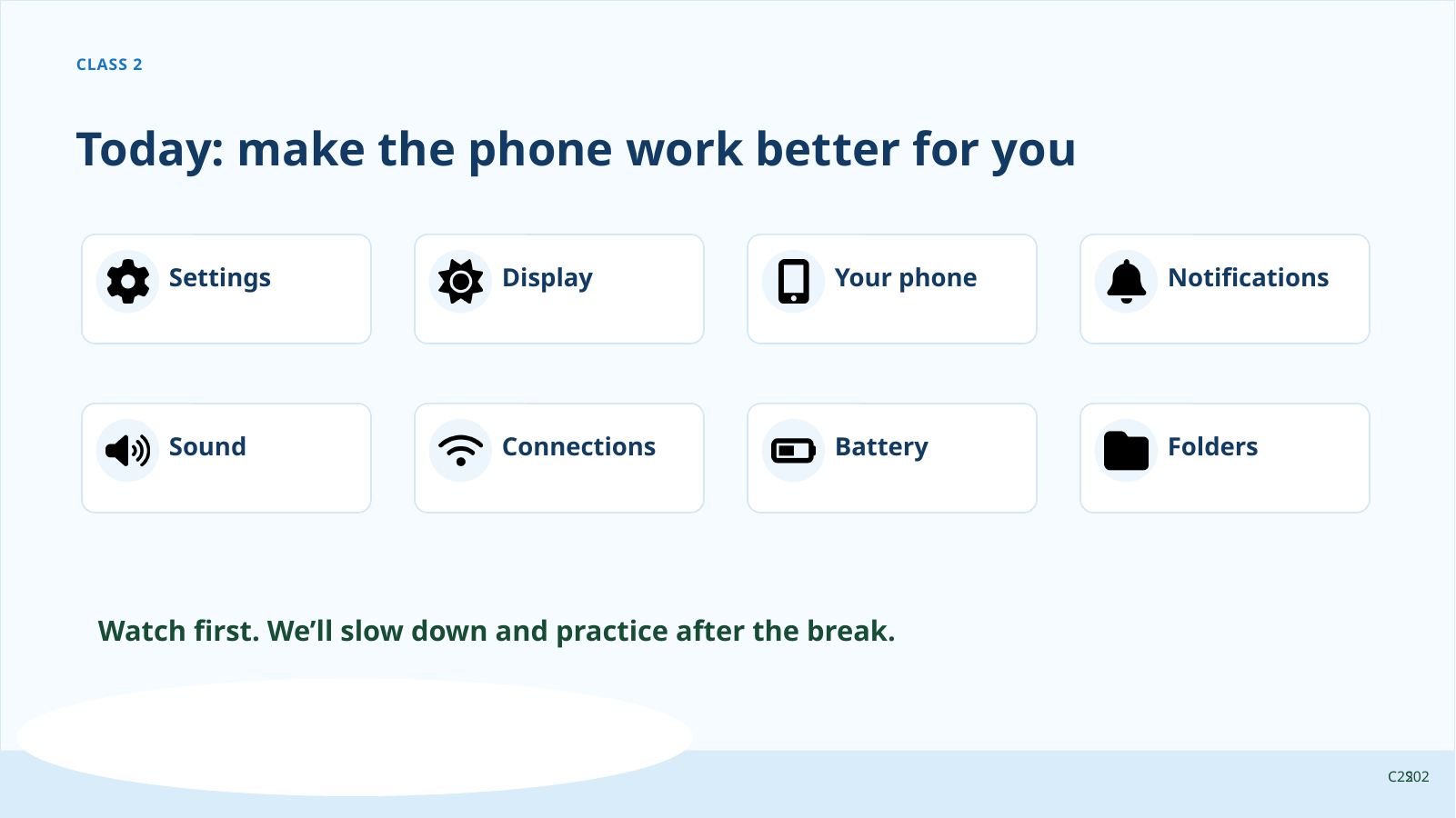
Settings
Most of what we’re going to do today starts in one place: Settings.
Settings is where you tell the phone how you want it to behave.
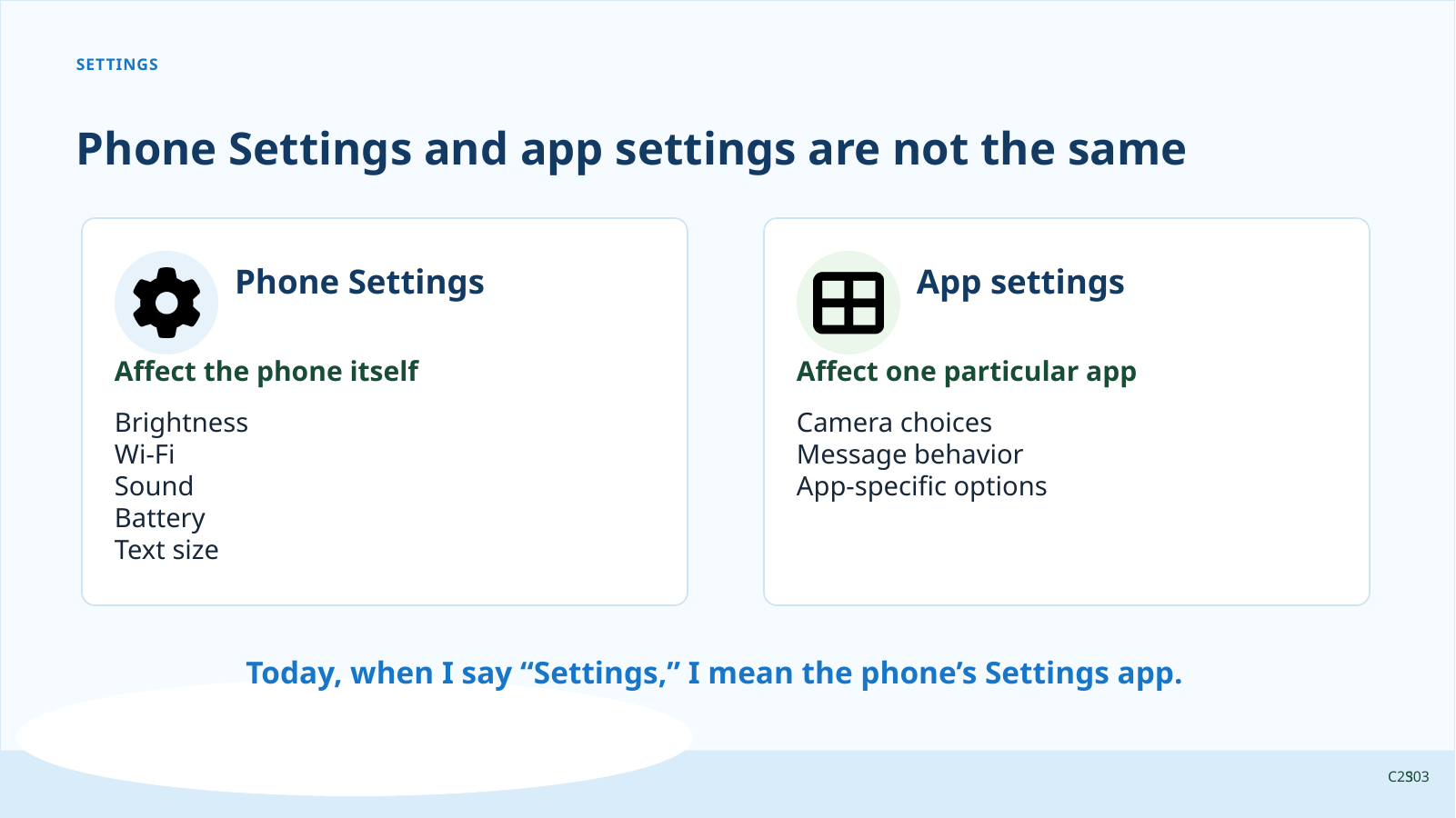
Before we go farther, there is an important distinction: your phone has Settings, and individual apps can have their own settings.
Phone Settings control things that affect the phone itself — things like brightness, Wi-Fi, sound, battery, and text size.
App settings control how one particular app works. For example, the Camera app may have settings for pictures, while the Messages app may have settings for how messages behave.
Sometimes the two overlap. Notifications are a good example: an app may have its own notification choices, while the phone also controls whether that app is allowed to notify you. When I say “Settings” today, I mean the phone’s Settings app unless I say otherwise.
There are usually several ways to get there. One is through the App Drawer.
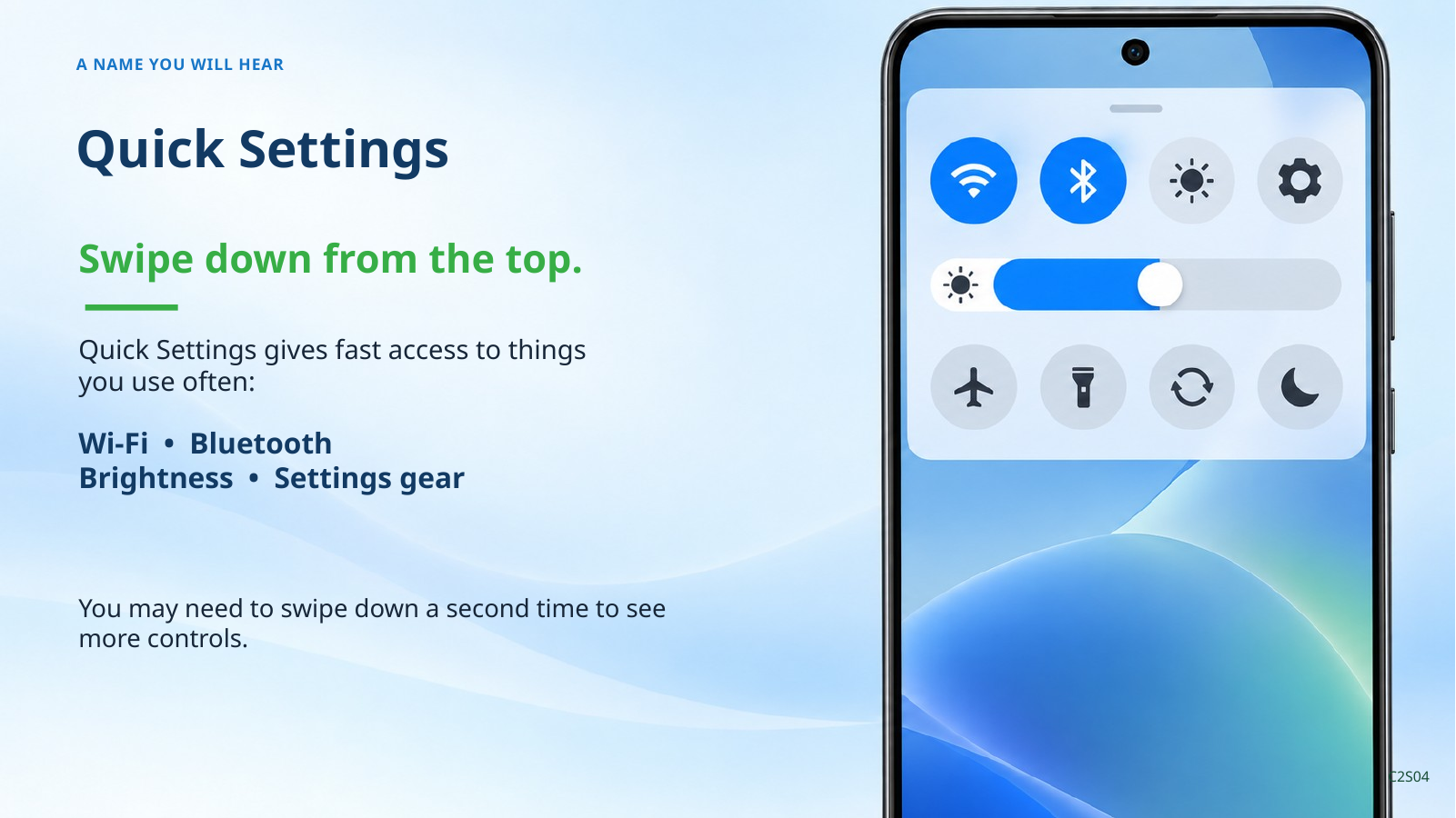
There is another Android term I want you to recognize: Quick Settings.
Quick Settings is the panel you see when you swipe down from the top of the screen. It gives you quick access to things you use often, such as Wi-Fi, Bluetooth, brightness, and other controls. Many phones also put a Settings gear there.
You don’t need to memorize both ways right now. The important thing is recognizing Settings and recognizing the term Quick Settings when you hear it.
When you open Settings, you’ll see quite a few choices. Things like Network, Connected devices, Apps, Notifications, Battery, Display, Sound, Accessibility, Security, and System. Your phone may use different words or put them in a different order.
We’re not going to explore everything in Settings today. We’re going to pick out a few things that are useful to know.
You may also see Accessibility. That is where Android keeps features designed to make the phone easier to see, hear, or operate. We are not spending a separate section there today, but I want you to know what the word means and where to look if you ever need it.
Display
Let’s start with something that can make an immediate difference in how comfortable your phone is to use: the display.
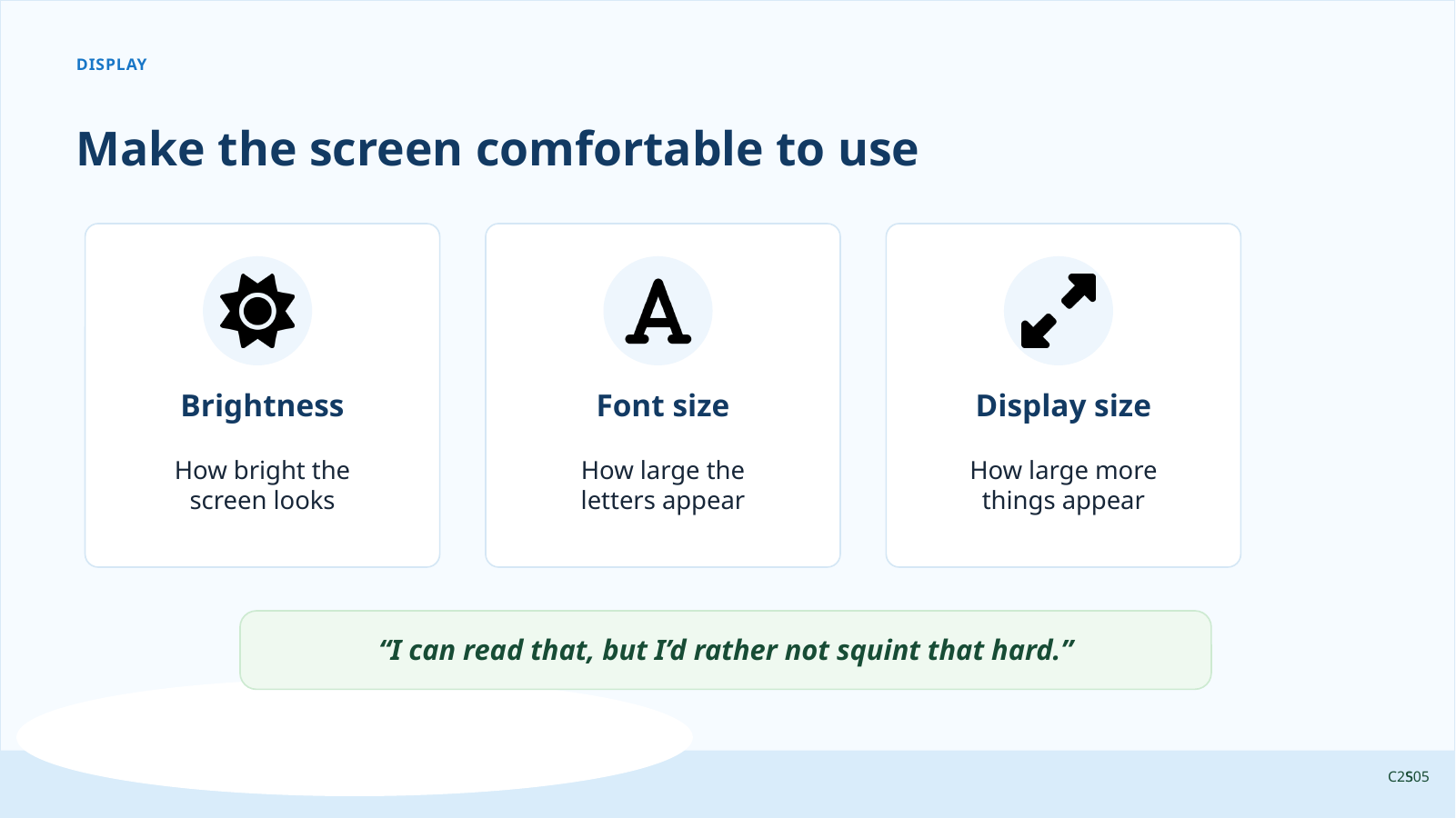
Brightness is simply how bright the screen is. A brighter screen may be easier to see, especially outdoors, but a brighter screen also uses more battery. There isn’t one correct brightness setting. Set it where the screen is comfortable for you.
Now let’s look at font size. First, a word we may hear a lot: font.
A font is the style or design of the letters you see on the screen. Font size changes how large those letters appear.
If you’ve ever looked at your phone and thought, “I can read that, but I’d rather not squint that hard,” font size is one of the first settings I’d try.
You may also see something called Display size, Screen zoom, or something similar. This is a little different.
Font size mostly changes the words. Display size can make more of the things on the screen larger — buttons, icons, menus, and other items.
Making things larger doesn’t mean every app will behave perfectly. Apps are all different. One app may adapt very well to larger text while another may look a little crowded.
Screen Rotation
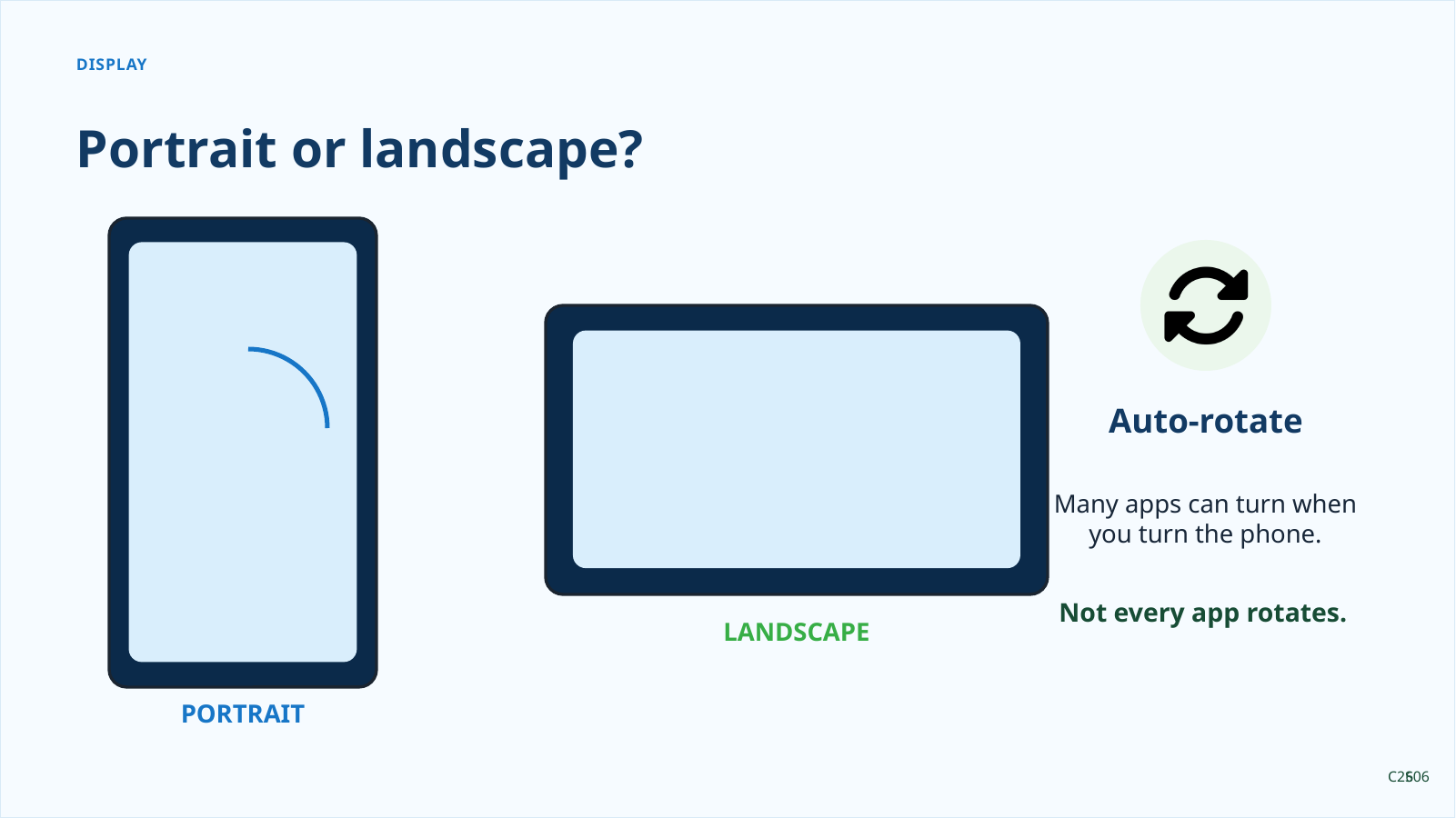
Another display behavior you’ll run into is screen rotation. When the phone is upright, we call that portrait. When you turn it sideways, we call that landscape.
If Auto-rotate is turned on, many apps can change between those two views. But not every app supports rotation, so turning the phone sideways does not guarantee that the screen will turn.
What Phone Do I Have?
While we’re already in Settings, let’s answer a question that comes up surprisingly often: What kind of phone do I have?
You may know that you have a Samsung, Motorola, or Google phone. But if somebody asks for the exact model, that can be harder. Your phone can usually tell you.
We’re looking for About phone. Depending on your phone, you may have to go back to the main Settings screen and scroll toward the bottom.
There is other information on these screens that we don’t need. You may see a serial number, IMEI, SIM information, or other numbers that identify your particular phone. We are not interested in those.
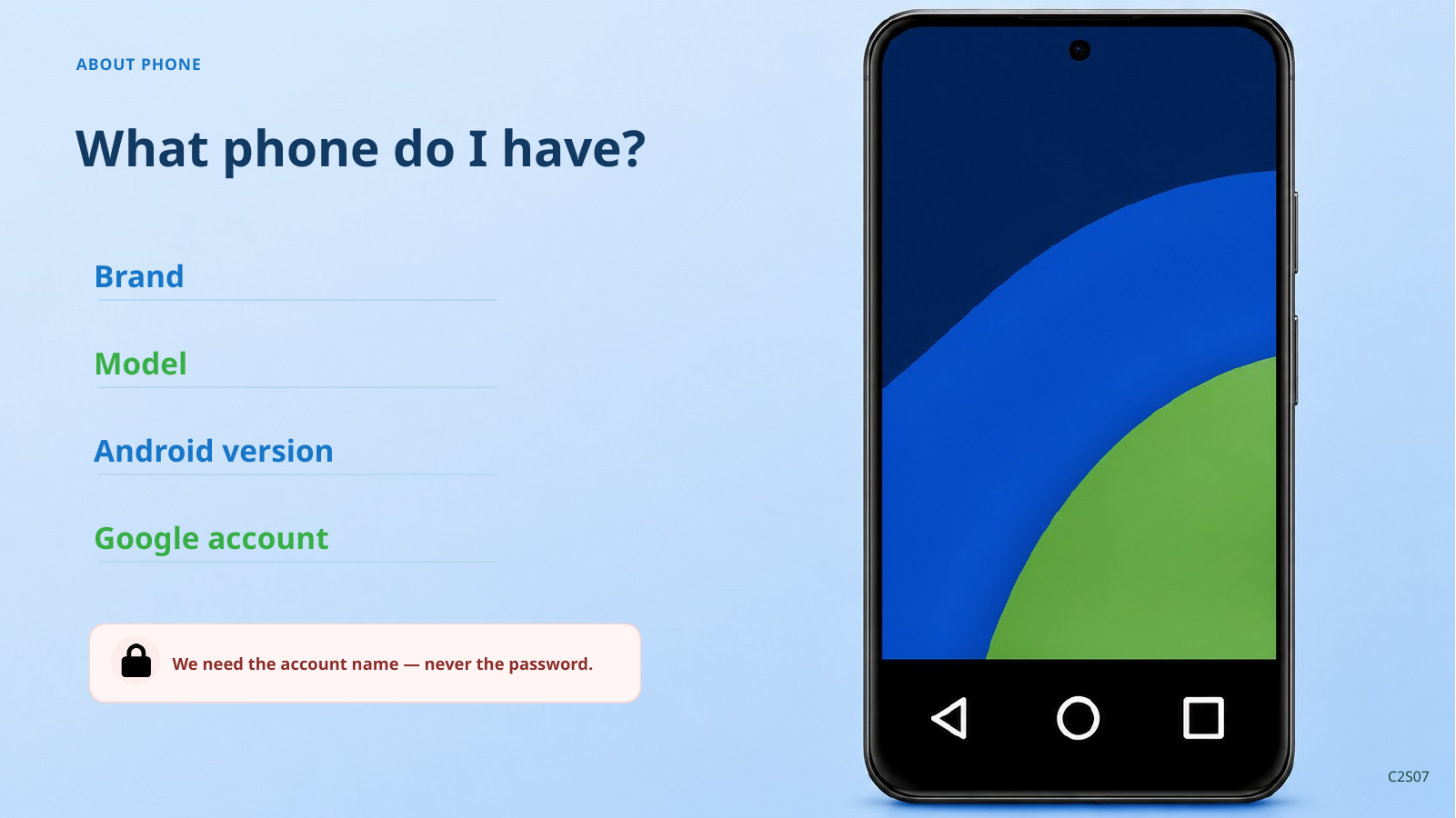
For this class, I want you to know your phone’s brand, model, and Android version. If the brand is not obvious in About phone, we can help identify it during the lab.
There is one more piece of information I want you to know: the Google account you use on this phone.
Your Google account is usually a Gmail address. Android uses it for things such as the Play Store, contacts, backups, and other Google services.
We want the account name — the email address — but we will never ask you for your Google password. Do not write your password on the handout.
There’s a “My Phone” box on your handout for Brand, Model, Android version, and Google account. We’ll fill that in during the lab.
Knowing this information can be useful when you need help. Saying, “I have a Samsung Galaxy A15 running Android 15,” tells somebody much more than saying, “I have an Android.”
Notifications
Now let’s talk about something your phone does all day long: notifications.
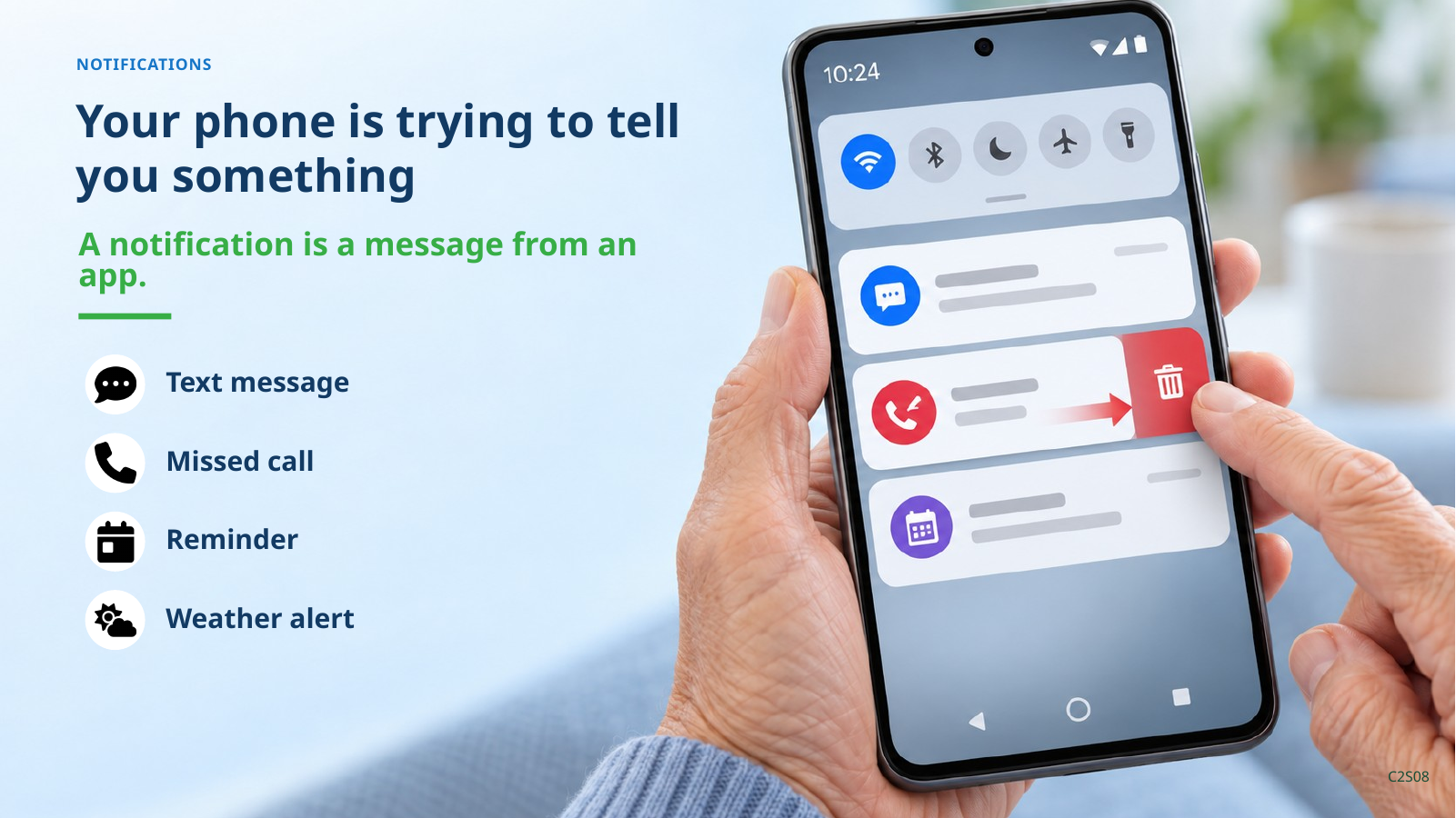
A notification is a message from an app telling you that something happened or may need your attention. A text message, missed call, weather alert, appointment reminder, or app update can all create notifications.
You may see a small notification symbol in the status bar at the top of the screen. Notifications can also appear on the lock screen. To see your notifications in one place, swipe down from the top of the screen.
That swipe opens the notification panel. You may also hear it called the notification shade. On many phones, Quick Settings appears at the top of this same panel, with your notifications underneath it.
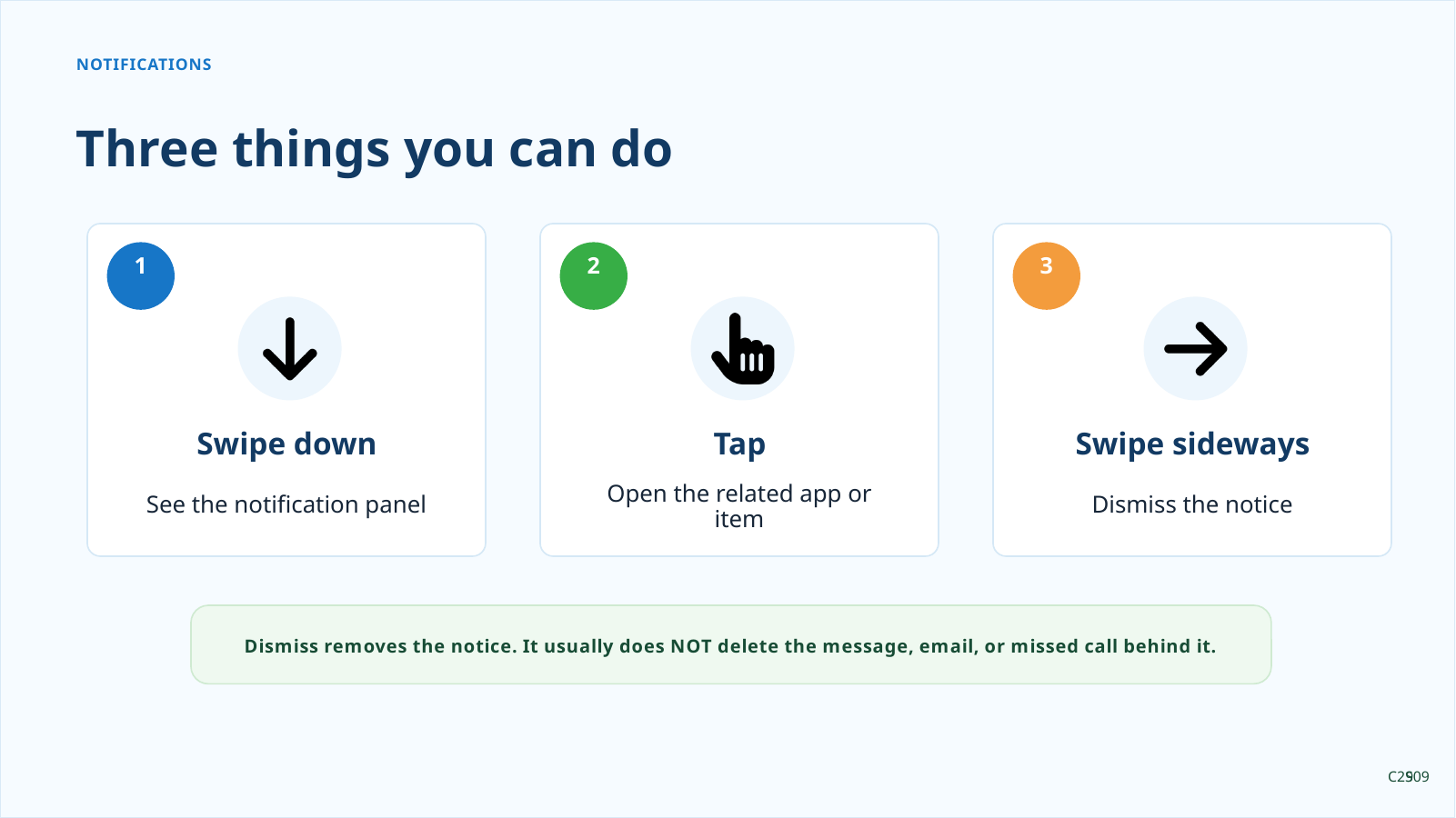
Tapping a notification usually takes you to the app or item that caused it. Swiping a notification away dismisses the notification from the list.
Dismissing a notification does not usually delete the message, email, missed call, or other item behind it. It removes the notice from the notification panel; it does not undo what happened.
Not every notification is important, and apps are all different. Android lets you control which apps are allowed to notify you. Notifications can also appear on the lock screen, and phones offer different choices about how much information is shown there. We’ll use Settings Search later to find those lock-screen controls.
Sound and Volume
Let’s move from seeing the phone to hearing it.
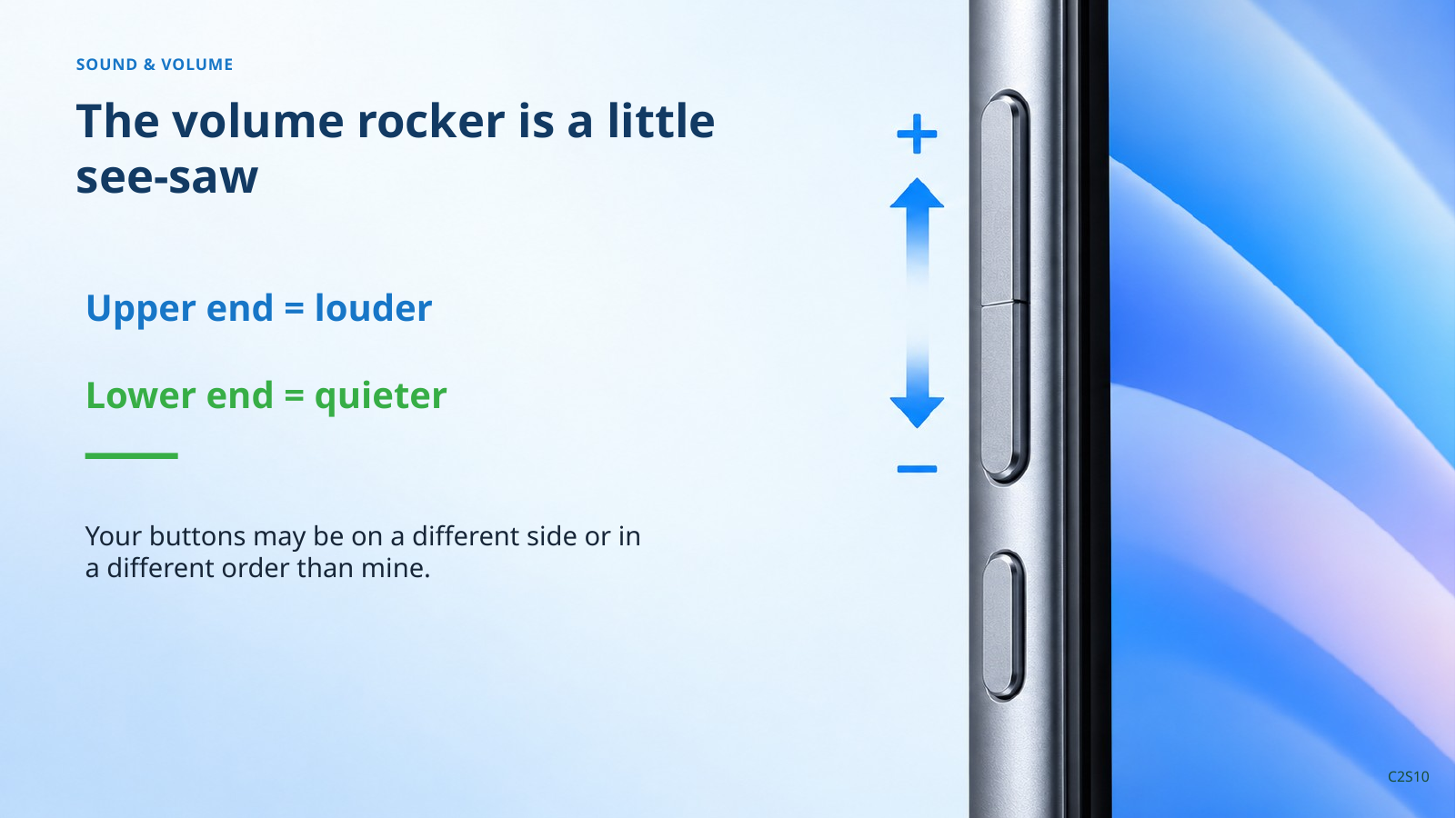
Remember the buttons on the side of your phone. One is usually the power button, and another is the volume rocker.
The volume rocker is usually one long button with two ends. Think of it like a little see-saw: press the upper end to make the sound louder and the lower end to make it quieter. Your buttons may be on a different side or in a different order than mine.
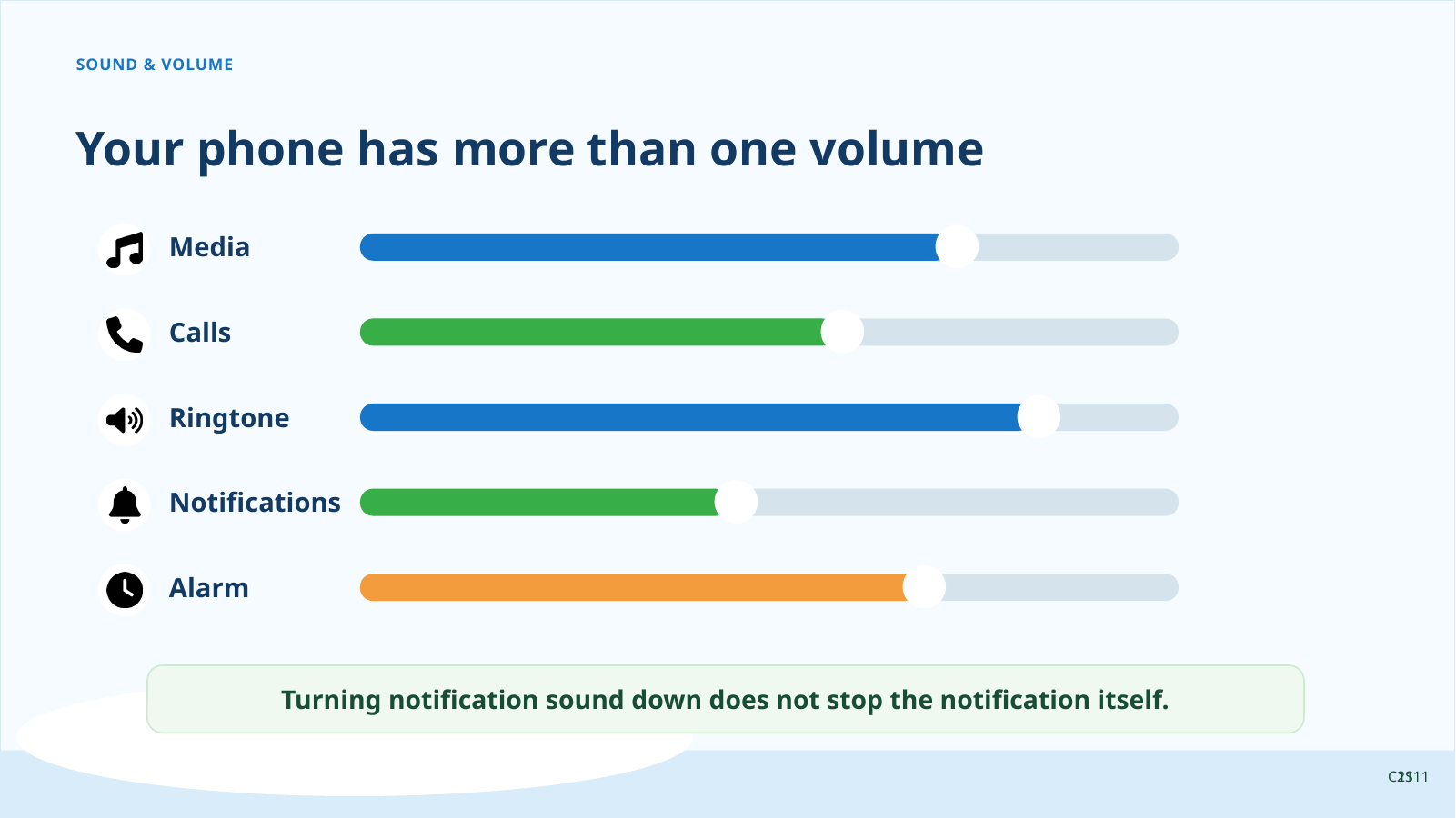
There’s a catch, though. Your phone doesn’t really have just one volume. It can have separate volume levels for different kinds of sound — for example media, calls, the ringtone, notifications, and alarms.
This explains something that can otherwise be very confusing. You can turn down a video and still have your phone ring loudly. Or you can have the ringtone turned up and wonder why you can’t hear a video. You may simply be changing a different volume.
One more distinction: notification volume controls the sound a notification makes. Turning that sound down does not necessarily stop the notification itself from arriving or appearing on the screen.
There are also three things you’re going to run into quite often: Sound, Vibrate, and Mute.
Sound means the phone is allowed to make its normal sounds. Vibrate means it can alert you by vibrating instead. Mute means the sound is turned off.
This is worth remembering the next time your phone suddenly stops ringing. Before assuming something is broken, check whether it has accidentally been put on Vibrate or Mute.
Three Ways Your Phone Communicates
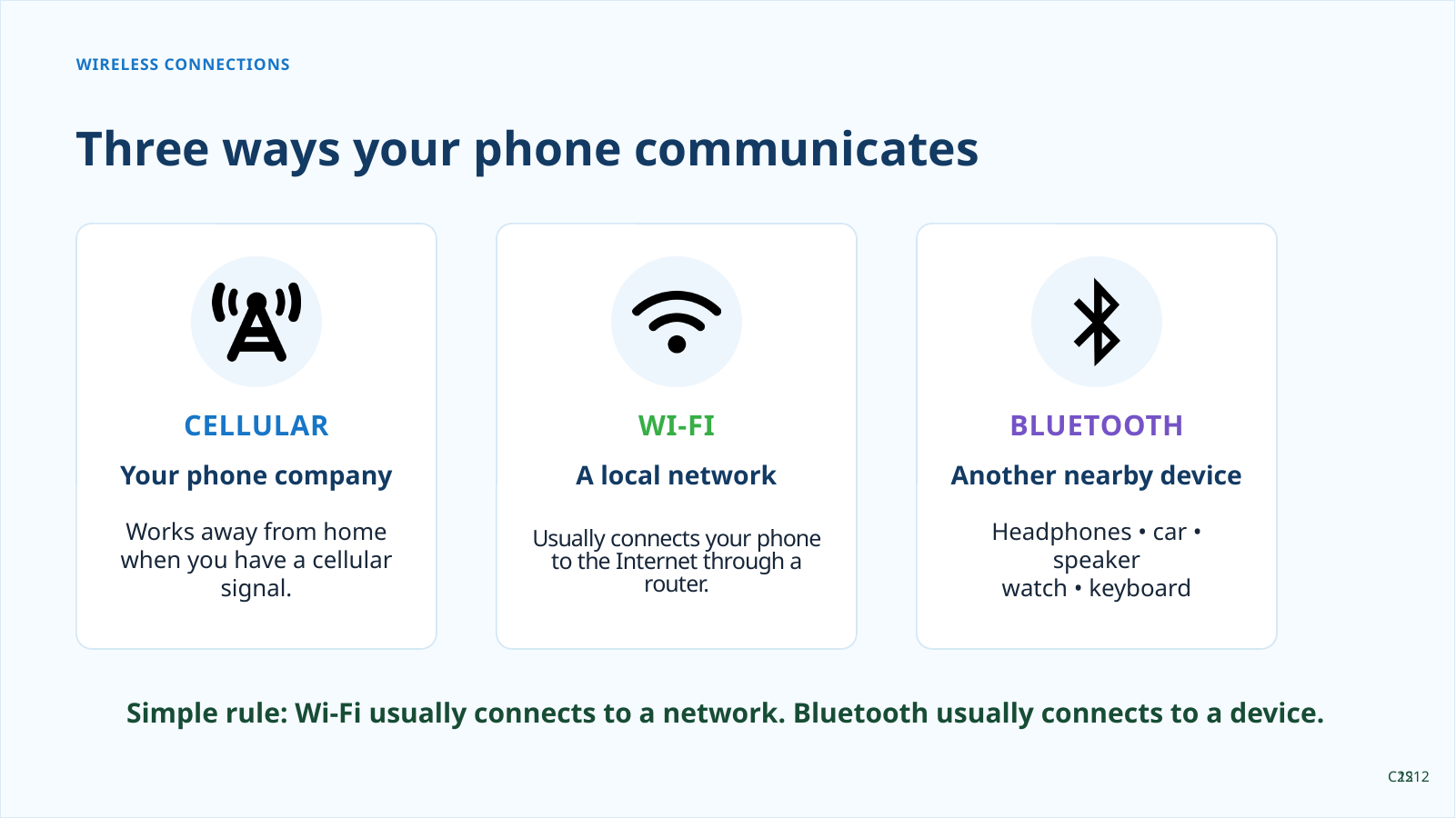
Now we’re going to talk about three things that are easy to mix up: cellular service, Wi-Fi, and Bluetooth.
All three let your phone communicate without a wire, but they do different jobs.
Cellular Service
Cellular service is the connection you get from your phone company — Verizon, AT&T, T-Mobile, or whoever provides your service. That’s what allows the phone to communicate when you’re away from home and aren’t connected to Wi-Fi.
Your cellular plan may also include a certain amount of mobile data. Data is what your phone uses for things such as websites, maps, email, downloading things, and streaming video when you’re using the cellular network.
Different activities use very different amounts of data. Reading ordinary web pages generally uses much less data than streaming video. Downloading a large file or a big app can also use quite a bit.
That’s why I asked you after our last class to find out how much data your cellular plan includes. You don’t need to tell the class what your plan is. I just want you to have some idea what you’re paying for.
Wi-Fi
Wi-Fi is different. Wi-Fi connects your phone to a nearby network. At home, that usually means your phone connects to your router, and your router connects to the Internet.
At the library, a restaurant, a hotel, or here in this building, somebody else provides the Wi-Fi network. When you’re connected to Wi-Fi, your phone normally uses that connection for Internet data instead of using cellular data.
The Wi-Fi symbol can look a little different from phone to phone. It often looks like an open hand fan or a slice of pie made of curved sections. Don’t worry about memorizing one exact drawing; learn the general shape.
Once your phone has successfully connected to a Wi-Fi network, it normally remembers that network. When you come back later, it can reconnect automatically.
That is convenient, but there’s something else we need to talk about: public Wi-Fi.
Just because your phone can connect to a network doesn’t mean you should trust every network you see. A network at your home is different from an unknown network that happens to appear in a parking lot.
Pay attention to the name of the network you’re joining. If you’re at a hotel, restaurant, doctor’s office, or another business, ask for the correct network name if you’re unsure.
You don’t need to be frightened of Wi-Fi. You just shouldn’t connect to every network that appears on the screen.
Bluetooth
Bluetooth is another short-range wireless connection, but it usually has a different job.
You’ll hear the word device a lot in technology. A device is simply a piece of electronic equipment — your phone, a speaker, headphones, a smartwatch, or your car’s audio system can all be devices.
Bluetooth commonly connects one device to another. Your phone might use Bluetooth to connect to your car, headphones, earbuds, a speaker, or a smartwatch.
Here’s a simple way to keep Wi-Fi and Bluetooth apart. Wi-Fi usually connects your phone to a network. Bluetooth usually connects your phone to another device.
Both use radio signals. Both work without wires. But they aren’t interchangeable. Your Bluetooth headphones don’t provide your phone with Internet service, and your home Wi-Fi isn’t what directly connects your phone to your smartwatch.
Battery
I told you last week that we would come back to the battery, so let’s do that now.
Your battery percentage tells you how much charge you have left, but how quickly that charge disappears depends on what the phone is doing.
The screen uses power. That’s one reason brightness can matter. Streaming video, navigation, games, and other activities that keep the phone busy can use more power than simply having the phone sitting in your pocket. Poor cellular reception can also make the phone work harder because it is trying to maintain a connection.
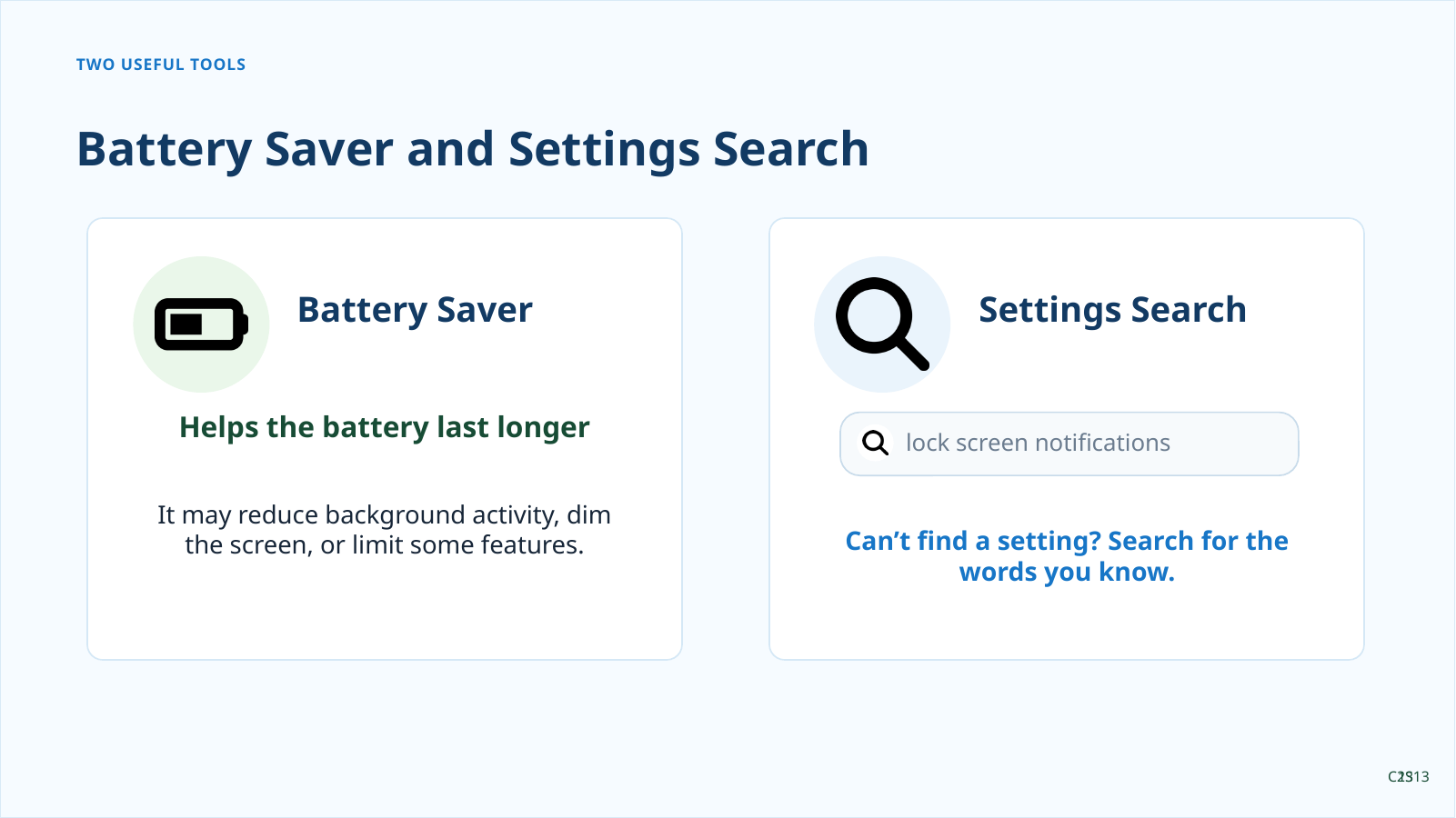
Android has a Battery section in Settings that can give you more information. Most phones also have something called Battery Saver, Power saving, or a similar name.
Battery Saver can help a charge last longer, but it does that by limiting some things the phone normally does. Depending on the phone, some activity in the background may be reduced, some visual effects may change, or some features may respond differently. It is useful when you need it, but it is not magic extra battery power.
For today, I mainly want you to know where Battery information lives and what Battery Saver is for. We are not going to do app-by-app battery management.
Using Search in Settings
By now you’ve seen one of the biggest problems with giving Android directions: the same setting may be in a different place on a different phone.
That is why the Search box in Settings can be so useful. Instead of remembering a long path through menus, you can often search for the setting by name.
Someone asked last week about what information can appear on the lock screen, and we just talked about notifications. That gives us a good real-world example for Settings Search.
Phones can show notifications on the lock screen, but the choices vary. Some phones may show the full notification, some may hide sensitive details, and some may let you hide lock-screen notifications entirely. The wording and location of those choices can also vary.
The important lesson is not the exact menu path. The important lesson is that Search can help you find a setting even when your phone organizes Settings differently from mine.
Organizing the Home Screen
Let’s finish with something more visible.
Last week we talked about the difference between the Home screen and the App Drawer. Remember our kitchen example.
The Home screen is a little like the kitchen counter. You put the things you use regularly where they’re easy to reach. The App Drawer is more like the cupboard or pantry. That’s where all your apps can be found.
Today we’re going to organize that counter a little. I’m going to use a Home screen that doesn’t have much on it so it’s easy to see what happens.
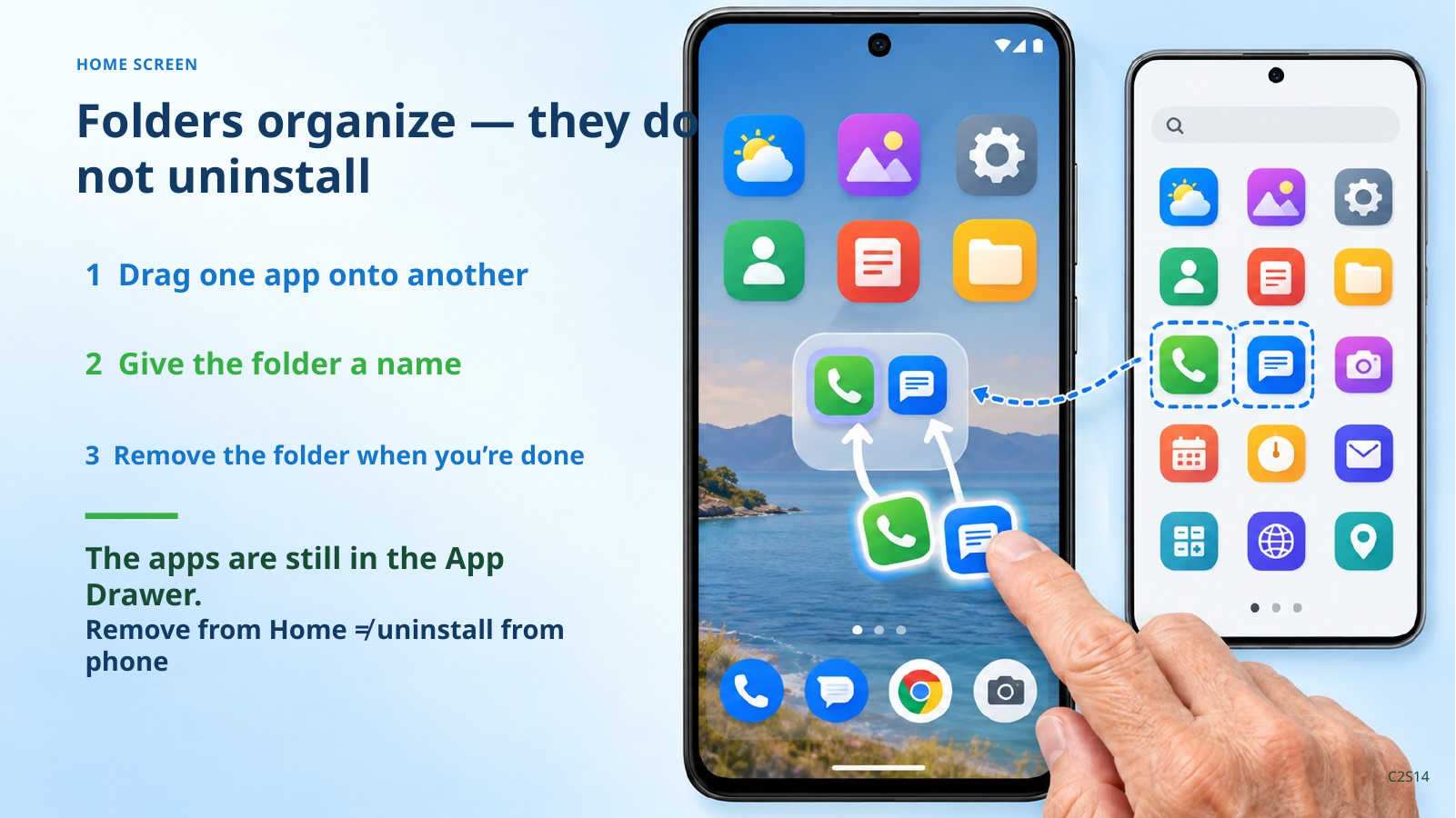
Notice what I did not do. I didn’t move the app out of the App Drawer. I put a way to get to that app on my Home screen. The app is still in the App Drawer.
Let’s put another one there.
Now suppose these two apps belong together. Maybe they’re both games. Maybe they’re both shopping apps. Maybe they’re both things I use when I travel. I can put them into a folder.
Watch what happens when I drag one on top of the other.
Folders let you organize the Home screen without having page after page of individual icons.
Now I’m going to do something I want you to watch closely. I’m going to remove this folder from the Home screen.
There they are. Removing something from the Home screen is not the same thing as uninstalling it from the phone.
That’s an important distinction. The Home screen is something you can arrange for convenience. The App Drawer is where we can still find all of our apps.
Before We Take Our Break
We’ve covered quite a bit today, and I don’t expect you to remember every screen I showed you. That’s what the lab is for.
We learned what Settings and Quick Settings are, and the difference between phone Settings and app settings. We changed display settings and talked about font size, display size, and screen rotation. We learned how to identify our phone and find the Google account used on it. We learned what notifications are, where to find them, and what happens when we tap or dismiss one. We sorted out the volume rocker and the different volume controls. We talked about cellular service, Wi-Fi, and Bluetooth. We revisited the battery and Battery Saver. We used Settings Search to find lock-screen notification controls. And we made and removed a folder without deleting the apps inside it.
If you followed along on your phone and everything worked, great. If you tried to follow along and your phone looked completely different from mine, that’s also useful information.
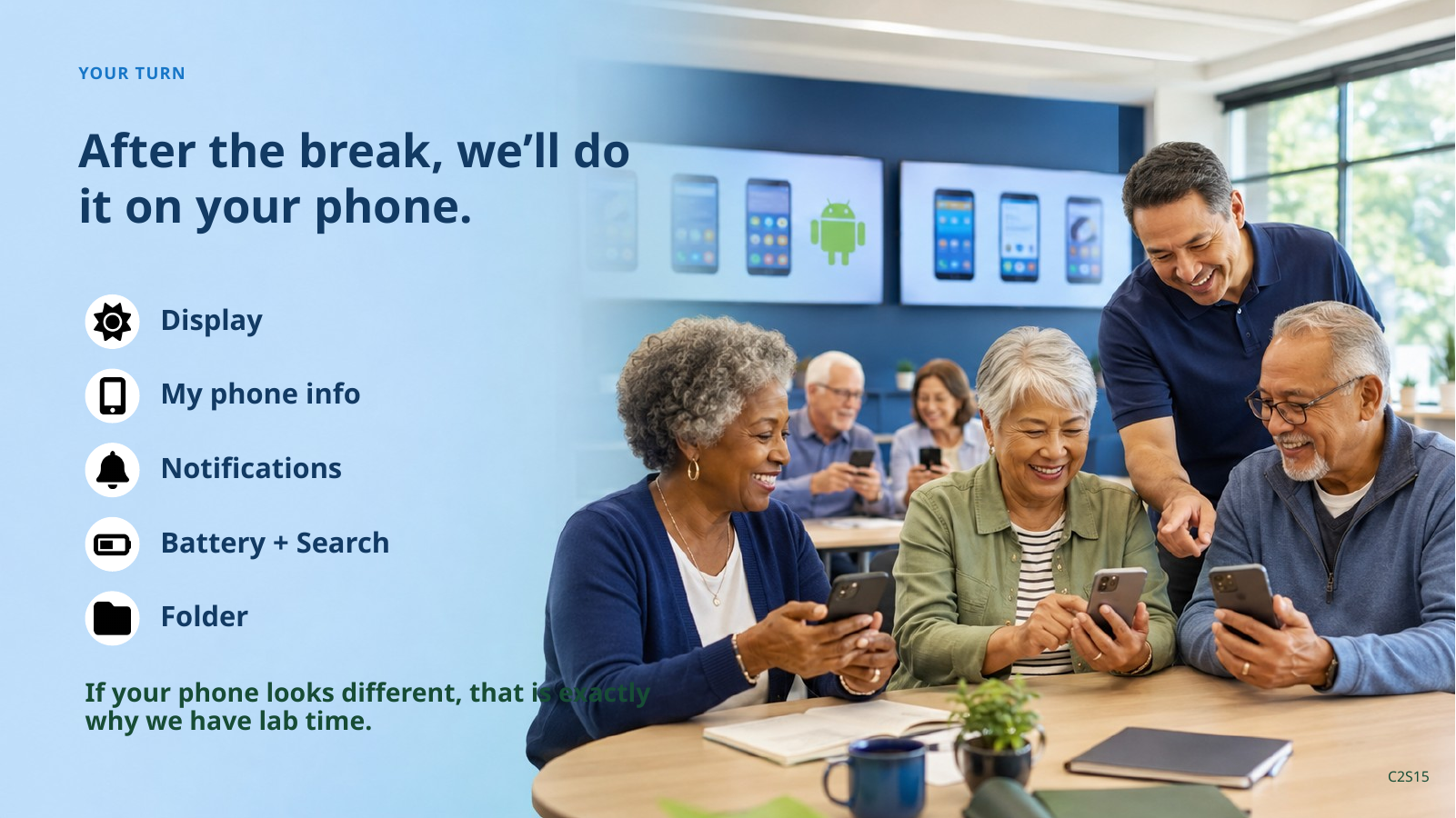
After the break, we’ll slow down and work with your phones. That’s when we’ll take the time to find where your particular phone puts these things.
Lab Exercises
The goal of the lab is not to race through a list. The goal is for each student to leave having successfully done the important Class 2 tasks on his or her own phone.
Students who already completed something while following the lecture do not need to repeat it unless they want the practice.
1. Find Settings and Quick Settings
Students should be able to find and open Settings on their own phones. Show them the Settings app and, when available, the Settings gear in Quick Settings. Successful completion does not depend on memorizing two methods, but students should recognize the term Quick Settings.
2. Make the Screen Comfortable
Help students locate:
• Brightness
• Font size
• Display size, Screen zoom, or the equivalent if their phone provides it
The objective is not for everyone to use the same settings. Students should learn where the controls are and choose settings comfortable for them.
3. Complete “My Phone”
Students complete the box on the Class 2 handout with:
• Brand
• Model
• Android version
• Google account (usually the Gmail address used on the phone)
The brand may not be clearly displayed in About phone; help identify it when necessary. If more than one Google account is present, help the student identify the one they normally use for class-related Google services.
Do not have students copy IMEI, serial number, SIM information, or other device identifiers. Never ask for or record a Google password.
4. Work with Notifications
Students should swipe down from the top of their phones and open the notification panel. Help them identify which app sent at least one notification and what the notification is telling them.
• Swipe down to open the notification panel
• Identify the app that sent a notification
• Tap a notification, if appropriate, and see that it opens the related app or item
• Dismiss one safe, unneeded notification by swiping it away, if one is available
Students should understand that dismissing a notification usually removes the notice, not the underlying message or event. Point out “Clear all” if available, but do not require students to clear their notifications. If practical, show where an individual app’s notification controls can be found without requiring students to change them.
5. Find the Volume Controls
Students should first identify the physical volume rocker on their own phone. Reinforce the see-saw idea: upper end louder, lower end quieter.
Have them press the rocker so the on-screen volume control appears, then help them find the control that opens the expanded volume controls. It may be three dots, an arrow, sliders, or another small control.
Help them identify whichever separate controls their phones provide, such as:
• Media
• Ringtone
• Notifications
• Calls
• Alarm
Students should also recognize Sound, Vibrate, and Mute. Return phones to the student’s preferred sound setting when finished.
6. Use Settings Search
Students should locate Search inside Settings and search for “lock screen notifications” or, if necessary, “lock screen.” Help them locate the setting that controls what notifications or notification content can appear on the lock screen.
The goal is to practice using Settings Search and understand that lock-screen notification choices exist. Do not require every student to choose the same privacy setting.
7. Make a Folder
Students should:
• Open the App Drawer
• Put two apps onto the Home screen
• Drag one app onto the other to create a folder
• Open the folder
• Rename the folder
• Remove the folder from the Home screen
• Open the App Drawer and verify that the apps are still there
The important lesson is not simply how to make a folder. Students should understand that removing an app or folder from the Home screen is different from uninstalling the app.
Topics That Do Not Require Lab Exercises
Do not turn these into required hands-on exercises:
• Screen rotation / Auto-rotate
• Cellular service and mobile data
• Wi-Fi
• Bluetooth
• Public Wi-Fi/security discussion
• Battery and Battery Saver
Students may ask individual questions about these during the lab, but Class 2 does not require everyone to change or manipulate these settings.
Back to top ↑