Welcome Back
Last week we worked with phone calls, contacts, and text messages.
Today we are going to do something most people use their phones for all the time: taking and looking at pictures.
A phone has pretty well replaced the little camera a lot of us used to carry around.
The nice thing is that your camera is usually already with you.
But taking the picture is only part of what we need to know.
Where did the picture go?
How do I find it again?
How do I get rid of a bad one?
And how do I send a picture to somebody else?
That is what we are going to work on today.
Just like we have talked about in the other classes, your phone may not look exactly like mine.
Samsung may have something called Gallery. A Google phone may use Google Photos. Other phones may use slightly different names.
The buttons may also be in slightly different places.
The important thing today is learning what the controls do, not memorizing exactly where every button is on my phone.
You are welcome to watch what I am doing on your own phone, but do not get stuck trying to make your phone match mine.
We will work with everybody's phones during the practice part of class.
1. Two Apps With Two Different Jobs
Before we take a picture, there is one distinction I want to make.
There are usually two different apps involved with pictures.
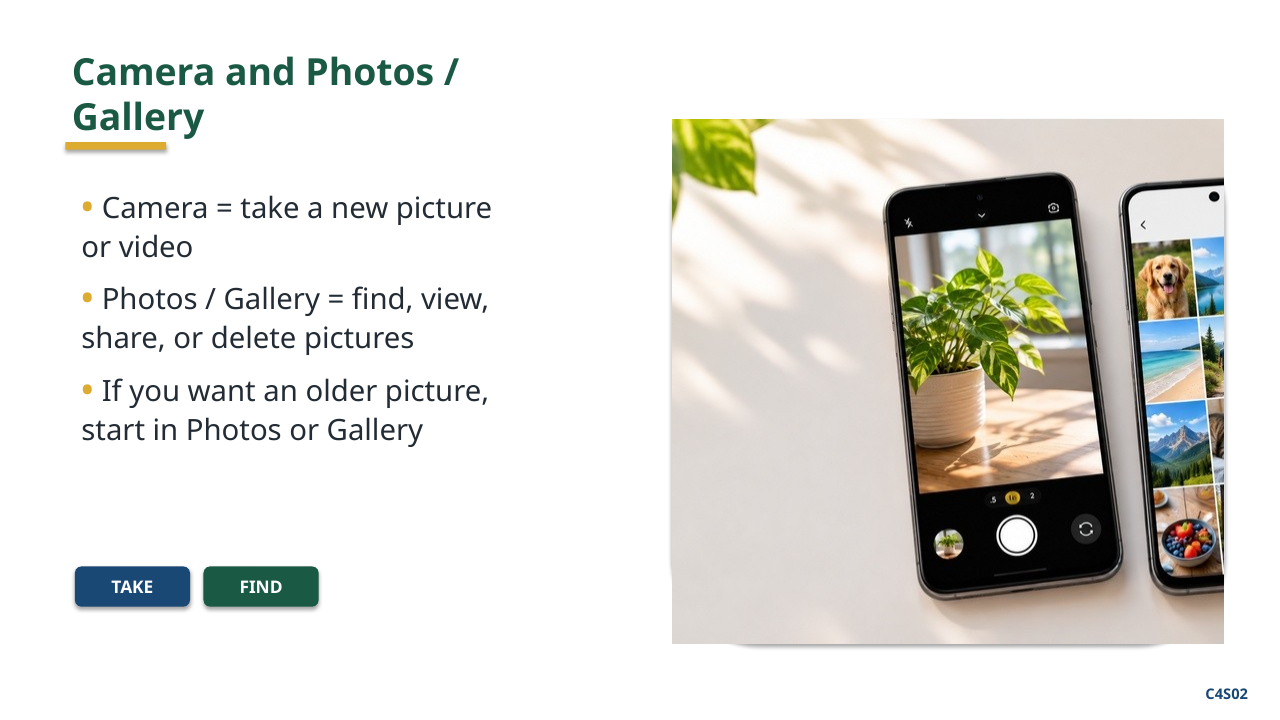
The Camera app is where we take the picture.
The Photos or Gallery app is where we look at pictures we already have.
A simple way to remember it is:
Camera takes the picture.
Photos or Gallery is where you find and work with the picture.
That is not technically everything those apps can do, but it is a good place for us to start.
If you want to take a new picture, think Camera.
If you want to find the picture of your grandchild that you took last Christmas, think Photos or Gallery.
2. Opening the Camera
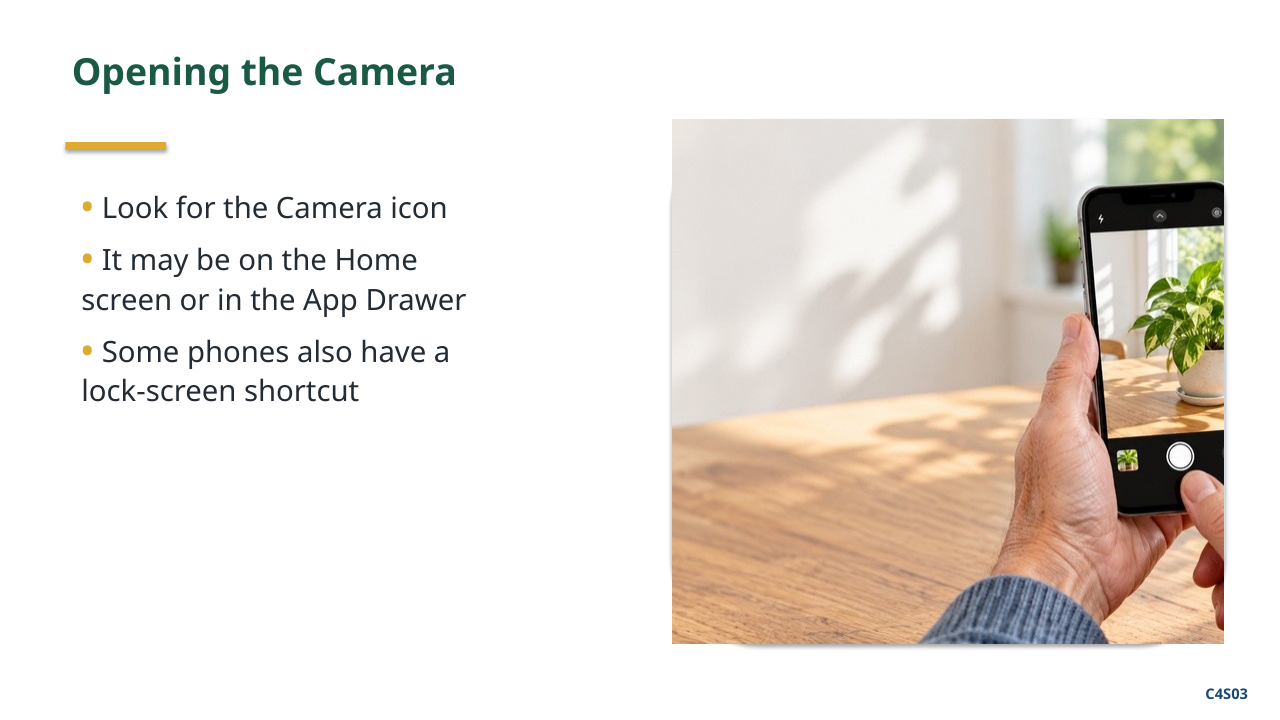
There is almost always a Camera app on an Android phone.
The icon usually looks like some kind of camera.
You may have it on your Home screen. If it is not there, you can look for it in your App Drawer.
Some phones also give you a shortcut to the camera from the Lock screen.
That can be useful when something is happening and you want to take a picture quickly.
But we do not need to memorize every shortcut today.
If you know how to find and open the Camera app, you can take a picture.
3. Holding the Phone
When you open the camera, the screen becomes your viewfinder.
A viewfinder simply means this is what your picture is going to include.
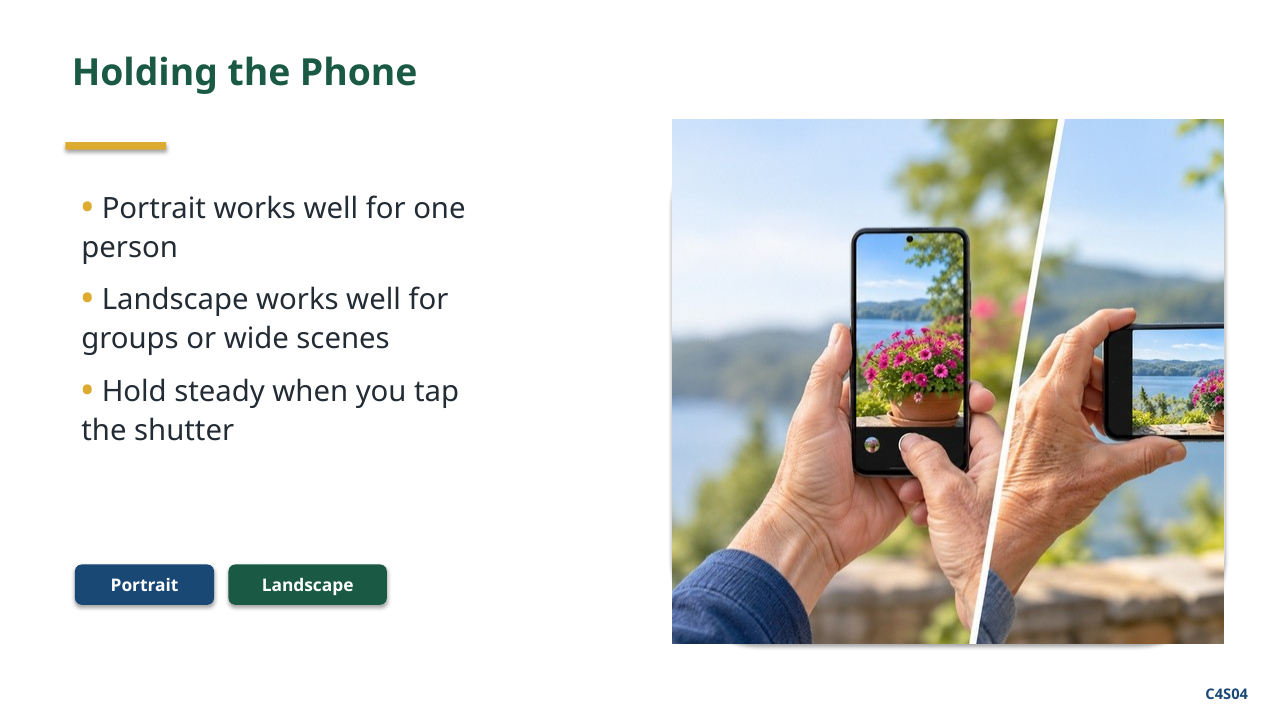
You can hold the phone upright. You can also turn it sideways.
Which way is better depends on the picture.
If you are taking a picture of one person standing up, upright may make sense.
If you are taking a picture of a group of people or a wide landscape, sideways may make more sense.
There is not a rule that says every picture has to be taken one way.
One thing that does matter is trying to hold the phone steady.
You do not have to squeeze it. Just hold it comfortably and try not to move the phone when you take the picture.
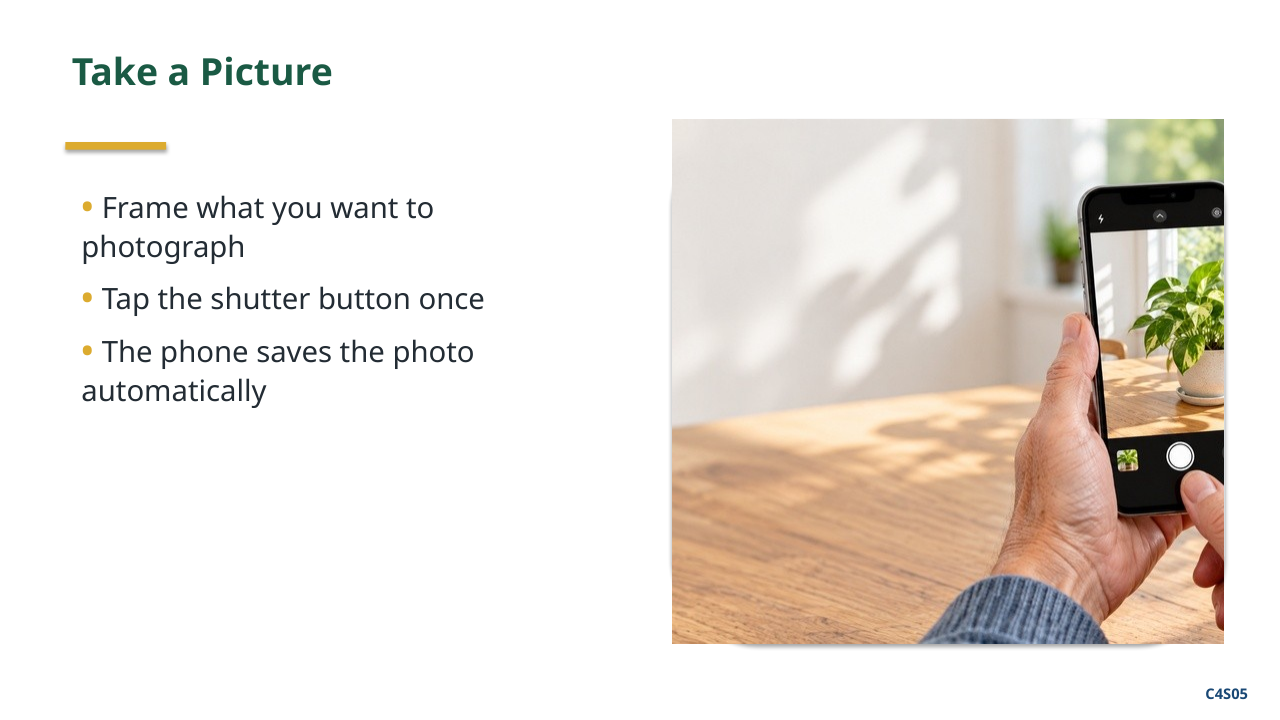
4. Taking a Picture
The main camera button is usually called the shutter button.
On most phones it is a large round button near the bottom of the screen.
When you tap that button, the phone takes the picture. You do not have to hold it down. One tap is enough.
The picture has now been saved.
We did not have to tell the phone where to put it. The phone took care of that for us.
5. Getting a Better Picture
Modern phone cameras do a lot of the work for us automatically.
But there is one simple thing that is useful to know.
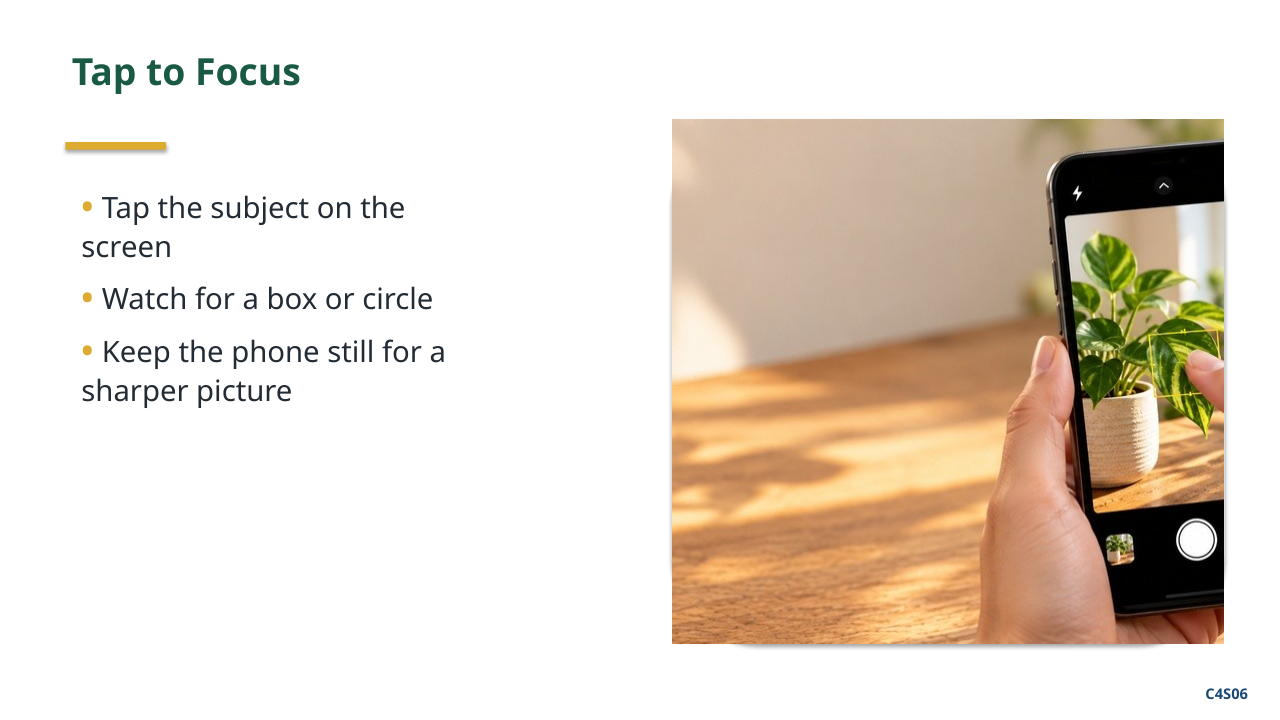
If the camera does not seem to be concentrating on the thing you want, you can usually tap the object on the screen.
That tells the camera, “This is what I am interested in.”
You may see a little square, circle, or other mark appear where you tapped.
That is the camera trying to focus on that part of the picture.
You do not have to do this for every photograph.
Most of the time, the camera will figure things out by itself. But it is useful to know that you can help it.
6. Zoom
Sometimes the thing you want to photograph is farther away.
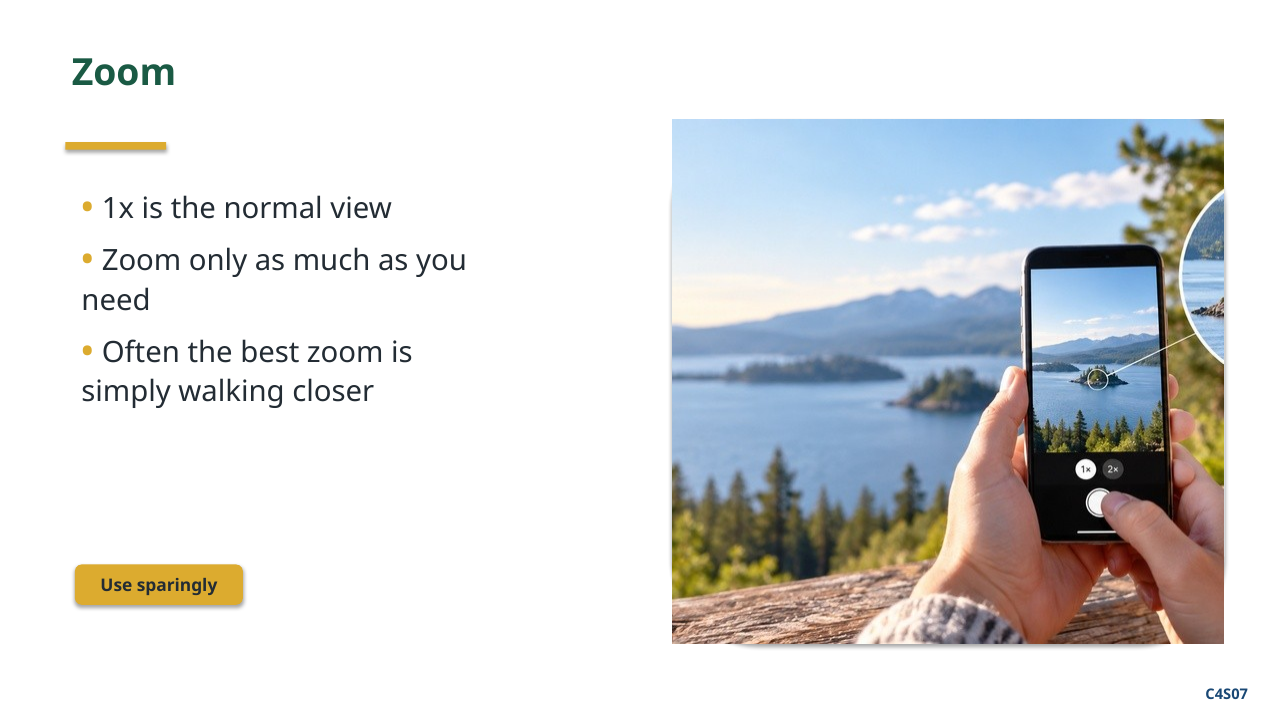
You can usually zoom in by putting two fingers on the screen and spreading them apart.
You may also see buttons such as 1x, 2x, or other zoom choices.
But there is something worth knowing about zoom on a phone.
More zoom does not always mean a better picture.
If you zoom in too far, the picture may become fuzzy or lose detail.
If it is safe and practical, sometimes the best zoom is simply walking a little closer.
For now, I would rather you get comfortable taking a good basic picture than worry about all of the different zoom choices.
7. Front Camera and Back Camera
Your phone actually has cameras on both sides.
The cameras on the back are what you normally use to photograph other people and things around you.
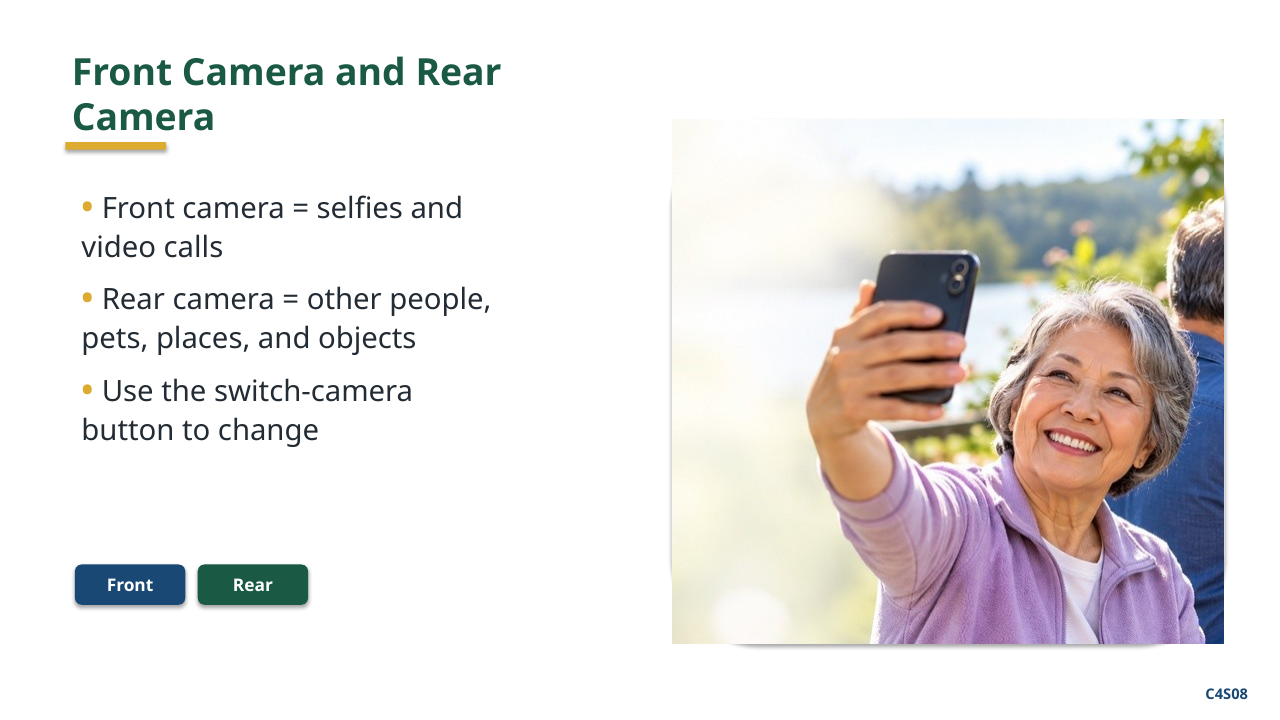
There is also a camera on the front, facing you.
That is the camera we sometimes call the selfie camera.
You already saw that front camera during our first class.
The Camera app has a button that switches between the front and back cameras.
The symbol often looks like a camera with arrows going around it.
If you ever open the camera and suddenly see yourself, nothing is wrong.
You probably just have the front camera selected. Tap that switch-camera button to go back.
8. Pictures and Video
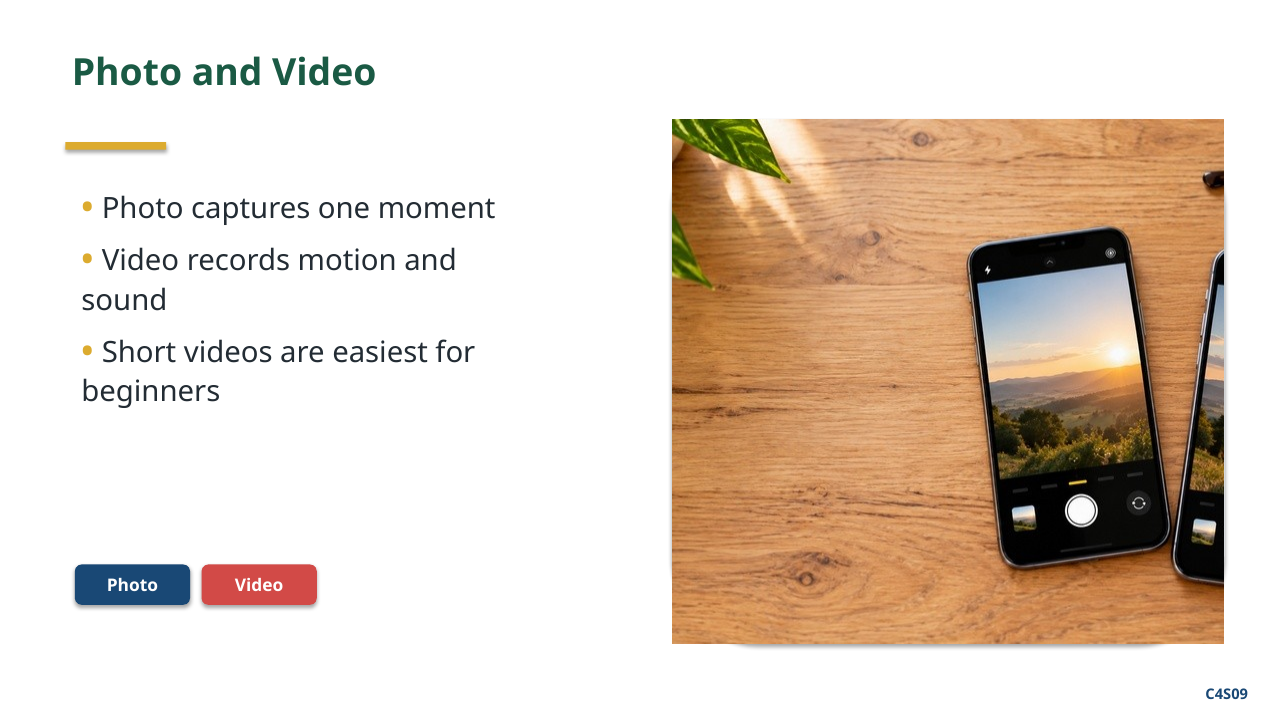
The Camera app can usually take both still pictures and video.
A photograph captures one moment.
A video records what happens over a period of time, including sound.
Near the shutter button you may see choices such as Photo and Video.
There may be several other choices too. We are not going to learn all of those today.
For now, I want you to recognize Photo and Video.
One important difference is that video files are much larger than photographs.
So you probably do not want to record a 20-minute video when what you really wanted was one picture.
9. Where Did My Picture Go?
This may be one of the most important things we do today.
You take a picture. Then what?
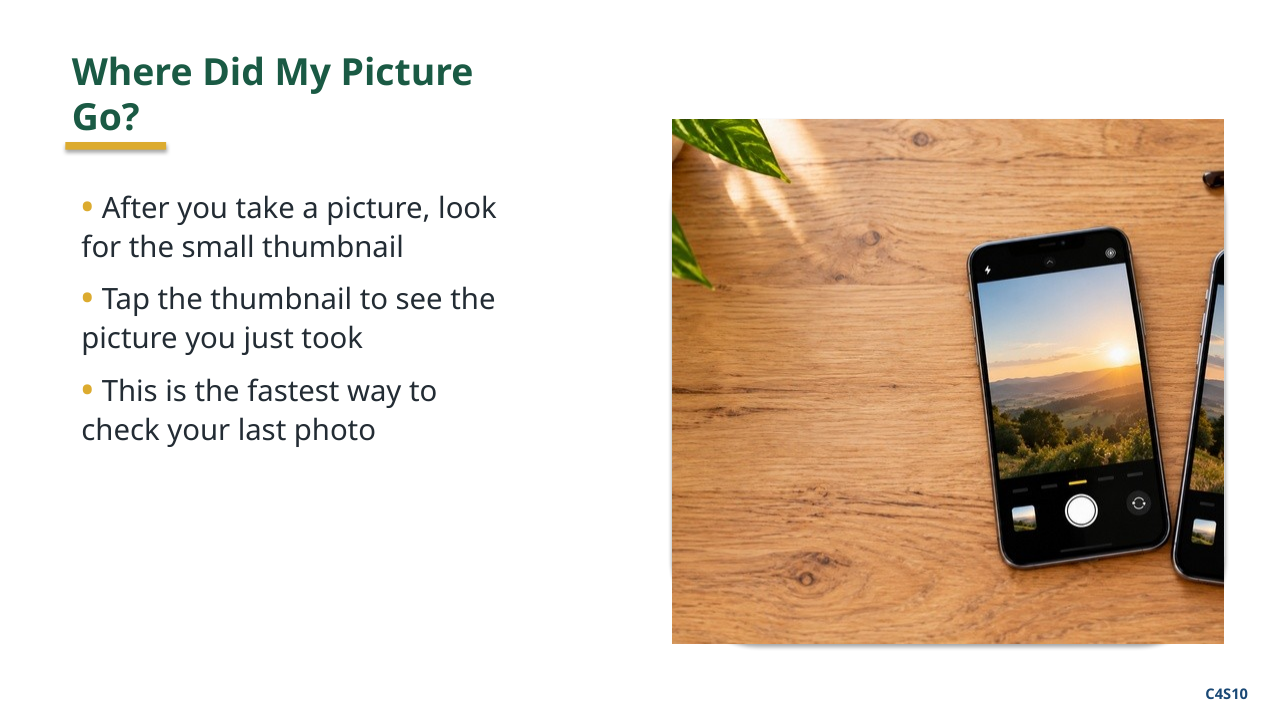
Most Camera apps show a little version of the last picture you took somewhere near the bottom of the screen.
That little picture is called a thumbnail.
A thumbnail is simply a small preview of a larger picture.
If you tap it, you can usually see the picture you just took.
That is one way to find the picture you just took.
But what if you want a picture you took yesterday? Or last month? Or three years ago?
For that, we leave the Camera and go to Photos or Gallery.
10. Photos or Gallery
Remember our simple rule:
Camera takes the picture.
Photos or Gallery is where you find and work with the picture.
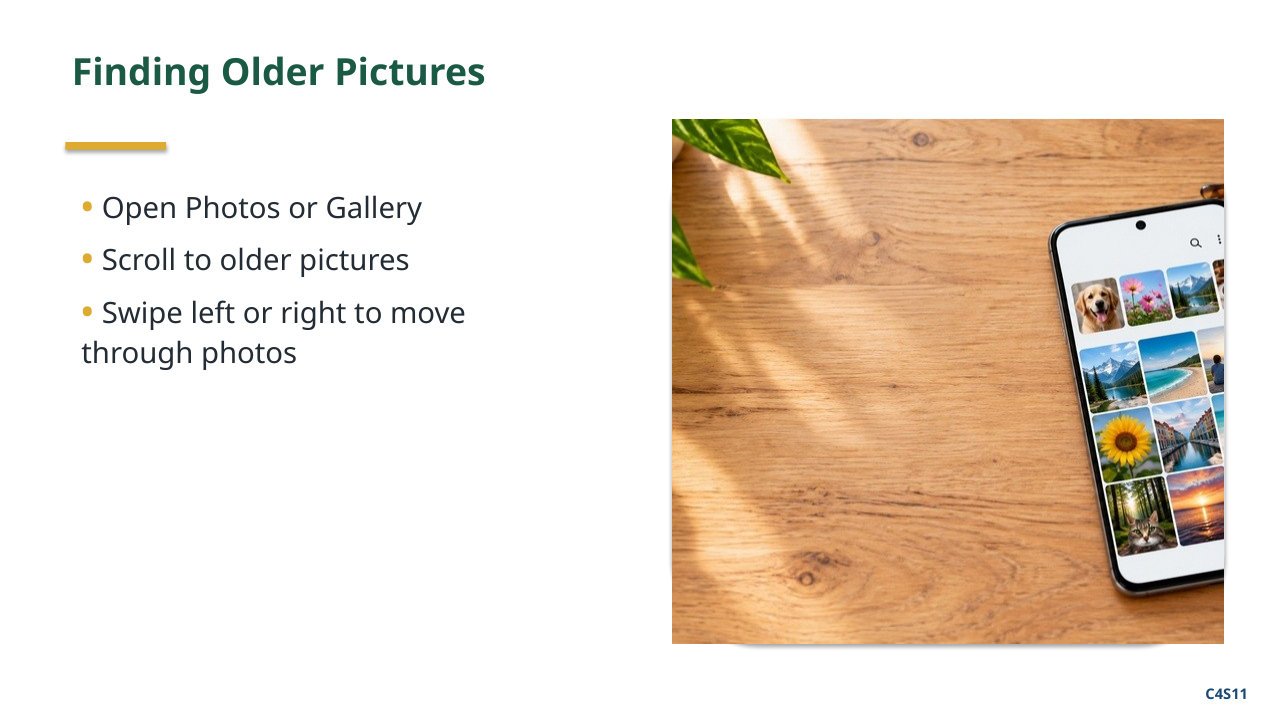
When you open Photos or Gallery, you should see pictures that are already on your phone or available to you through that app.
Usually the newest pictures are easy to find. As you scroll, you move back through older pictures.
You do not need to memorize where a particular photograph is today.
The important thing is knowing: If I want to find an old picture, I start in Photos or Gallery, not in Camera.
11. Looking at a Picture
Once you open a picture, you can usually swipe left or right to move through other pictures.
You can also use two fingers to make part of the picture larger.
That is the same pinch-and-spread motion we have used elsewhere on the phone.
Remember that enlarging a picture on the screen does not change the original picture.
You are just changing the way you are looking at it.
12. Deleting a Bad Picture
Not every picture is worth keeping.
Sometimes you get a picture of your finger. Sometimes somebody has their eyes closed. Sometimes you take three pictures when you only needed one.
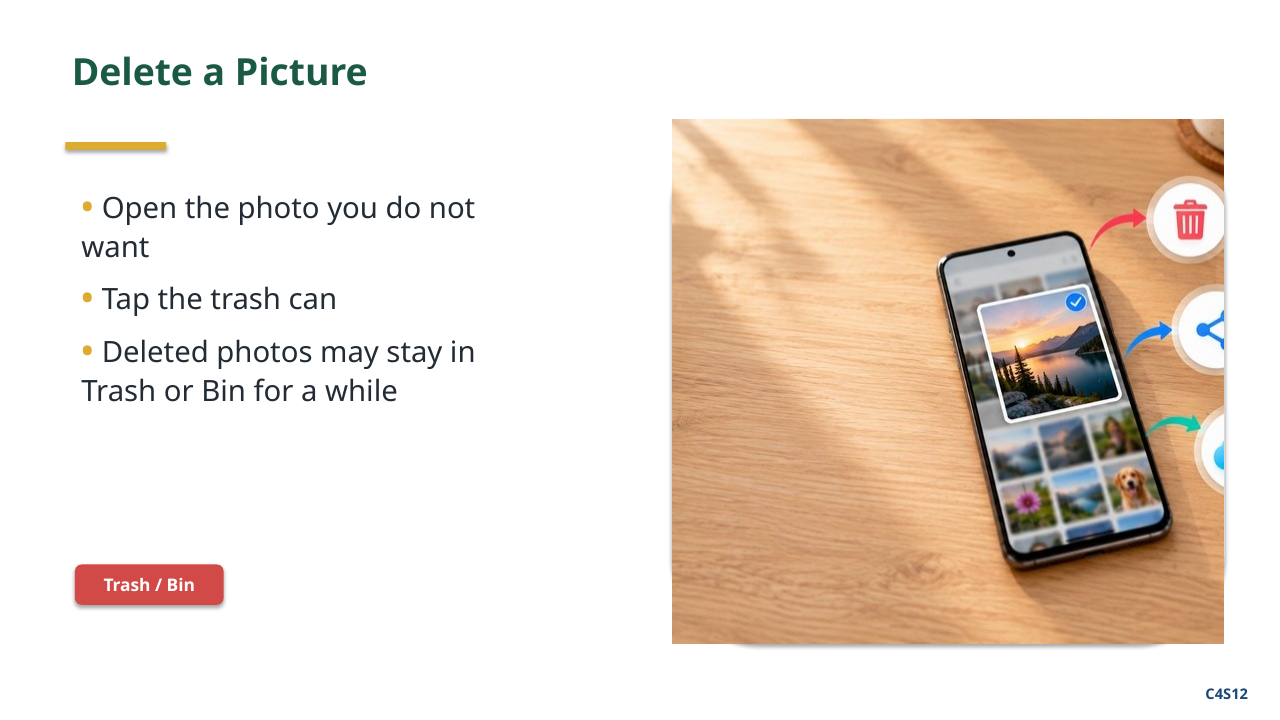
When you open a picture, look for a trash can symbol. That normally means Delete.
On many phones, deleting a picture does not destroy it immediately.
It goes into something called Trash, Bin, or a similar folder for a period of time.
That gives you a chance to recover something you deleted accidentally.
We are not going to spend a lot of time working with Trash today.
I mainly want you to know that if you accidentally delete an important picture, do not panic. There may still be a way to get it back.
13. Sharing a Picture
Now let us do one of the most useful things we can do with a photograph.
Let us send it to somebody.
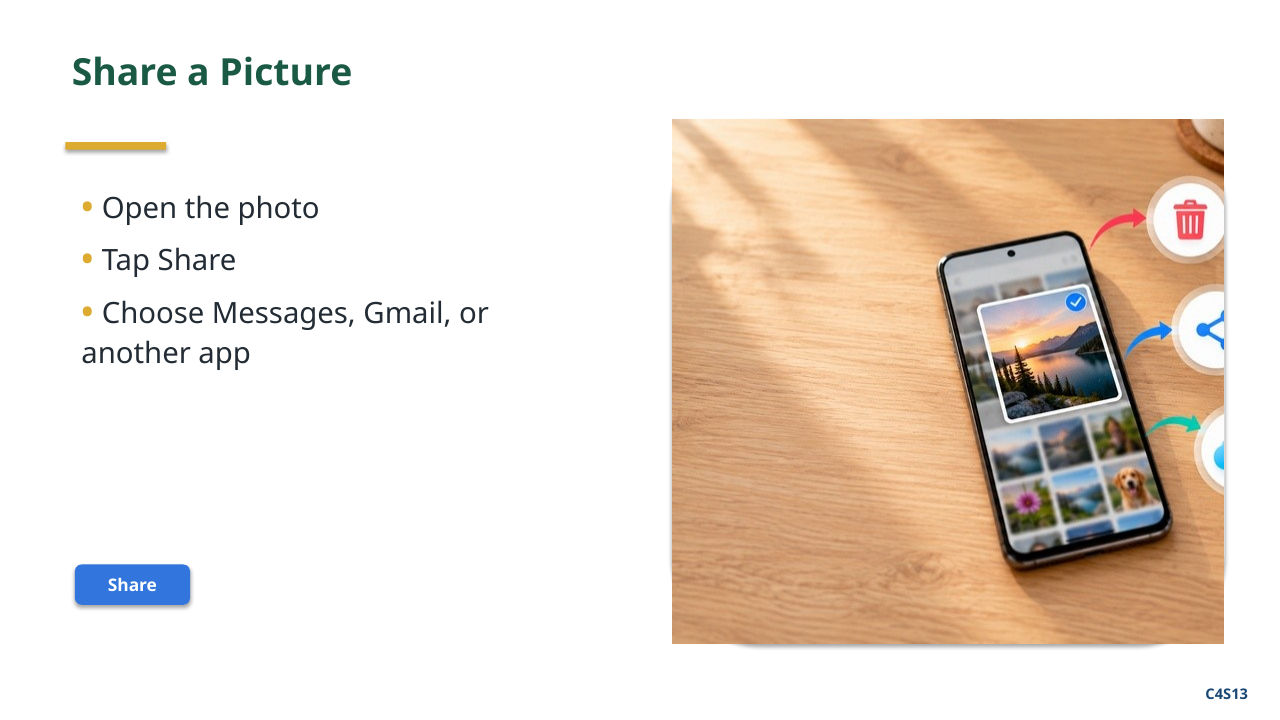
When you are looking at a picture, you will usually see a Share symbol.
The Share symbol may look different on different phones. On many Android phones it looks like three dots connected by lines.
When you tap Share, the phone asks what you want to use to share the picture.
You might see Messages. You might see Gmail. You may see other apps.
You do not need to understand every choice.
Think of sharing in two steps:
First: What do I want to share?
Second: Who do I want to send it to, or what app do I want to use?
This connects directly to what we did last week with text messages.
Last week we learned how to send a message. Today we are adding a picture to that message.
14. One Picture or Several Pictures
Sometimes you may want to share more than one picture.
Most photo apps let you select several pictures.
Usually this starts by long-pressing one picture.
Remember what long-press means: touch something and leave your finger there for a moment.
Once one picture is selected, you can usually tap additional pictures.
We will practice this later if we have time.
For an absolute beginner, being able to share one picture correctly is more important than learning every possible way to select several.
15. Google Photos Backup - Is My Picture Really Safe?
There is one more subject I want to cover because it can matter a great deal if your phone is ever lost, damaged, or replaced.
Google Photos can be set to back up your pictures to your Google account.
Backup means an extra copy of the picture is saved with your account, instead of existing only on the phone.
If a picture has actually been backed up, losing the phone does not mean losing that backed-up picture. When you sign in to the same Google account on another device, those backed-up pictures can still be available to you.
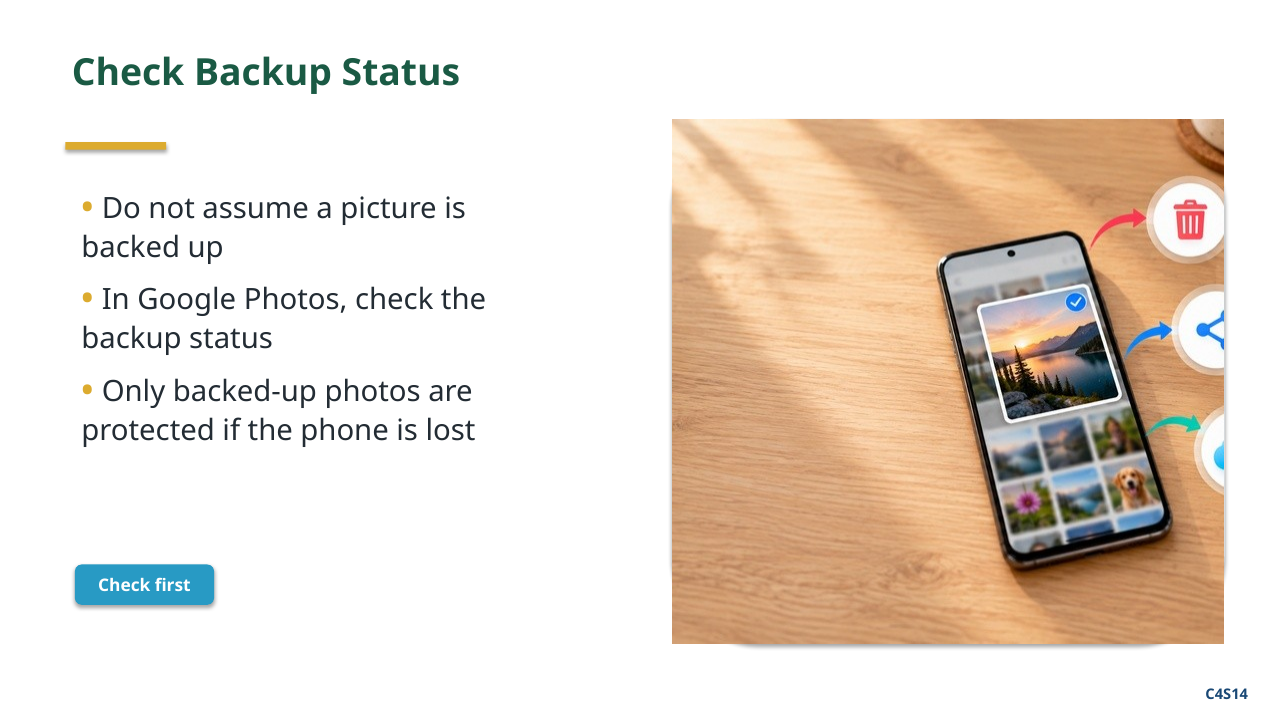
But there is an important warning: do not assume your pictures are backed up just because you can see them in Google Photos or Gallery.
Google Photos can show pictures that are only stored on the phone. Samsung Gallery is also not the same thing as Google Photos backup.
So the safe rule is: check the backup status.
The important thing I want you to remember is this:
Seeing the picture is not proof that it is backed up.
Check the backup status.
Only pictures that have actually been backed up are protected this way if the phone is lost or damaged.
We are not going to get into Google Takeout, downloading entire photo collections, storage plans, or the other advanced parts of cloud storage in this beginner class.
For today, knowing what backup means and knowing how to check whether it is working is enough.
16. Things We Are Not Learning Today
When you start looking around the Camera and Photos apps, you are going to see a lot of other choices.
Portrait
Night mode
Panorama
Editing
Filters
Albums
Memories
Lens
And maybe several things I have not named.
You are welcome to explore those eventually. But you do not need any of them to use the camera successfully.
Today our goal is much simpler.
Can you:
open the camera,
take a picture,
find the picture,
find an older picture,
delete a picture you do not want,
share a picture with somebody,
and check whether Google Photos backup is working?
If you can do those things, you know the basic skills you need to use the camera and your photographs.
Before the Break
Let us review the two apps one more time.
What does the Camera app do?
It takes the picture.
What does Photos or Gallery do?
It lets us find and work with pictures we have already taken.
And what should we remember about backup?
Do not assume. Check the backup status.
And if your buttons do not look exactly like mine?
That is normal.
After the break, we will work with your phones.
You will take some pictures, find them again, try the front and back cameras, take a short video, delete something you do not need, practice sharing a picture, and check the Google Photos backup status where appropriate.
10-Minute Break
After the Break - 35-Minute Practice
The practice session should reinforce the lecture rather than introduce a lot of new material.
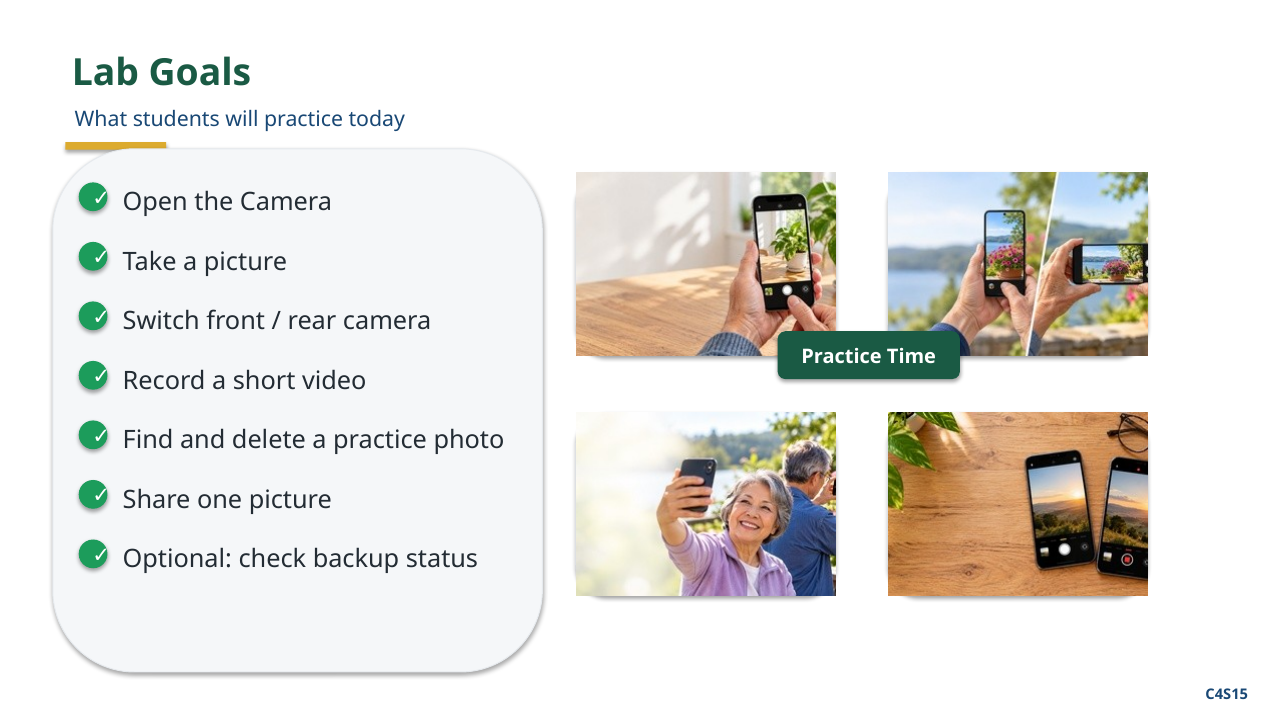
Students should practice:
Opening the Camera.
Taking a normal photograph.
Turning the phone and taking another photograph.
Switching between the rear and front cameras.
Taking a short video and stopping it.
Finding the photograph they just took.
Opening Photos or Gallery and finding an older photograph.
Swiping between photographs.
Deleting an unneeded practice photograph.
Sharing one practice photograph with another student or another planned recipient.
Checking the Google Photos backup status where Google Photos is being used.
If time permits, selecting more than one photograph.
The instructor can work individually with phones that use different Camera, Photos, or Gallery layouts.
For backup, the goal is to identify the status correctly - not to turn backup on for everyone. If a student wants to enable backup, first make sure the student understands which Google account will receive the pictures and what the setting does.
Back to top ↑